
Saving Blocks
The Save Blocks feature allows you to save your current blocking solution and be able to reload it after trying other blocking solutions.
-
On the Blocking tab, click .
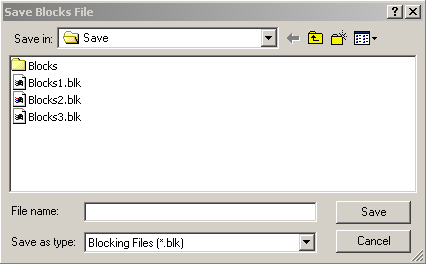
The Save Blocks File dialog box appears.
The Save Blocks feature allows you to save your current blocking solution and be able to reload it after trying other blocking solutions.