
Place text in quotation marks for exact match search results.
Loading Blocks
The Load Blocks feature allows you to retrieve a saved block file.
You can choose to load block files which match your current context (same sign-up period and service group) or from a different sign-up period and service group.
On the Blocking tab, click Blocking > Load Blocks.
The Load Blocks File dialog box appears.
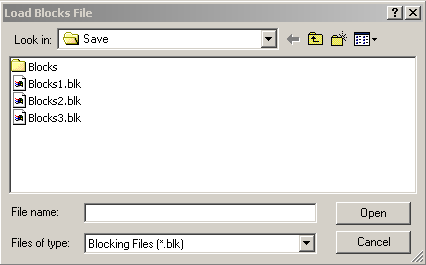
Select the block file you want to load.
Click Open.
The Match Trips dialog box appears.
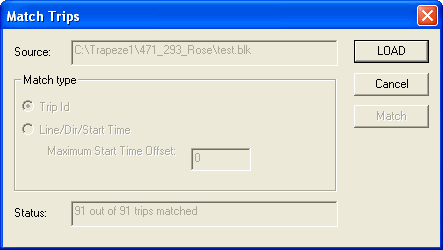
Trips are considered matched if their lines, patterns, services and service groups,
exceptions, and start times are the same.
If all the trips are matched as shown in the Status field, the
fields in the Match type frame appear shaded.
If some trips are not matched as shown in the Status field, the
fields in the Match type frame are activated.
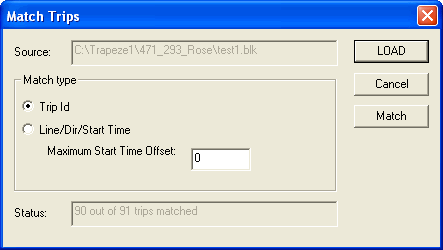
Depending on the data you require, perform one of the following steps:
To load files with the same context as the current context, leave the
Trip Id option selected.
To load files from a different context, for example, different sign-up period,
click Line/Dir/Start Time.
In the Maximum Start Time Offset field, type an appropriate
value.
Click Match.
If the Status field indicates all trips are matched, click
Load.
The data is loaded into the Blocked grid.
If you chose to load data with some trips not matching, the pieces that do not match appear in
the Unblocked grid.
The system ignores trips in the block file that are
not in the database. The trips that are in the database but not in the file are
unblocked.