
Combining On Days Optimally
On Days refer to the days that operators are scheduled to work. Combining them optimally means that they are put together in the most efficient way, for example, by arranging them to occur consecutively.
-
In the Optimize On frame, select the Nearest On
Time check box.
This selection is considered with the combinations you make in the Combine On frame.
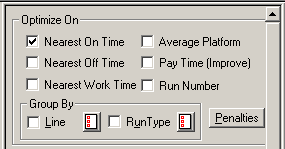
- If you have runs that have exceptions, select the Run Number check box.
- In the Group By frame, select Line or Run Type.
- To define penalties for the rosters you want to create, click Penalties. The values used in the descriptions are for illustration purposes only.
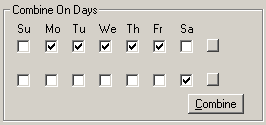
- In the Combine On Days frame, click the button beside the check boxes on the first row. The check boxes under the weekdays (Monday to Friday) are selected.
-
Click the button in the second row under Sa (Saturday). Make sure that what you want to
combine are in separate rows.
-
Click Combine.
The system creates as many 6-day rosters as possible.
- In the first row, maintain the selected weekdays and select the Sa check box in the first row. The Sa check box in the second row is cleared.
-
In the second row, select the check box under Su (Sunday).
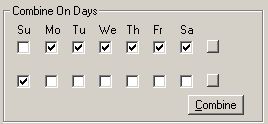
- Click Combine again. This creates as many 7-day rosters as possible. After the first combine, some illegal rosters may occur.
- View your off day statistics to check what has been rostered and what remains unrostered.