Bidding New Features
Bidding enhancements have been added in v21.0, v21.1, and v21.2.
General
- In the OPS Sign-Up Management screen, in the Shorten Sign-up Period, Extend Sign-up Period, and Import Into An Existing Sign-Up Period dialogs, the Affects Bids area has been updated to show Divisions In Bids and Holidays In Bids (instead of Affects Divisions and Affects Holidays). The Affects Holidays frame shows holidays that will change when a sign-up period is shortened, extended, or when a middle import is done.
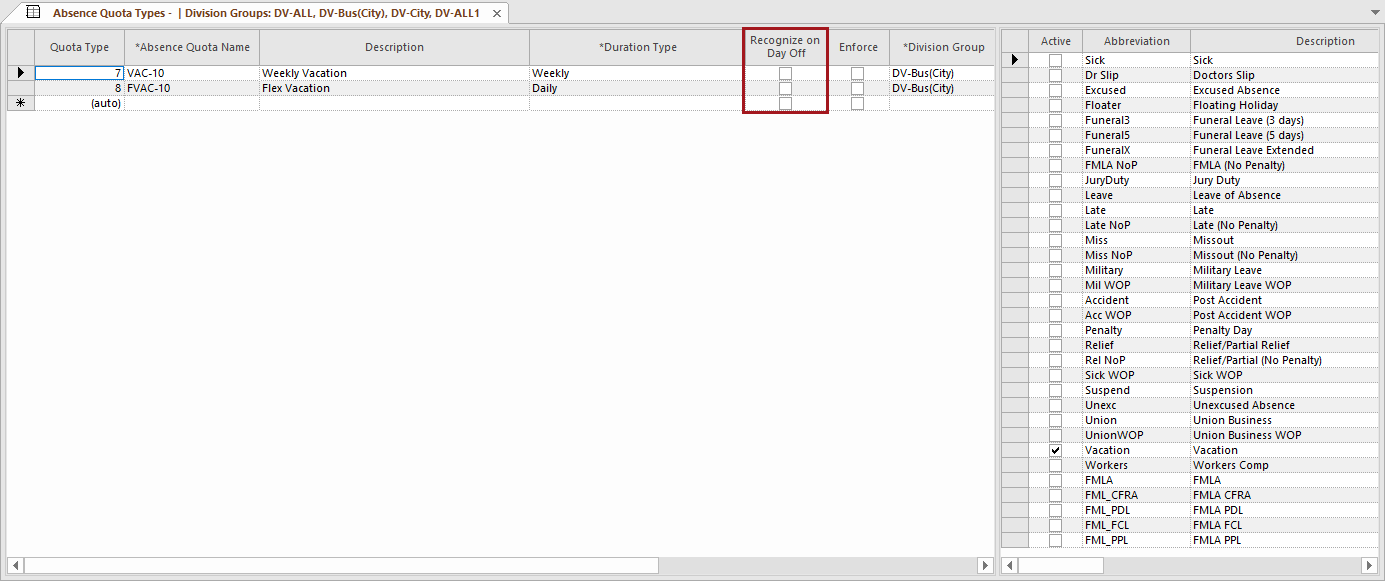
- A new field was added to the Absence Quota Types screen.
Recognize on Day Off is used with
Daily or Multiple Daily
Duration Types (not Weekly). If
selected, absence quotas are counted on employee days off. This doesn't affect accrual
balance calculation.
- Improvements were made to absence quotas. In Absence Quota Types
ancillary data, the Bidding Display field now has an
in Hours option.
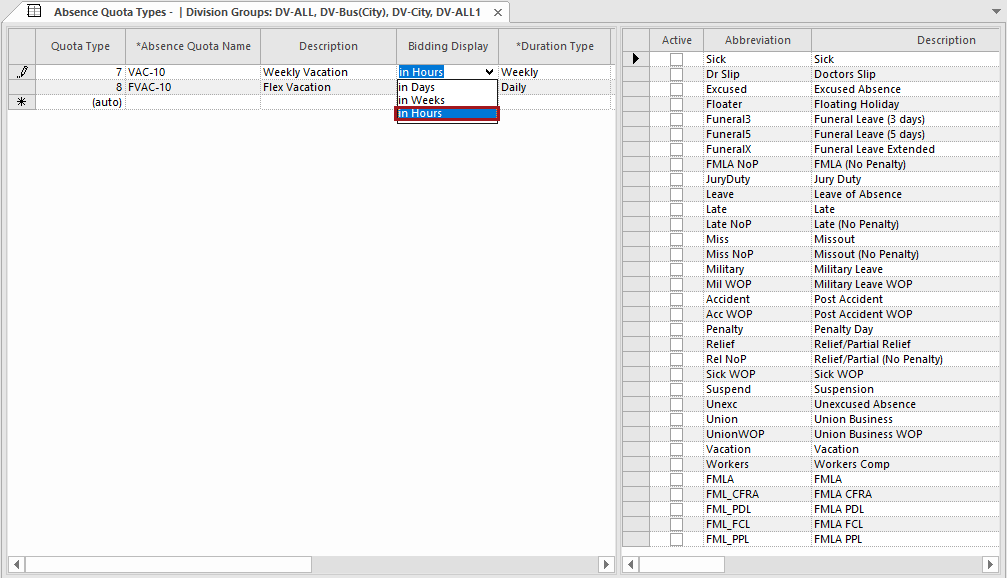
When selected, in the Employee Bid Wizard, on the Absence page, the Absence Quota Type value includes the hours available (for example, 144h00); in the Bidding screen, on the Accrual tab, hours are also shown. - In the OPS Roster Management screen, the Context option Roster has been renamed Roster Division and the Context option Work has been renamed Work Division.
- When configuring operational bids for roster bids, the Number Needed is now automatically populated based on the number of available rosters.
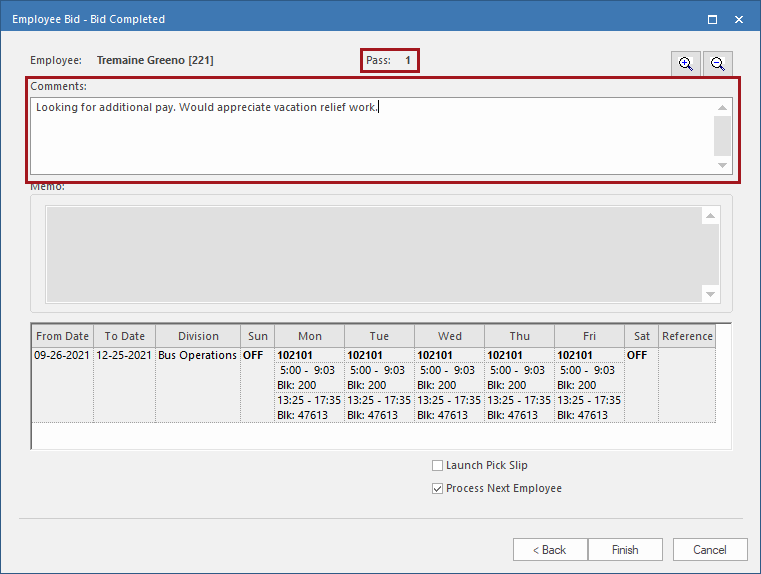
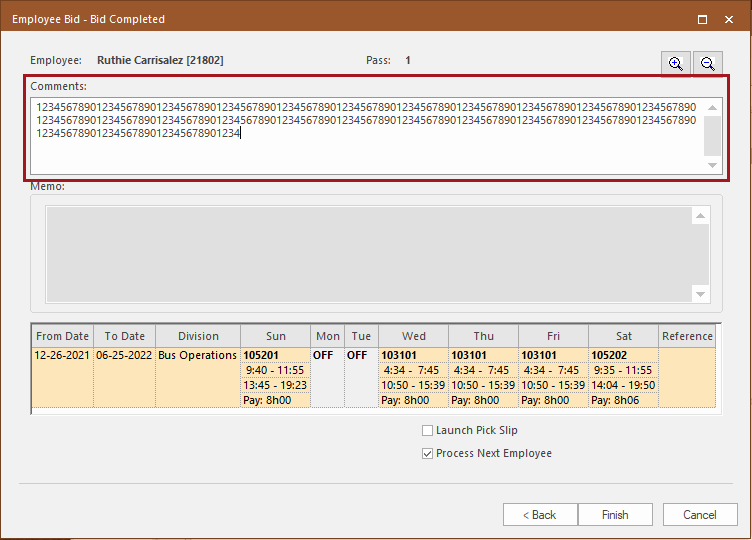
- In the Employee Bid Wizard, in the
Comments section on the Bid Completed
page, users are now restricted to 254 characters.
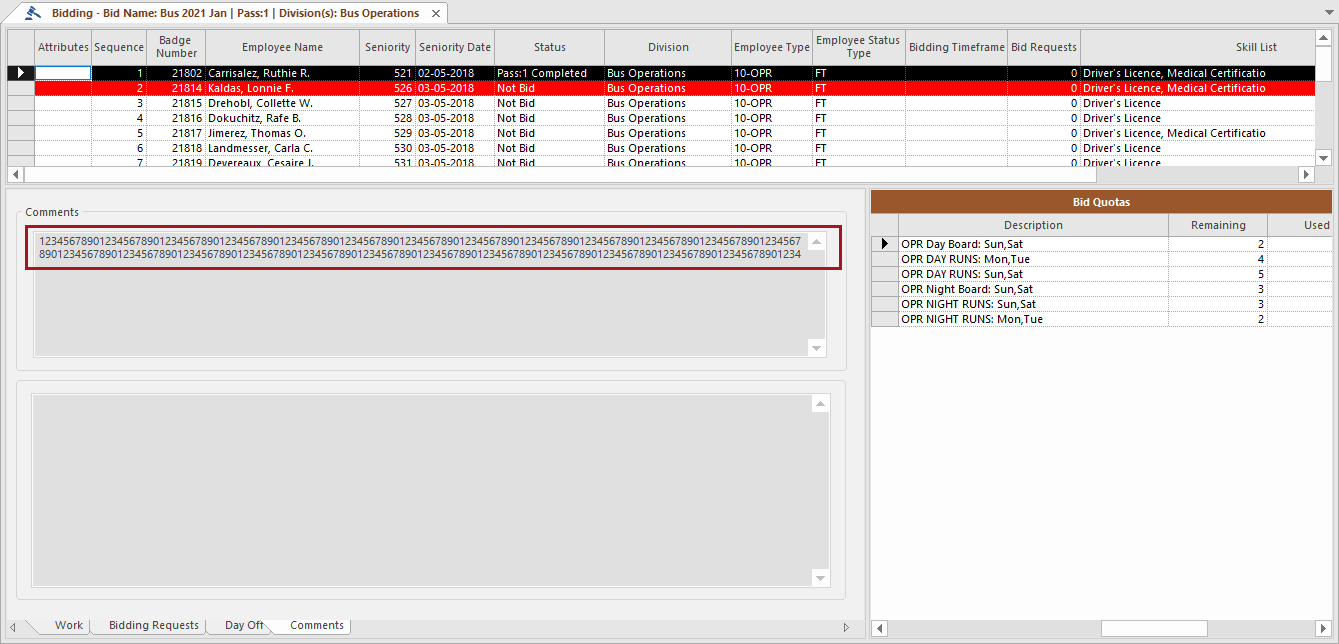
- In Bidding, on the Employee Detail
Comments tab, comments can now be viewed without scrolling.
- You can now create bids in the same sign-up period for the same division
as long as the work type being bid on is different.

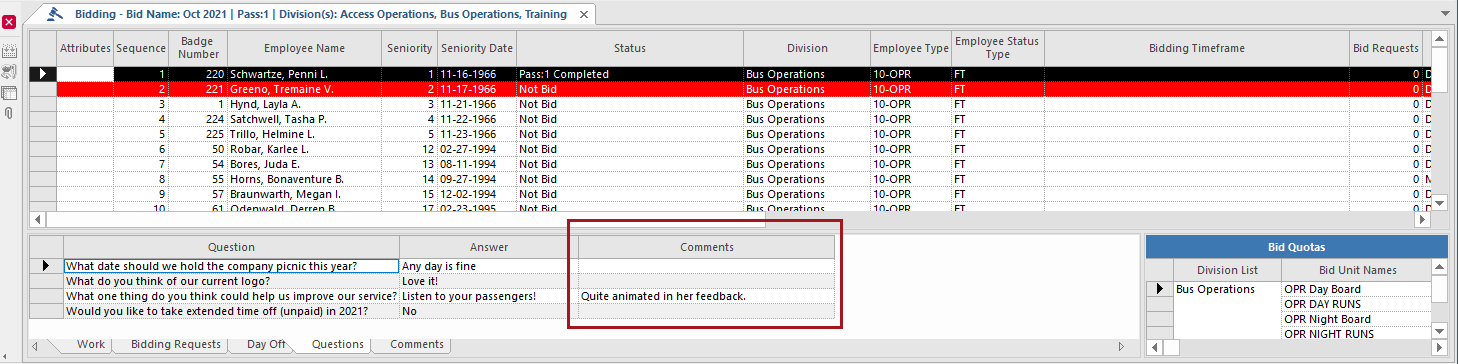
- A
Comments column was added to the Questions
tab.
- Holidays in Bidding are now sorted by date (not holiday ID).
- When determining the number of days off, the system now checks the property to see how many days off should be included in the week.
- Holiday
Off designations in Work Planner are now based on whether or not
the employee has holiday work on holiday dates.
Also, and are taken into consideration. Regular work assigned on the holiday is checked; if it is extraboard or regular work and the property is enabled, Holiday Off is not shown in Work Planner, even if the employee does not have holiday work assigned.
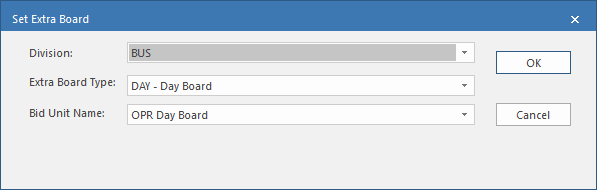
- In Work Planner, in the Set Extra
Board dialog, you can now choose a division for the extraboard. A new
property is associated with this feature.
Employee Skills Check
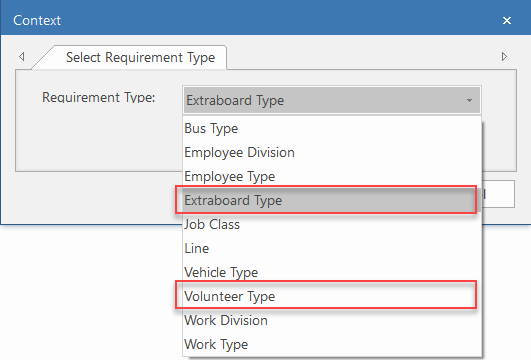
Support has been developed to flag missing required or optional skills for Extraboard or Volunteer type of work:- In the OPS Skill Requirements screen Context, for
Requirement Type you can now choose Extraboard
Type and Volunteer Type:
- If
required skills or optional skills are missing for Extraboard or Volunteer
assignments, a skills check is now prompted on various screens.
When you add or assign an employee or add an Extraboard or Volunteer type in the following screens, a message for a skills check now appears:
- Daily Employee List. When adding an employee as extraboard or volunteer based on the context selection.
- Work Planner. When selecting an extraboard type to add for an employee.
- Employee Volunteer Status Entry. When selecting the volunteer type in the calendar for a single day or multiple days and applying changes.
- Daily Activity - Assign Employee. When assigning the selected employee to an extraboard or volunteer type of work.
- Employee Profile - Volunteer Tab. When adding a volunteer type to an employee, and the skills are missing for any single day in the selected period.
- Activate Day - Creating Daily Employee List. In the Activate Day log messages when adding an employee into the daily employee list.
- Employee Self-Service - Volunteer calendar. When adding a
volunteer type to an employee for the day.
If optional skills are missing, the message is not shown. Employee Self-Service automatically adds the volunteer status for the employee.
- Bidding - Employee Bid. When using the Employee Bid wizard in the Select Quota and Volunteer screens based on the selected quota and its Extraboard type and on the selected Volunteer type, respectively.
- Operational Bidding - Extraboard operational bid. When using the Employee Bid wizard in the Select Quota screen, based on the selected quota and its Extraboard type.
- Operational Bidding - Hold Down operational bid. When using the Employee Bid wizard in the Work Selection screen based on the work type and its Extraboard type.
Multi-pass Vacation Relief
Enhancements have been made to the multi-pass bidding feature.
- In the Client Shell, in the Edit Bidding Times dialog, a Click here to select bidding time for second pass check box has been added. The To Date/Time (Deadline Date) must be a date on or after the second pass first deadline date.
- New employees can be added before a second pass and second pass bid times can be entered.
- Comments from Pass 1 and Pass 2 are visible on the
Comments tab. The maximum length is 254 characters.
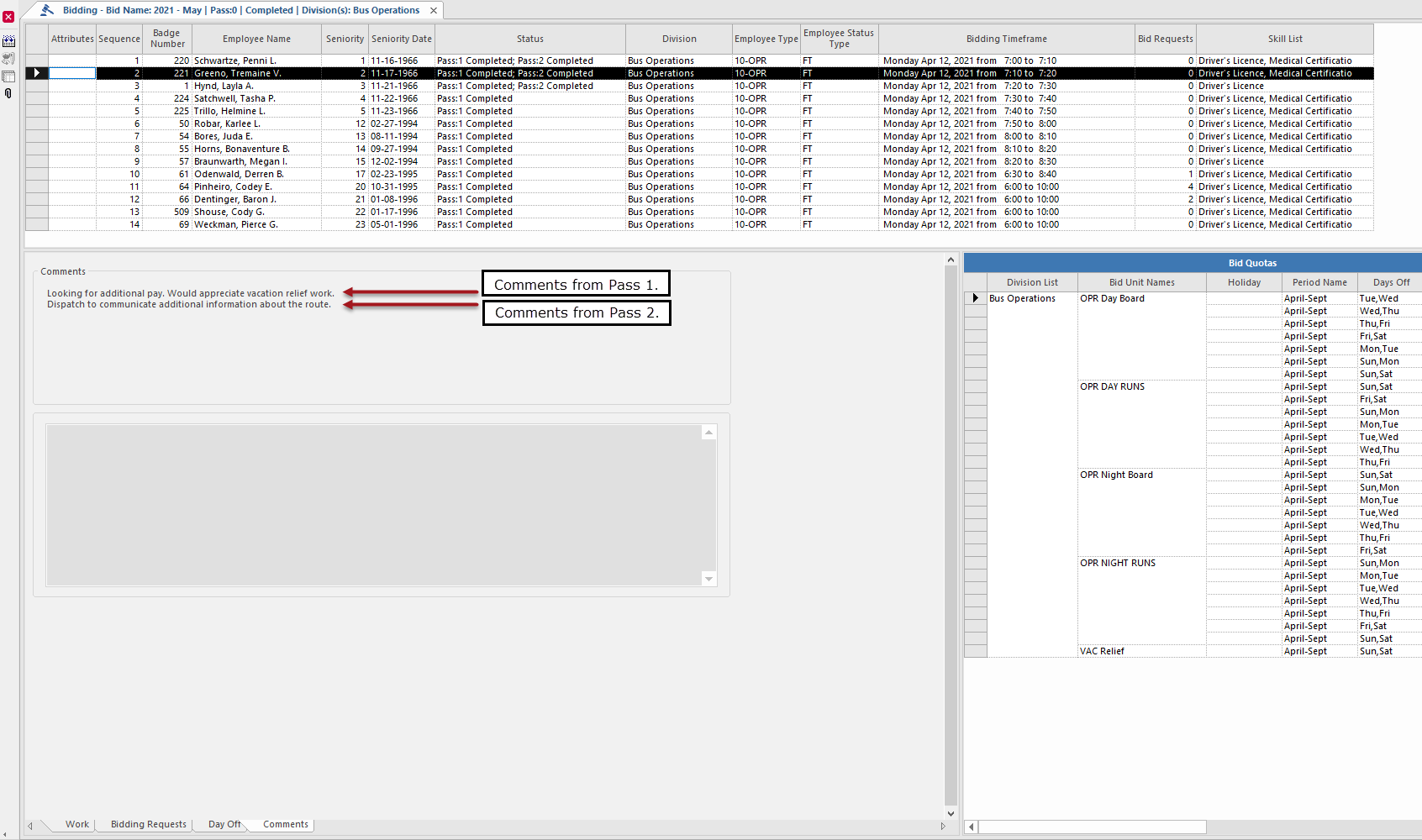 Comments are added in the Employee Bid Wizard when conducting the bid.