Sign-In Terminal New Features
Sign-In Terminal enhancements have been added in v21.0, v21.1, and v21.2.
-
To help you determine whether the SIT kiosk screens are active or inactive, the following status indicators have been added:
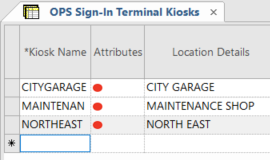
- If the SIT kiosk has never been opened, in the OPS
Sign-In Terminal Kiosks screen its status appears as
Not Active (marked with a red dot) in
the Attributes column.
- The value you set in the property is applied when logging the last active time when the session times out. If you set the timeout value as 0 (no timeout), the active status will be logged every 3 minutes.
The status of the kiosk is also now updated regardless of how you typed the kiosk name, in upper or lower case letters.
- If the SIT kiosk has never been opened, in the OPS
Sign-In Terminal Kiosks screen its status appears as
Not Active (marked with a red dot) in
the Attributes column.
-
To automatically assign vehicles when there is work that requires a vehicle and no vehicle has yet been assigned, the following features have been added:
-
Two new columns: SIT Auto Assign Vehicle and SIT Auto Assign Vehicle Option in the OPS Sign-In Terminal Kiosks screen.
If the Auto Assign Vehicle check box is selected, you can select the condition when a vehicle is automatically assigned as shown in the following graphic:
- A new parameter, No Vehicle Assigned Message has been added in OPS Sign-In Terminal Parameters. If selected, a No Vehicle Assigned message is shown if there are no vehicles that could be assigned.
-
- Breaks can now be set up to shift within a specified time period.
Operators will be assigned a defined absence type if they return late from their
break.
- New parameters have been added in Work Subtypes.
- Allow Break Activity Time Shift. If
selected, the break can shift within the defined work time (as
defined by the Start Shift Time and
End Shift Time parameters). (Note
that Break Tolerance is not checked when Allow Break
Activity Time Shift is selected.) For example,
if the work from time is 8:00, the Start Shift
Time is 2h and the End Shift
Time is 6h, the break can occur anytime between
10:00 and 14:00.
If cleared, the break is not allowed to shift within the defined work time. Default is cleared.
Allow Break Activity Time Shift can only be selected if Activity Flag is selected.
If an employee returns late from a break, they can still perform the work.
- Start Shift Time. The number of hours from the start of the work when the break shifting can be started.
- End Shift Time. The number of hours from the start of the break when the break shifting can be ended.
- Allow Break Activity Time Shift. If
selected, the break can shift within the defined work time (as
defined by the Start Shift Time and
End Shift Time parameters). (Note
that Break Tolerance is not checked when Allow Break
Activity Time Shift is selected.) For example,
if the work from time is 8:00, the Start Shift
Time is 2h and the End Shift
Time is 6h, the break can occur anytime between
10:00 and 14:00.
- A new parameter, Break Late Absence Type, has been added in OPS Sign-In Terminal Parameters. When a late sign-in is returned, an absence is created using the selected absence type.
- New parameters have been added in Work Subtypes.
- A new property, , has been created to describe the card being used to sign in
to the kiosk.
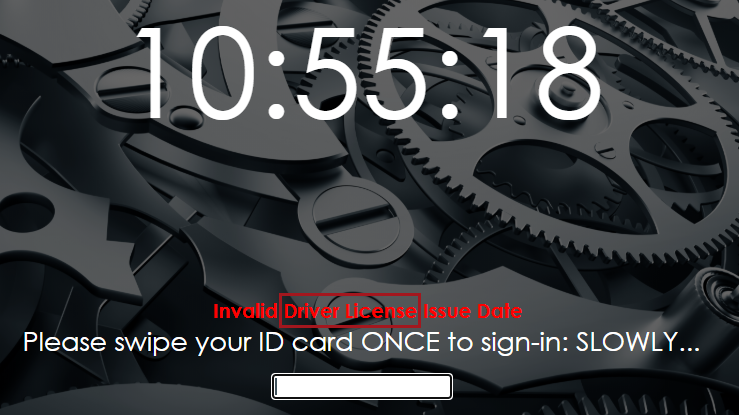
- After signing in, messages are now shown as follows:
- If there is only one message, it is displayed on the screen.
- If there are multiple messages, the displayed message indicates the driver should check their receipt to see their messages.
-
OPS Sign-In Terminal Parameters has new Receipt Parameters options to allow accrual information to be printed on receipts:
-
Show Accrual Info on Receipt. Select to include accrual information on the SIT receipt.
-
Accrual Type Group On Receipt. Accrual Types Ancillary Group to be used.
-
Show Eligible Or Accrual Balance On Receipt. Whether to show the employees eligible balance or accrual balance. The current date is used to define the balance.
-
Disclaimer for Accrual Info On Receipt. Agency statement regarding the accrual information.
-
- In OPS Sign-In Terminal Parameters, the Extra Pay Threshold parameter has been renamed Late Sign Off/Extra Pay Threshold.
- If no employee picture is available, the default employee picture is now printed on the SIT receipt.
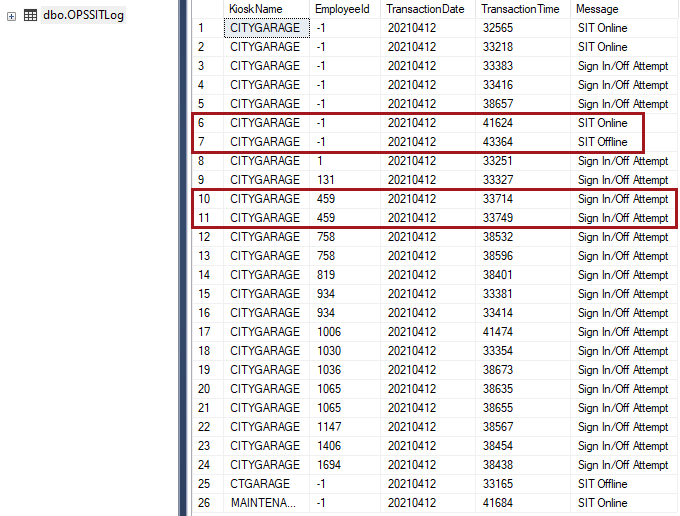
- Entries are now saved in the OPSSITLog table for instances
when the OPS-SIT kiosk status changes (SIT goes online or offline). Log entries can also be saved for Sign In and Sign Off attempts. This is based on the property.
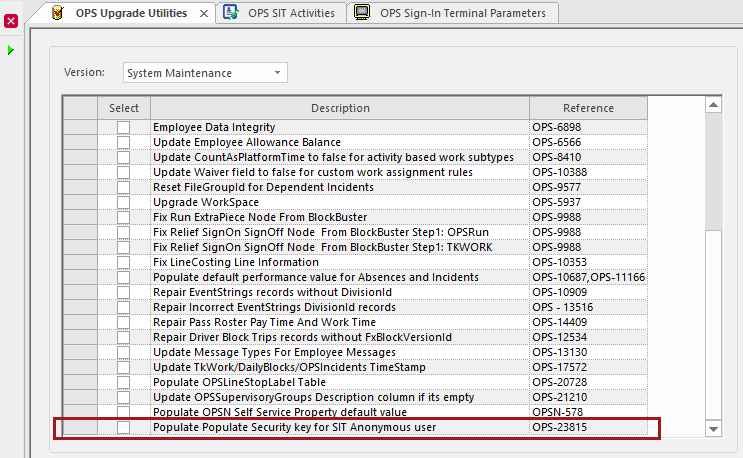
- A new upgrade utility was created to grant the security permission to the Anonymous user when the property is enabled. To run the utility, open OPS Upgrade Utilities, select Version: System Maintenance, select the Populate Security key for SIT Anonymous user (Reference: OPS-23815), and click the Perform Upgrade Utility Check button.