Timekeeping New Features
Timekeeping enhancements have been added in v21.0, v21.1, and v21.2.
General
- Pay transactions can now be rounded to the nearest five minutes. There are new
properties associated with this feature.

- A new property () allows the system to automatically process FLSA after costing on the
weekly processing date.

- Two
new options have been added to the Time Frame dropdown list in the
OPS Timekeeping Alert Rules screen: Each Regular Work
Day Except Holidays and Each Regular Day Off Except
Holidays. These options consider regular work and off days that are not
holidays.
-
Two new fields were added to the OPS Timekeeping Alert Rules
screen:
- From Day
- Defines the number of previous work days from the current date to check against the alert rule.
- To Day
- Defines the number of future work days from the current date to check against the alert rule.
Note that all timekeeping alert rules check the current date. From Day and To Day allow additional dates to be checked.
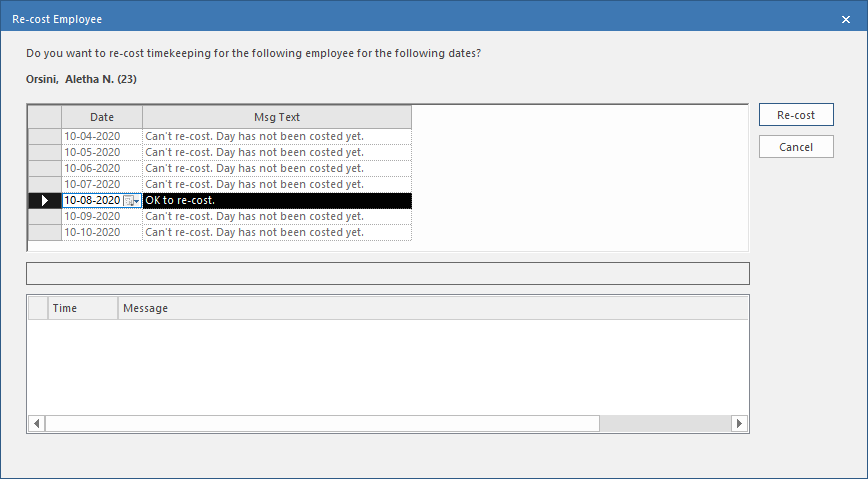
- The Re-cost Employee option has been added to the Smart menu of the Weekly Timekeeping Summary and Weekly Timekeeping Activity Summary screens. If clicked, users can choose to generate costing for the Entire Pay Period or Selected Dates.
- The
Re-cost Employee dialog is now resizeable. The size is saved in the
workspace and the employee name and badge number appear in bold.
- In Pay Code ancillary data and in Payroll
Code ancillary data, a new Display Method field has
been added.
- Always Show and Include in Totals. This is the default value.
- Always Show and Hide in Totals
- Show when Time Span Format set to Decimal Hours only and Hide in Totals
- Show when Time Span Format set to Decimal Hours only and Include in Totals
- Show when Time Span Format set to Decimal Hours only and Include in Totals
- Show when Time Span Format set to Hours & Minutes only and Hide in Totals
- Show when Time Span Format set to Hours & Minutes only and Include in Totals
If an "Include" option is used, the specified code is included in the daily and weekly totals in screens, dialogs, and reports (depending on the timespan format selected).
A display totals dialog box is now available in the Weekly Timekeeping Summary, Weekly Timekeeping Activity Summary, and Section15 screens.
- The property was updated to . If selected, FX run platform time is costed by segment type
(No, Line, or
Zone).
New properties were added for this feature.
An OPS Zone Pay Mapping screen was added. Fields on this screen are Zone Id, Pay Code, Zone Pay Code, and Audit.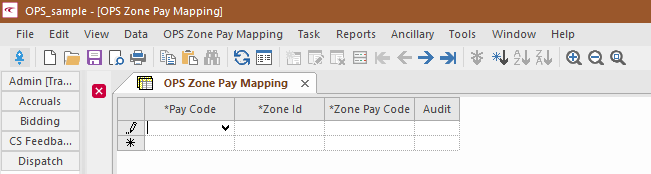 When setting up Pay Rules, the following fields must be defined:
- Calculation section - CalcMode: CustomCostingxx
- Custom section - Custom Load: Pay
- Overtime section - Compose Pay Code Group: User-defined Pay Accessory ancillary group; the system uses the paycode work, piece, shift.
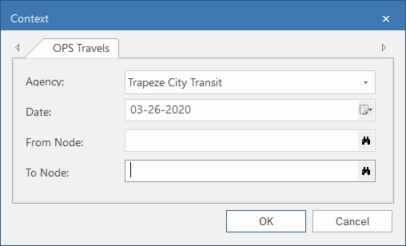
Travels
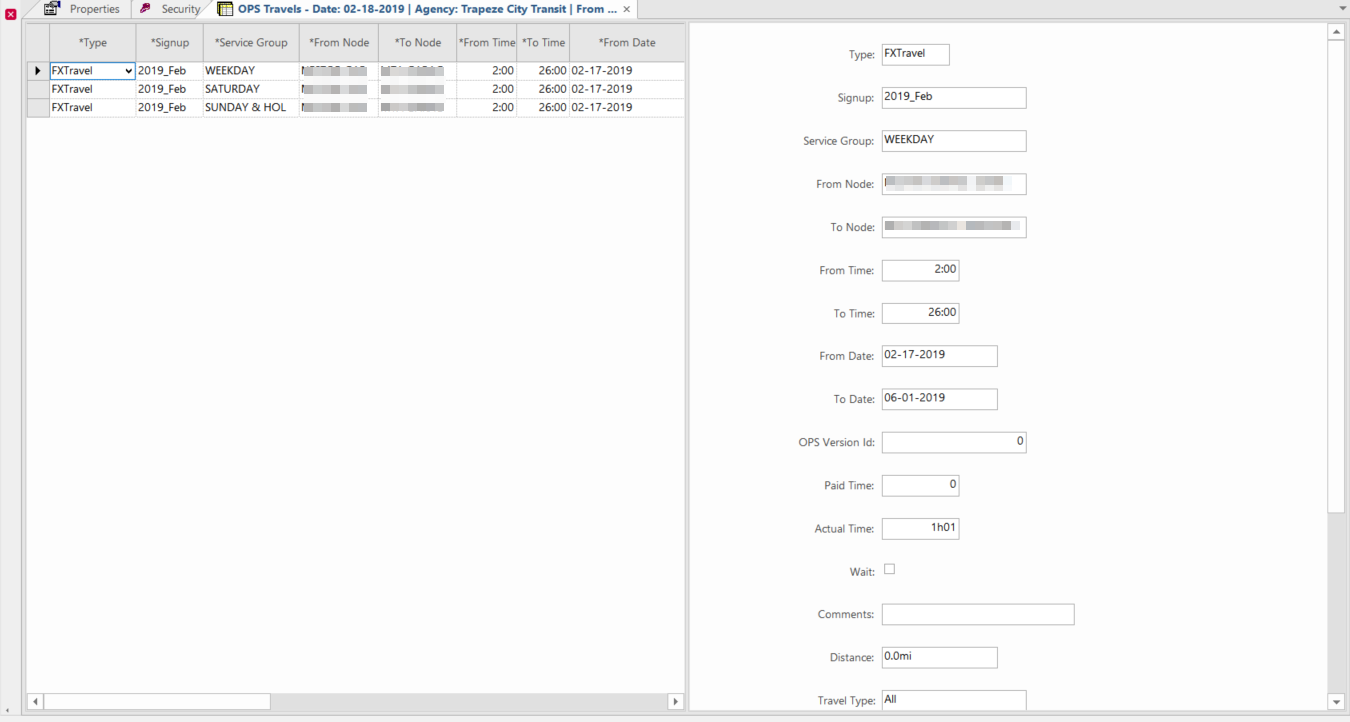
The screen shows the list of travels on the left pane and the details of each record in the right pane (Form view).
A new property defines the source for travel information.
Pay Rules
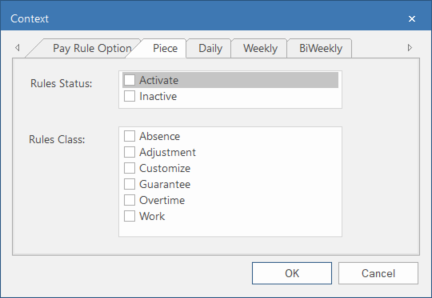
- In the Context (F3), you can now filter based on
Rules Status or Rule Class individually
for each rule type. These options are available on the Piece tab,
Daily tab, Weekly tab, and
BiWeekly tab.
- A new Calc Mode is available: Published Costed Value. If selected, the associated published work is costed (within the piece absence rule) and the sum of the published work costed value is paid towards the defined Compose Pay Code Group.
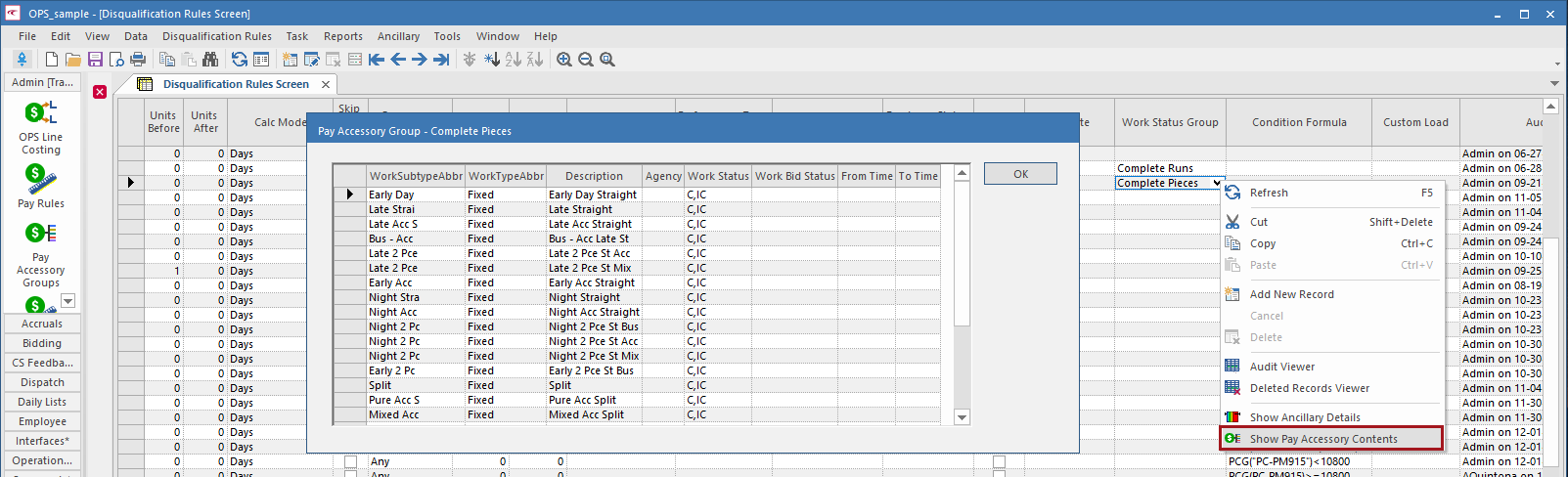
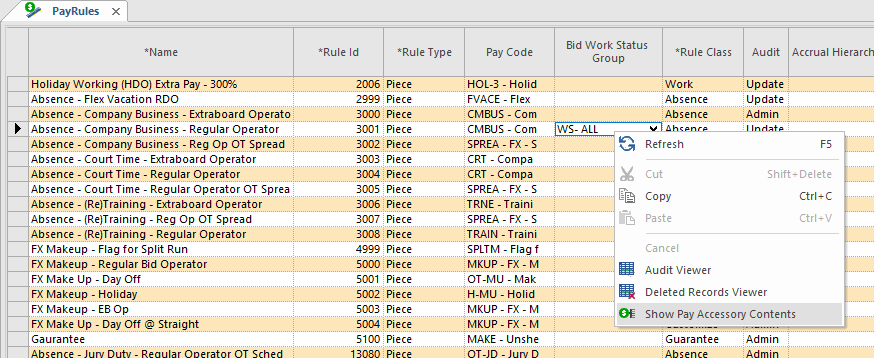
- Disqualification
Rules and Pay Rules now have a Show Pay
Accessory Contents right-click menu option. This opens the Pay
Accessory Group dialog box.
- Vacation and holiday pay can now be combined when holidays occur in a future vacation
period.
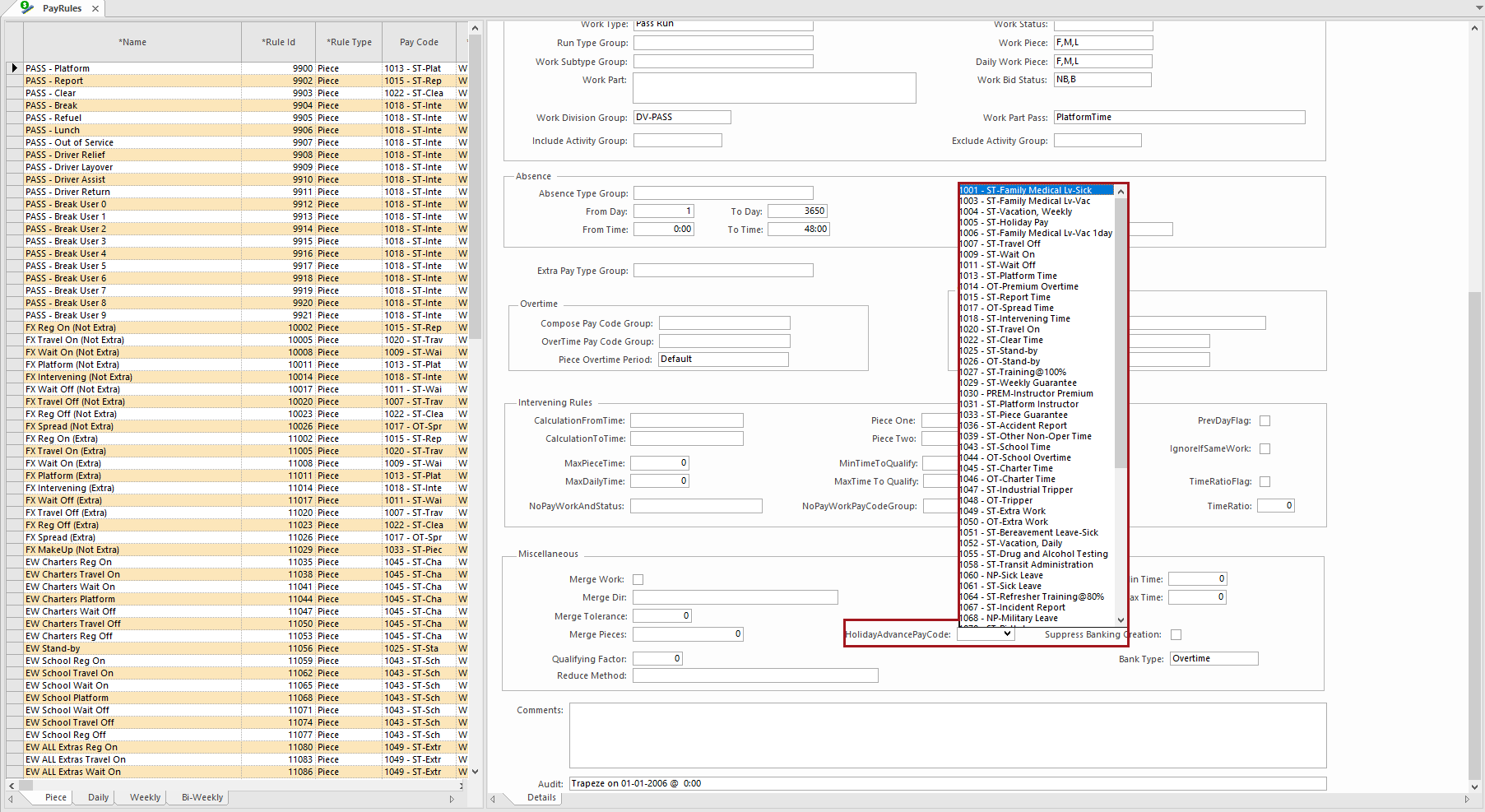
A new field, HolidayAdvancePayCode, was added to allow agencies to pay for holidays before they occur (but only if they occur in a future vacation pay period).
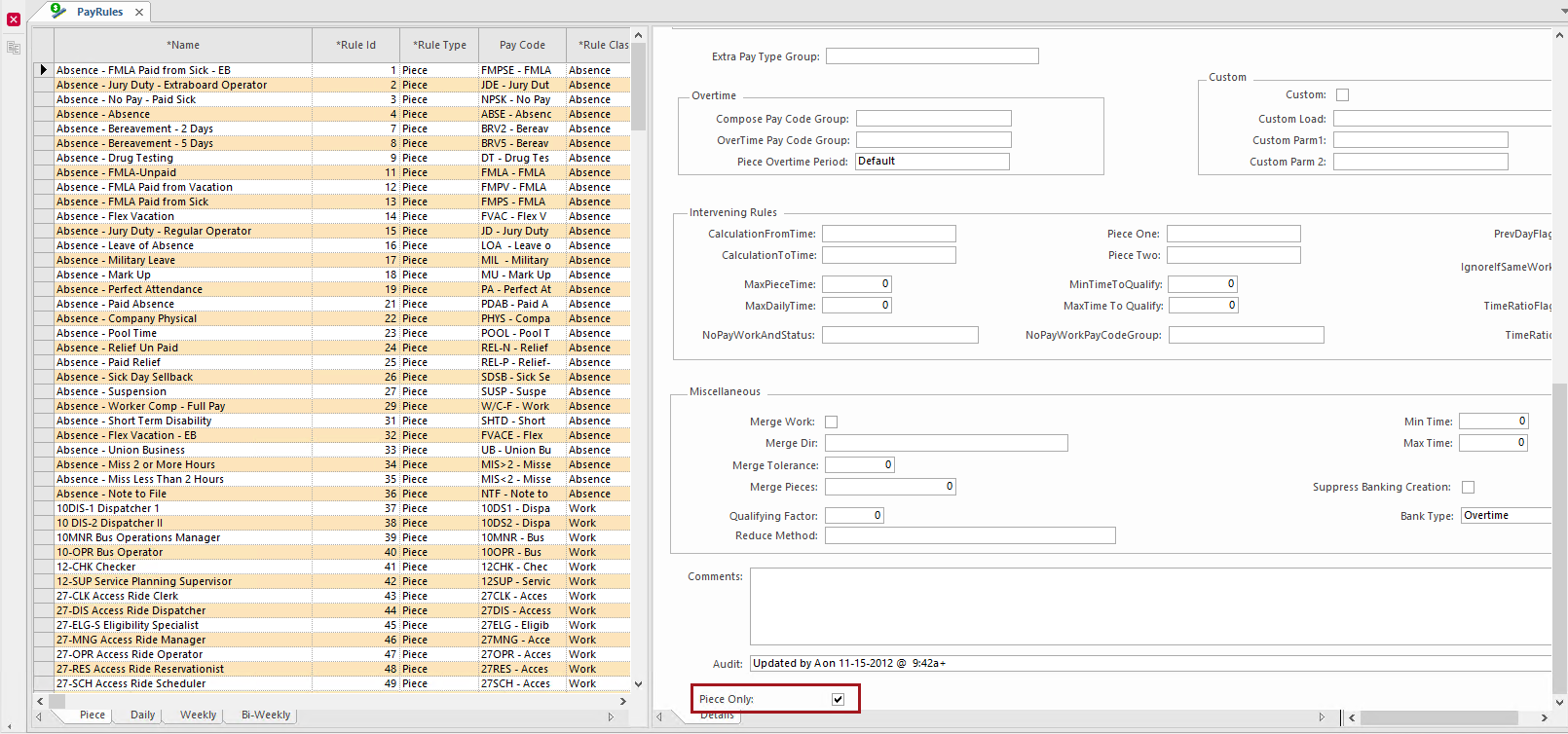
- A new field, Piece Only, was added. When selected, the piece
rule is invoked for each piece of work, even when the work is multi-pieces of completed
work.
OPS Payroll Comparison
You can now import your payroll data and compare it with OPS Timekeeping output using OPS Payroll Comparison.
- OPS Client Payroll Import. Shows payroll data.
- OPS Client Payroll Comparison. Shows the payroll data (OPSClientPayrollImport) and Timekeeping records (TkPayInterface).
Properties have been added that allow you to select the format and set where to store the imported files.
When setting the Context of the OPS Payroll Comparison screen, select the Agency and Divisions for which to compare payroll data:

- Import Client Payroll. Imports your payroll data.
- Run Payroll Comparison. Compares the posted timekeeping data in OPS for the agency/divisions specified in the Context.
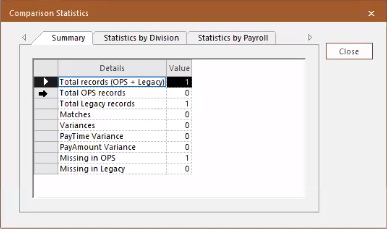
- Comparison Statistics. Shows the comparison data on three tabs:
Summary, Statistics by Division and
Statistics by Payroll Code.