
Dispatch New Features
Dispatch enhancements have been added in v21.0, v21.1, and v21.2.
General
-
A new property is available that allows Vacation Relief operators to inherit the division of the employees originally assigned to the work when a day is activated. If the day activation is undone, the operators are returned to their home divisions.
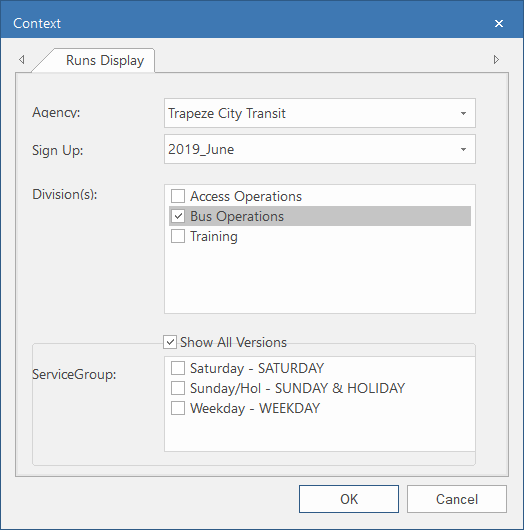
- To improve filtering of the runs shown in the Runs
Display ancillary data screen, two new fields have been added to the
Context dialog:
- Sign Up. Shows a dropdown list of the sign-up periods. (This replaces the Date field.)
- Service Group. Those selected shows you which
exceptions/ event status variations are associated with each run. Select the
Show All Versions check box to view the list of service
groups.
- In the Daily Employee List screen, when the Context is set to Extraboard, employees are now ordered based on seniority (lowest seniority number to highest seniority number).
- In the Assign Employee dialog, a message now appears
indicating how many employees are on standby.
New properties are associated with this feature.
- In the Extra Work screen, Sign On Time and Sign Off Time are now updated if Prep Time, Finish Time, Report Time or Clear Time are changed. To use this feature, the property must be selected.
- To make viewing activities easier, the Activity Type dropdown lists in various OPS screens are now sorted by Abbreviation numerically. The Abbreviation strings are padded with leading zeros up to 15 characters per schema, and then sorted in ascending order.
Default values for time components can now be defined in ancillary data.
OPS Time Component Defaults ancillary data allows greater definition for the default time components when creating or splitting work. Time components include Report Time, Finish Time, and Prep Time.
 For example, in the Daily Activity screen, in the Split Work dialog, the Time Span values can be pre-populated.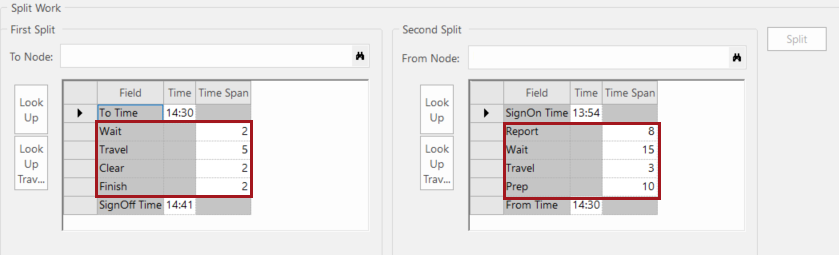
Default values can be assigned to work subtypes and are seen in the Employee Activity screen, the Employee Activity dialog box in Timekeeping, the Extra Work screen, and in the Edit Work Times dialog box and Employee Activity dialog box in Daily Activity. The properties in and determine which components need to be enabled for extra work.
Default values for Finish Time, Prep Time, and Standby Times can be used in runs, master runs, work, and extra work.
Default values for Report Time can be applied to multi-pieces of work based on the new properties.
-
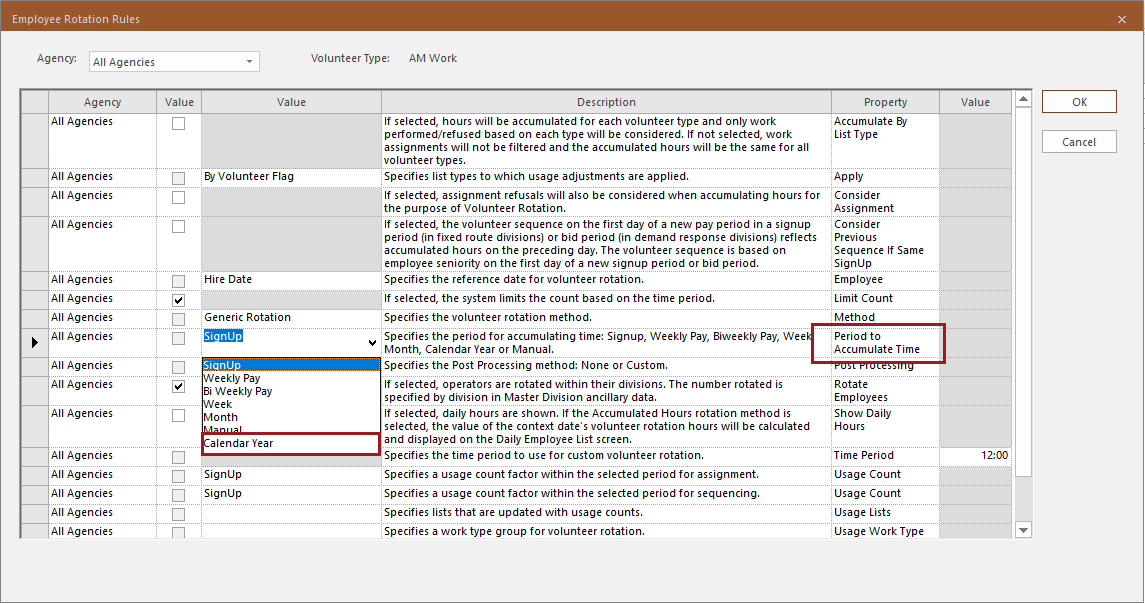
In the Volunteer Types - Employee Rotation Rules ancillary data screen, the Period to Accumulate Time property now has a Calendar Year option. January 1st must be activated for the year to calculate daily list volunteer employee rotation hours.
- Report times for Standby work assigned using the Work Assignment
Assistant and the Suggest Employee dialog are now
maintained or recalculated in the same way they would be handled in the Daily Activity
screen.

- The Suggest Employee feature was updated to handle coexisting work in the
same way Daily Activity handles it.
Now, in the Daily Activity screen or when using the Suggest Employee feature, if the employee Absence Type's Open Work Action is Preserve Assigned Work, then work can be assigned to the employee. If the employee Absence Type's Open Work Action is Open conflicting pieces only or Open all work assignments, then the work is assigned to the employee only if the Absence Type's Coexist Work Type Group matches the work being assigned; otherwise the work is opened for reassignment. Note that this behavior is different than in Activate Day, where absence types with coexist absences are handled based on the property.
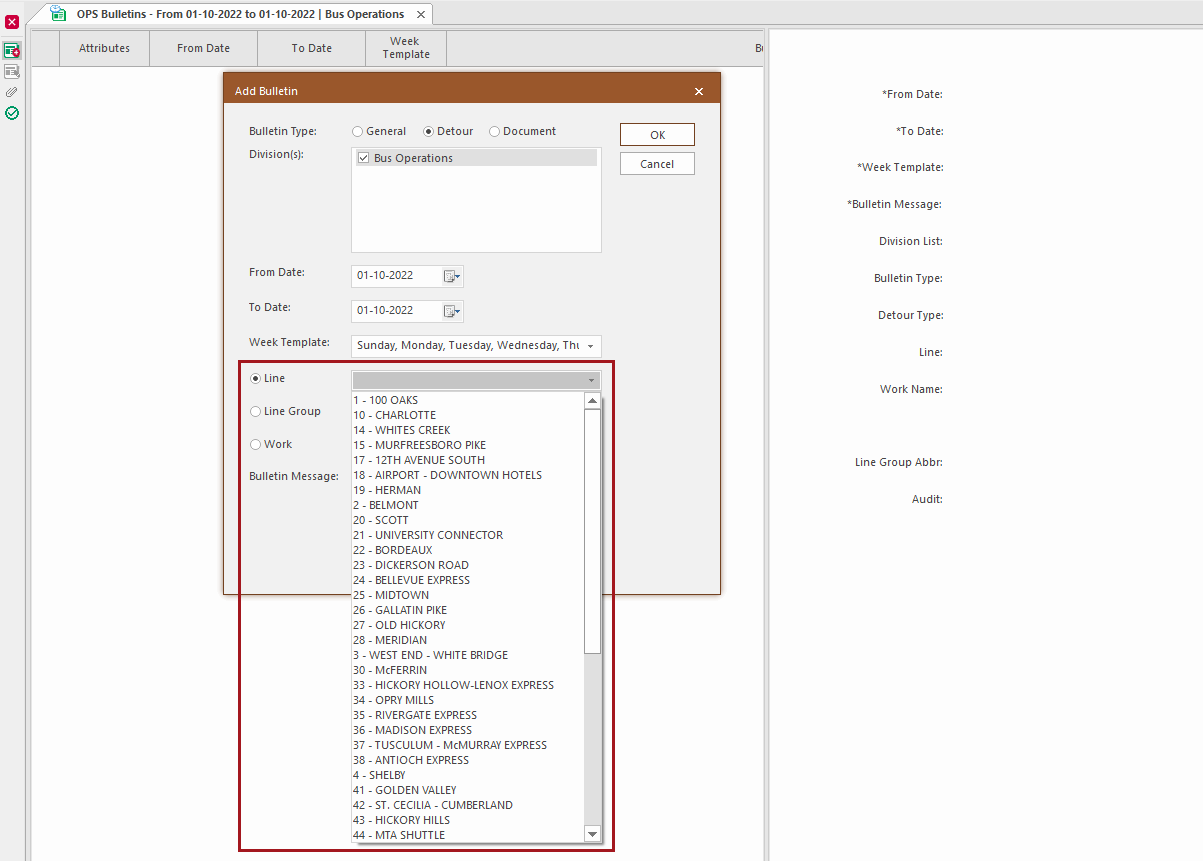
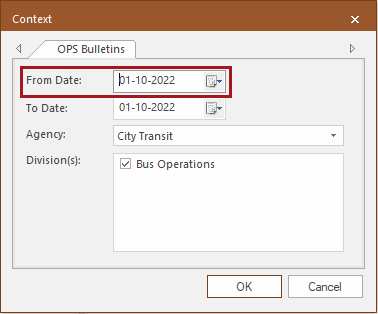
- In OPS Bulletins, in the Add Bulletin dialog, the
Line list is now filtered based on the From
Date defined in the screen Context and the associated
sign up period.
Activate Day
- Extra work can now be automatically created for employee absences during
day activation.
To use this feature, select the property; define the Default Work Name for work in Work Subtypes ancillary data; and define Absence Types. Absence Types with Associated Extra Work Types and Associated Extra Work Subtypes are used for automatic work generation.
Daily Activity
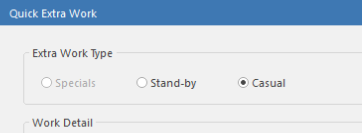
- When using Quick Extra Work, not all of the default type properties (, , and ) need to be defined for the Quick Extra Work dialog to function. If none of the properties are defined, an error message occurs. Otherwise, only the defined types will be accessible in the Quick Extra Work dialog in the Extra Work Type section.
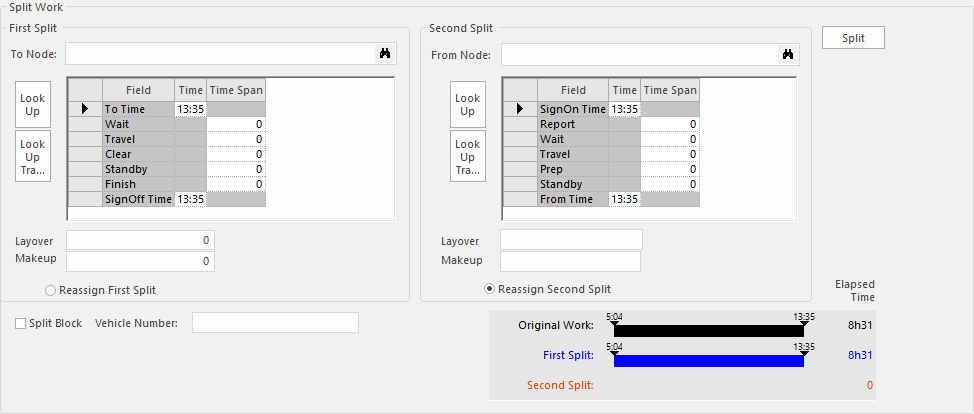
- The appearance of the grids that show the time components in the lower
section of the Split Work dialog has been improved.
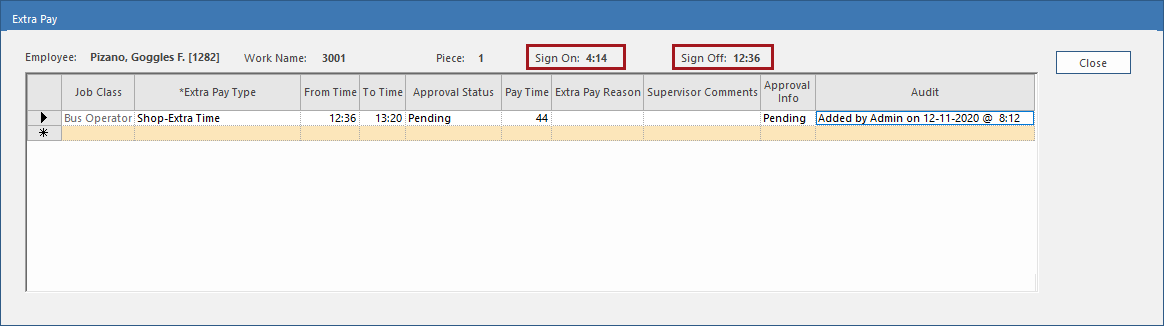
- In
the Extra Pay dialog, Sign on and Sign Off times are now shown.
- Employees can be added to Volunteer or Extraboard lists using the
Add Volunteer or Extraboard button:

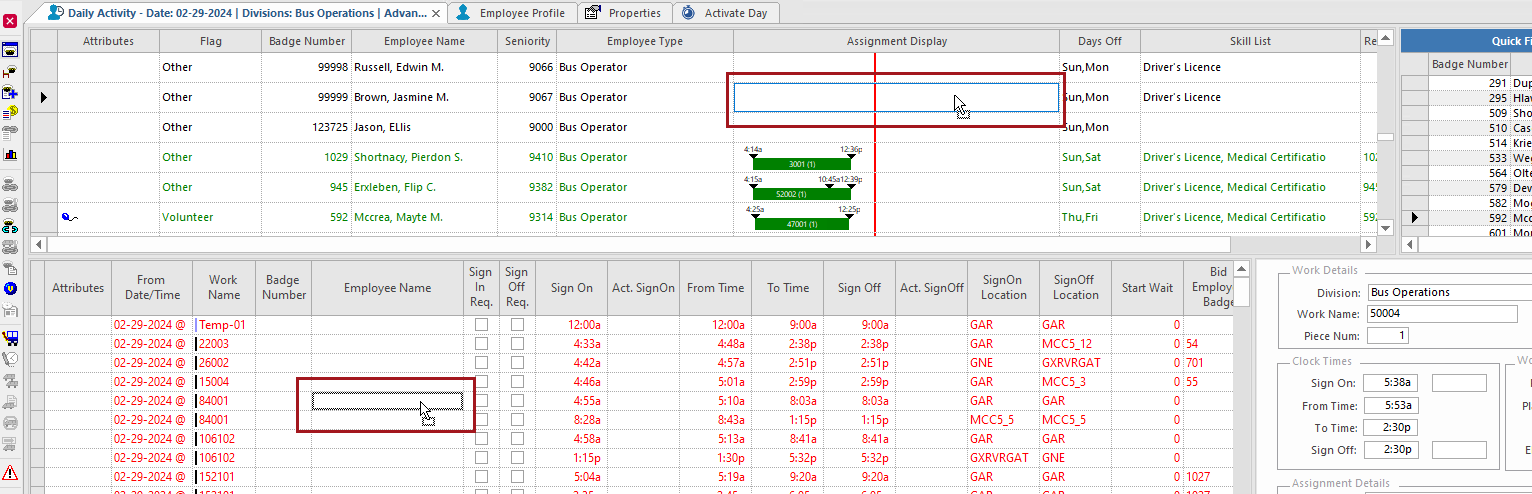
- Employees can be assigned work by dragging and dropping from the
Assignment Display column in the Employees view into the Work
List view.
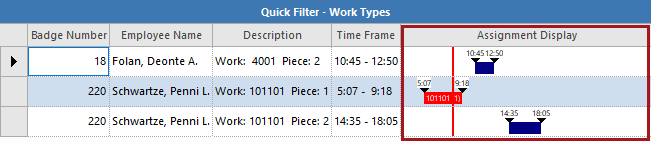
- The
Assignment Display column can now be shown in the Employee
Quick Filter view.
There are properties associated with this feature.
- In the Employee Suggestions dialog, a
Suggest For Next Work button is now available.
The property must be enabled.
After an employee has been offered work and the Response is Accept, you can use the Suggest For Next Work button to move to the next work in the list without closing the Employee Suggestions dialog box.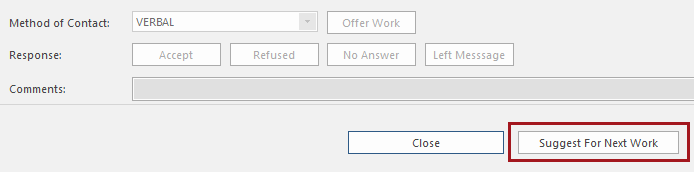
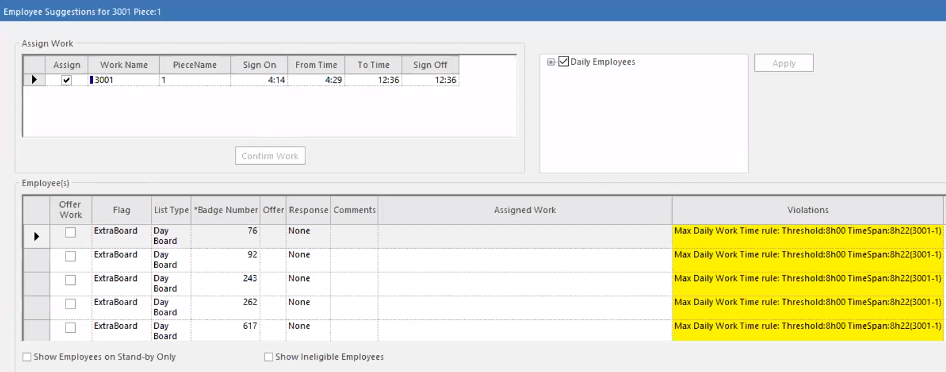
- The system can now be set up so that warning violations are
highlighted but do not prevent you from assigning work to employees in the
Employee Suggestions dialog box or in the Work
Assignment Assistant screen. There are new properties associated with this
feature.
- When creating absences, you can now define if an absence that occurs over multiple days is a reoccurring absence or a continuous absence. Reoccurring absences create multiple absence records and continuous absences create one absence record. This feature can be found in the Employee Profile screen, Work Planner screen, and Daily Activity screen.
- In the Show Activity Log dialog box, you can now see Comments.
- In Daily Activity, in the Show Activity Log
dialog, a Method of Contact column was added.

-
Extra Work can now be created directly from the Open Work dialog. If an associated Absence Type is selected in the Open Work dialog, a checkbox for Create Extra Work is available.
Two new fields were added in the Absence Types screen: Associated Extra Work Type and Associated Extra Work Subtype and a new property is associated with this feature.
To define absence types that are eligible for extra work creation, define the Coexist Work Type Group, the Associated Extra Work Type, and the Associated Extra Work Subtype.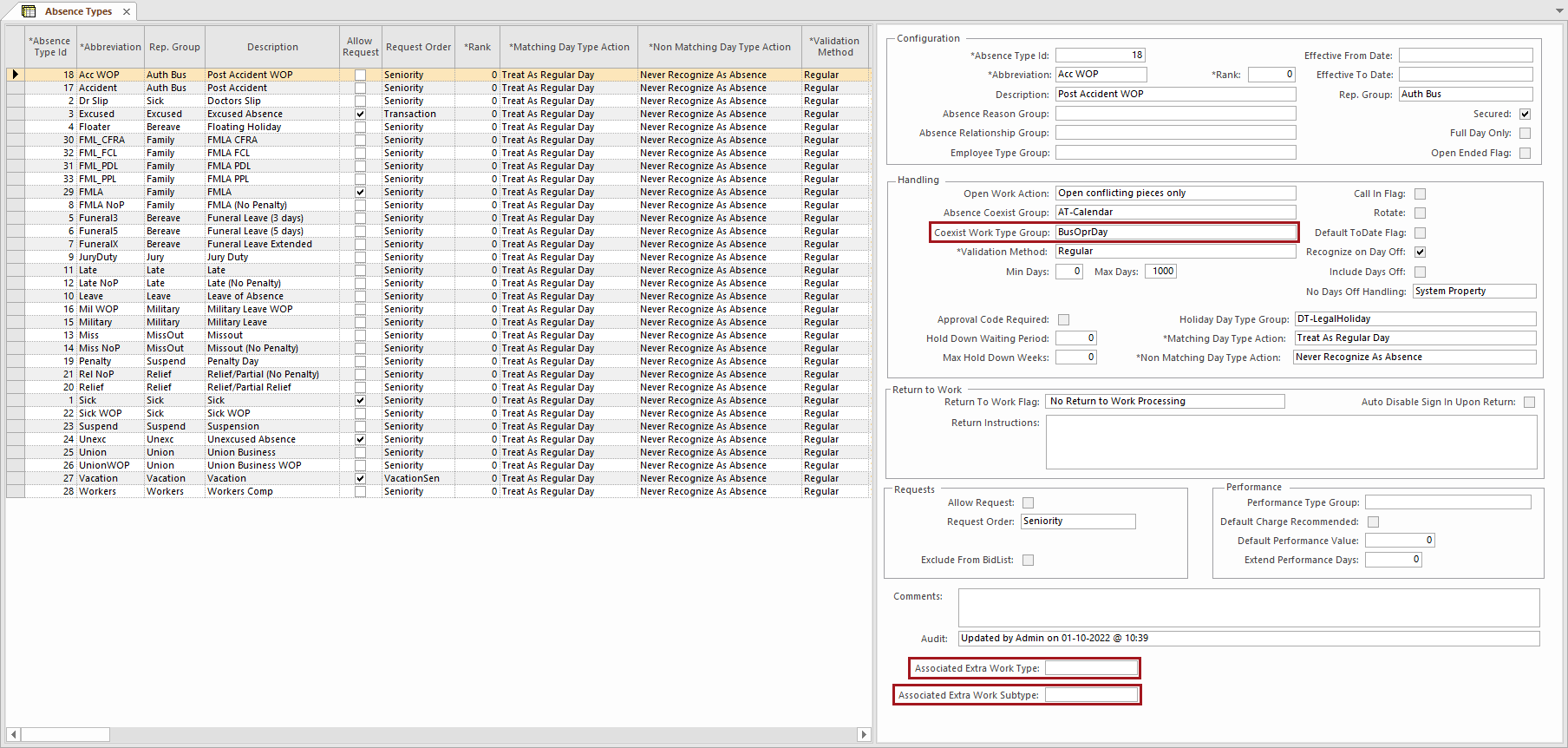
Extra Pay Management
To better reflect what you can do with Extra Pay data on the screen, the Extra Pay Verification Inquiry screen has been renamed Extra Pay Management. You can edit and approve Extra Pay records on this screen.

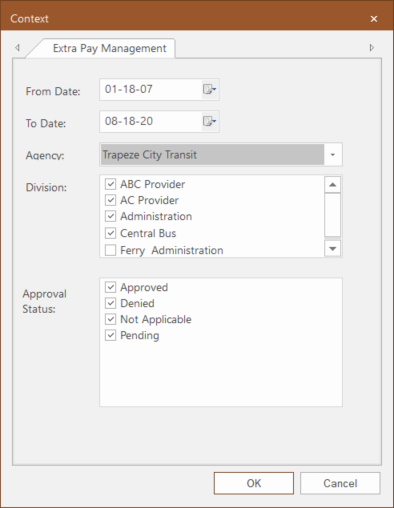
A new column, Approval Info, shows approval status, decision by, decision date, and decision time information. This information can also be found in the Extra Pay dialog box in the Daily Activity screen. The Employee Comment field shows any Comments made by the employee making the request in Employee Self-Service.
You can edit an Extra Pay record that has been Approved or Denied, for example, change Approved to Denied and/or add a comment. Previously entered comments can be viewed in the Audit Viewer. You can approve or deny a single record or multiple records at once but only those that are Pending.
When you assign an Extra Pay record that has its Extra Pay Type marked as Require Approval, you can choose the following options in the Approval Status dropdown list: Pending, Not Applicable, Denied, and Approved.
If you change the Require Approval status of an Extra Pay Type and there are Extra Pay records associated with that specific type, a message informs you of this and prompts you to confirm the change.
You can also generate a new OPS standard report, Extra Pay Claims, based on data from this screen.
To edit Extra Pay approvals in Daily Activity (the approval status and supervisor comments), the security key must be granted. There are also security keys for viewing the Extra Pay Management screen and editing and approving extra pay in that screen.