
Employee New Features
Employee enhancements have been added in v21.0, v21.1, and v21.2.
Employee Import
- When importing FMLA information, if the FMLA FromDate matches a record in OPS, it is treated as an extension and updates the ToDate for the FMLA Status record.
-
Employee Import now has Next Physical Date as a field option.

- Employee
PINs can now be imported using the Employee
Import screen.

Employee Picture Import
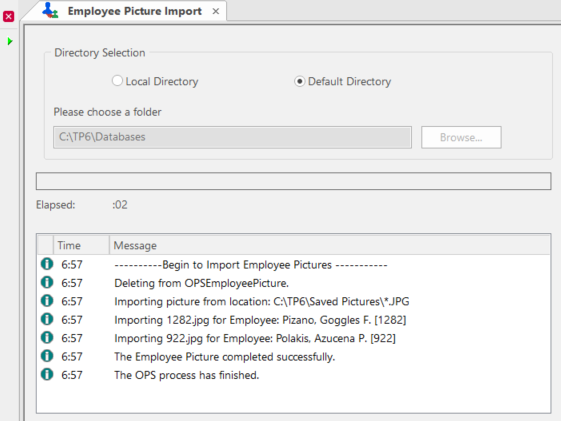
Employee pictures can be uploaded in bulk using the Employee Picture
Import screen. 
To import pictures, the file names must match employee badge numbers. For example, 1282.jpg.
Employees importing employee pictures must be granted the security permission.
The default directory is defined in the system property.
Employee Profile
- Employee pictures are now stored in the database (not a referenced directory).
-
Employee pictures can now be uploaded directly from the Employee Profile screen using the Upload Picture button:
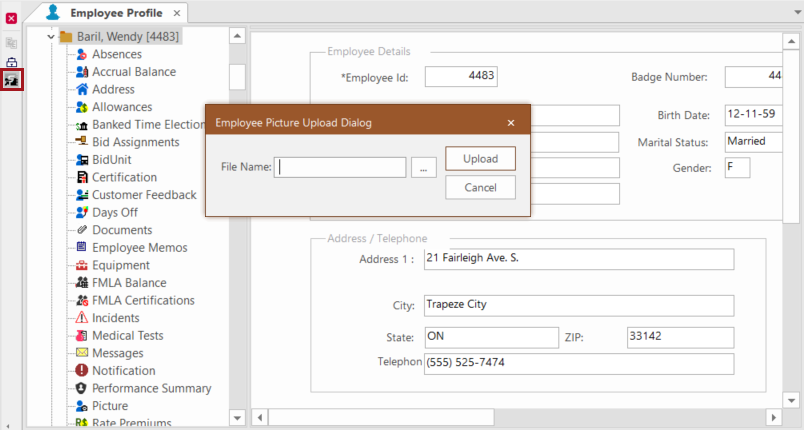
To use this feature, the security permission must be granted.
To show the employee picture on the file, the property must be selected and the Employee Picture field must be selected in Customize.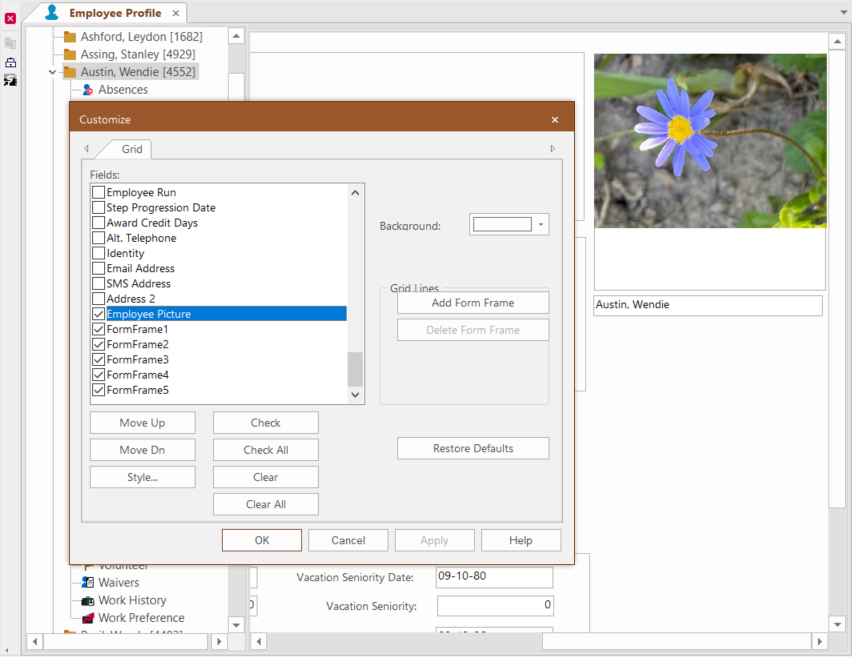
- In Banked Time Elections, Max Time can now be based
on actual time or work time.
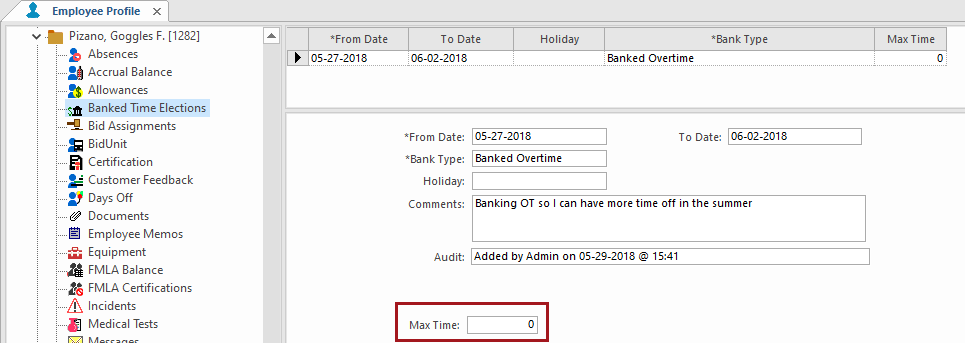
A new property is associated with this feature. - A new check has been added so that if you change the employee division in Employee Profile - Status without updating to the correct Employee Type or Job Class an error message appears to say that the selected division, employee type, and job class combination is not valid.
- A new Employee Profile subcategory, Documents, is available.OPS allows different document types, such as employee performance reviews and medical tests, to be attached to records in the various screens. These documents can now be viewed and edited in the Employee Profile - Documents screen for their associated employee.
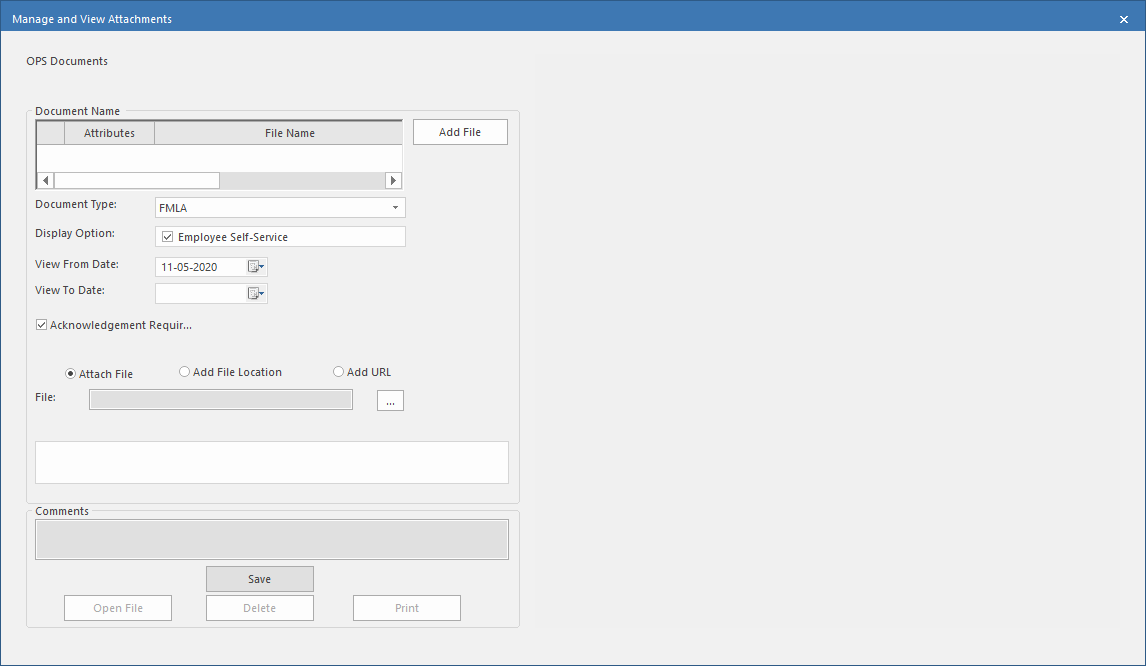
- Documents are categorized by document type. To add a document type with a source other than Employee Documents, one document added from that screen must already exist for the employee in the system. For example, an Absence document.
-
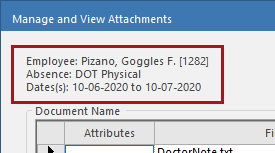
After a document is uploaded, you can view basic document information in the upper-left corner of the Manage and View Attachments dialog box.
There are new security permissions associated with this feature. Default settings for document types are defined by a system administrator in ancillary data.
Absence Requests
- A
new field, Accrual Hierarchy, is available.
Accrual hierarchies are defined in OPS Accrual Hierarchy. They determine the order in which employees uses banked hours. If an employee chooses the wrong accrual hierarchy, an administrator can edit the Accrual Hierarchy field for the absence in Employee Profile - Absences. Based on the absence type and accrual hierarchy selected, the accrual type is populated. For more information about accrual hierarchies, contact your Trapeze representative.
- When creating an absence, if a warning appears, absence request information is now retained if you click OK or close the message box.