
Workforce Management New Features
Workforce management enhancements have been added in v21.0, v21.1, and v21.2.
General
- SAFTE-FAST® is now supported as an OPS add-on.
 A Work Assignment Rule Type has been added for SAFTE-FAST Effectiveness Value.
New properties are associated with this feature.
Contact your Trapeze representative for more information.
- In the Absence Requests screen, the Source column now has a System option. This is used for absence requests created using the Absence Generation tool.
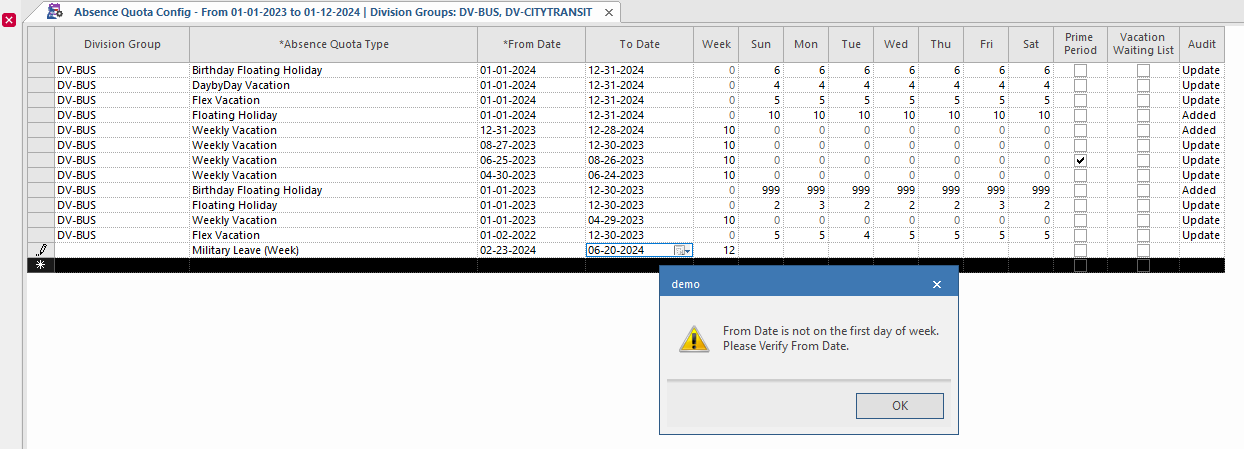
- Absence quota types with a Duration Type of
Weekly defined in the Absence Quota Config
screen
are now checked against the property to confirm the From Date and To
Date fall on the correct days of the week. If not, an error message is
shown.
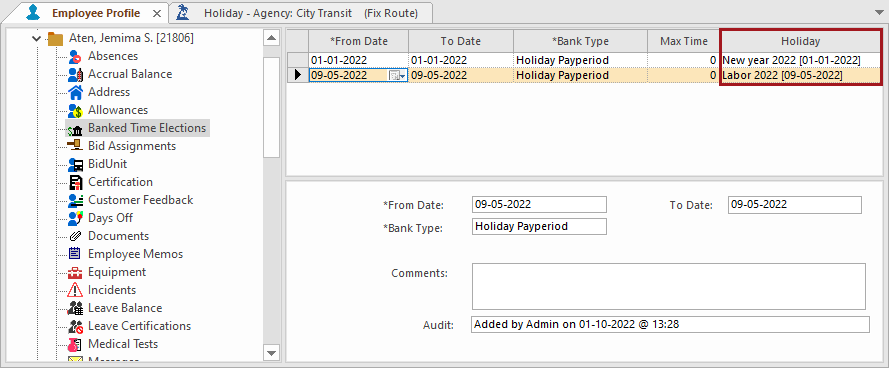
- For banked time elections, in the Employee Profile - Banked Time
Elections screen, the Holiday field now shows the
holiday name and date (instead of the holiday abbreviation).
-
System administrators can now define Employee Certification Types so that equivalent certifications cannot be applied to employees.
For example, if Certification Type A and Certification Type B both qualify as Defensive Driving Certification, employees can be restricted to requiring only one of the two courses.
See New and Modified Properties for more information.
- Employee Activities dialogs have been updated so that they are now the same.
-
The data in the Employee Activity screen and in the Employee Activities screen (found in Daily Activity) is now sorted by From Time.
If From Time is equal in some categories, data is shown in the following priority order:
1. Work
2. ExtraPay (shown after the corresponding Work and WorkPieceNum)
3. Absence
4. Incident
5. Accident
- OPS Performance Acknowledgement ancillary data is now
available.

It defines acknowledgement reasons associated with administrative action signatures in Performance Details.
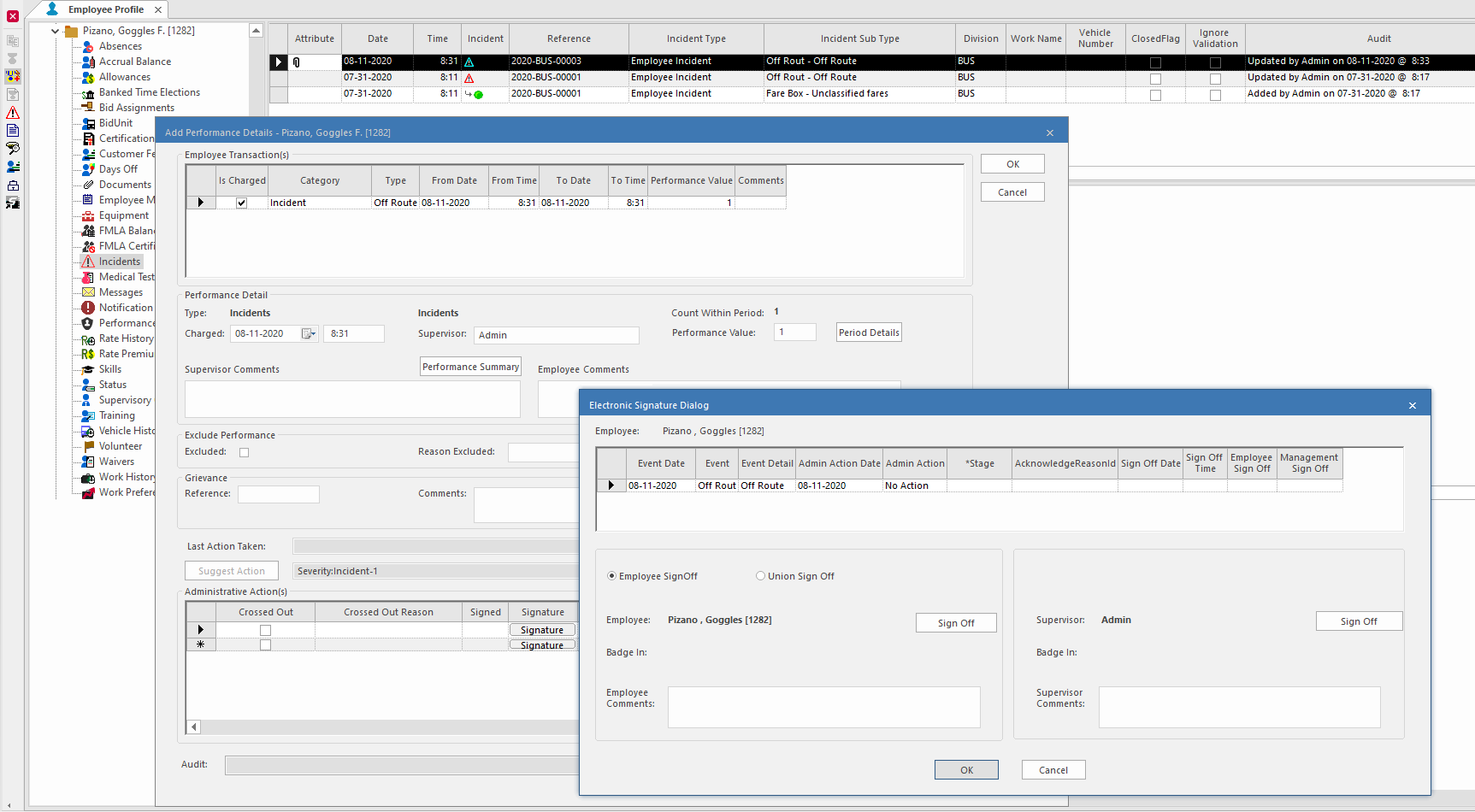
- Electronic signatures can now be added to administrative actions.
They can be added for either employees or union representatives, and for supervisors.
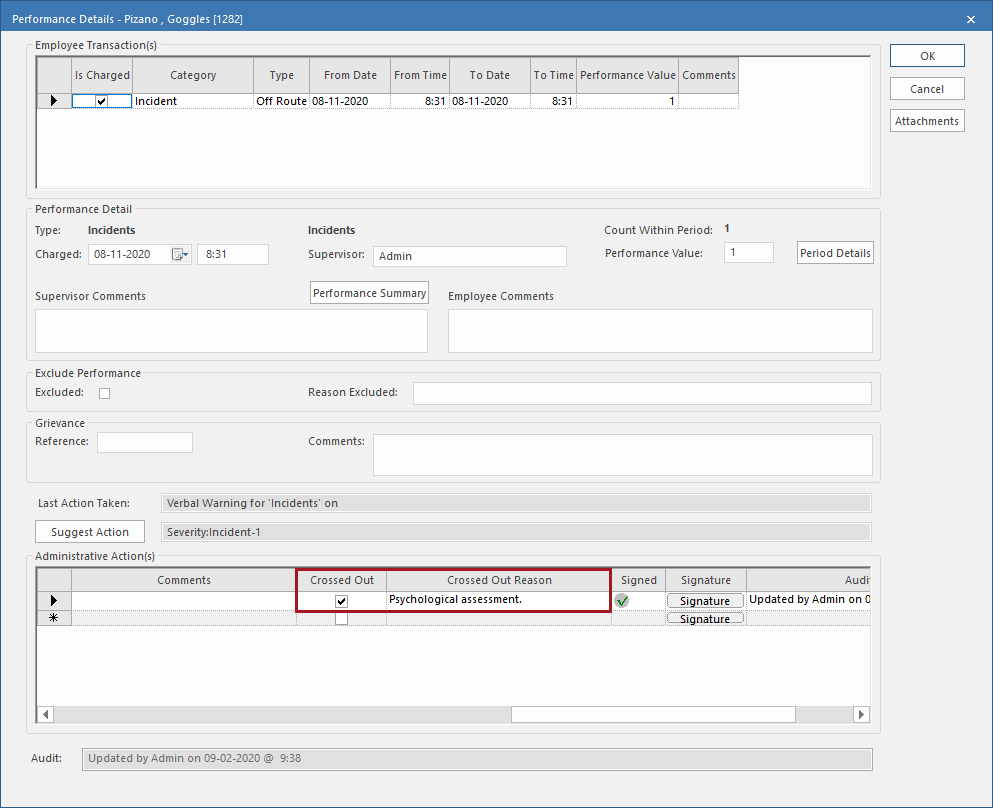
- Administrative actions can be excluded by crossing them out. This allows
records to be maintained while not allowing administrative actions to negatively impact
employee performance. Details can be seen in the Employee Profile - Performance
Summary screen.
- When calculating performance, the Count Within Period and Period Details are now based on the Performance Type Timeframe instead of the Penalty Timeframe.
- In OPS Work Assignment Rules, a new Rule
Type is available, Insufficient Travel Time.
Insufficient travel time checks the travel time associated with the ending location of one piece of work and the starting location of the subsequent piece of work.
- The Employee Import screen no longer requires SSN entries in the import file.
Employee Absence Monitor
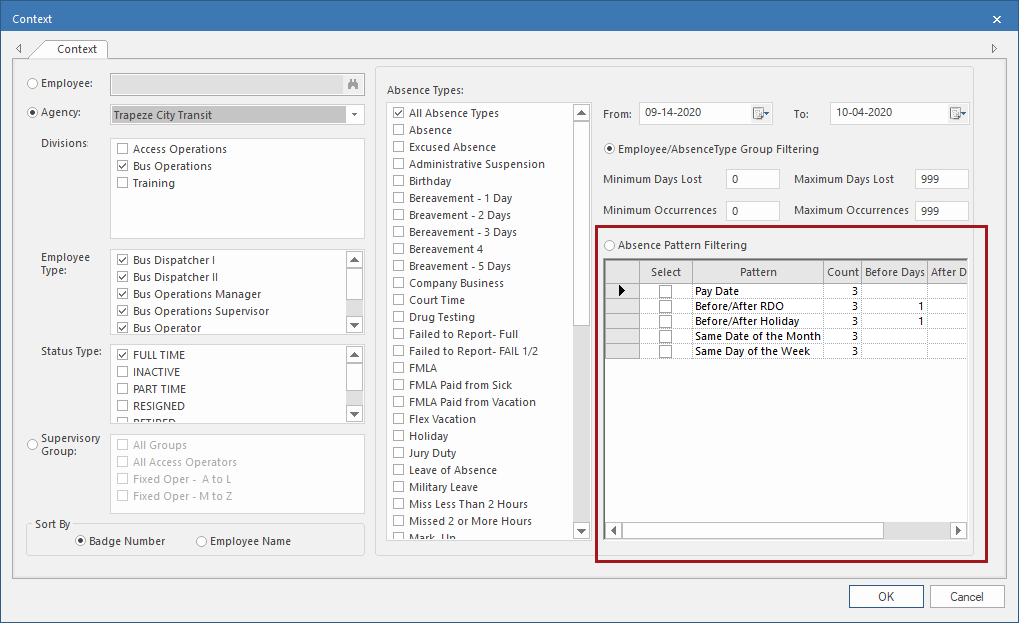
There are new properties associated with this feature.
OPS Spatial Analysis - Heatmap
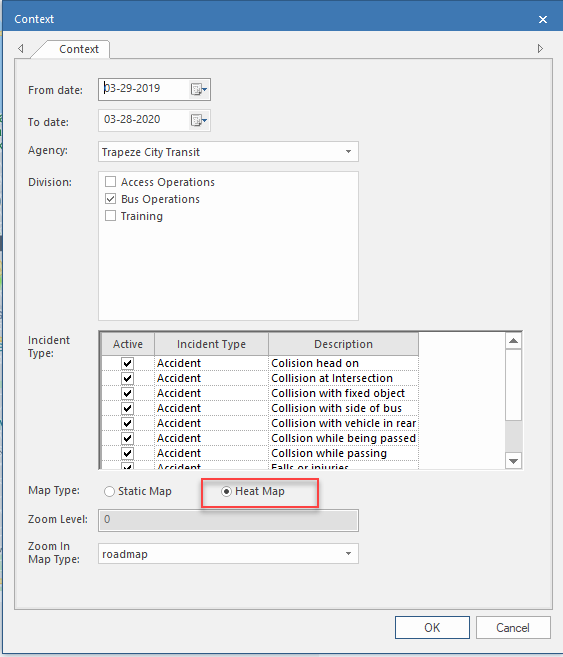
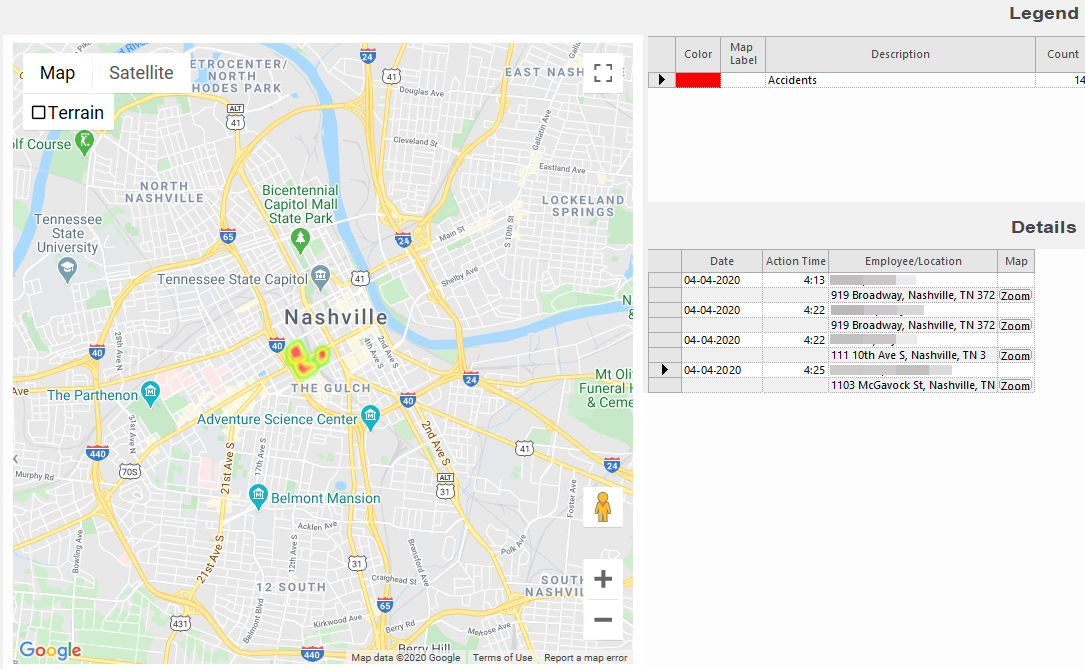
When the Heatmap option is clicked, the incidents are graphically represented on the map by circles in a predefined color while the area where they occurred appear in a different color.
In the following graphic, you can see red circles representing a cluster of incidents that appear to have occurred within the same general area represented by the yellow-green color. The graphical representation can help you determine the distribution of incidents in your area, for example, where incidents occur the most.

Perfect attendance bonus information is now generated as either a currency amount or as total hours.
If Bonus Time is defined in the OPS Perfect Attendance Matrix ancillary data screen, then time is given as bonus (in hours). If all bonus times are defined as 0, then bonuses are shown in currency amounts.
A new security permission key is associated with this feature.