
General New Features
General features have been added in v21.0, v21.1, and v21.2.
-
In the Schedule Import screen, the system no longer updates FX data when importing schedules.
-
Client Shell and all reports are available for 64-bit.
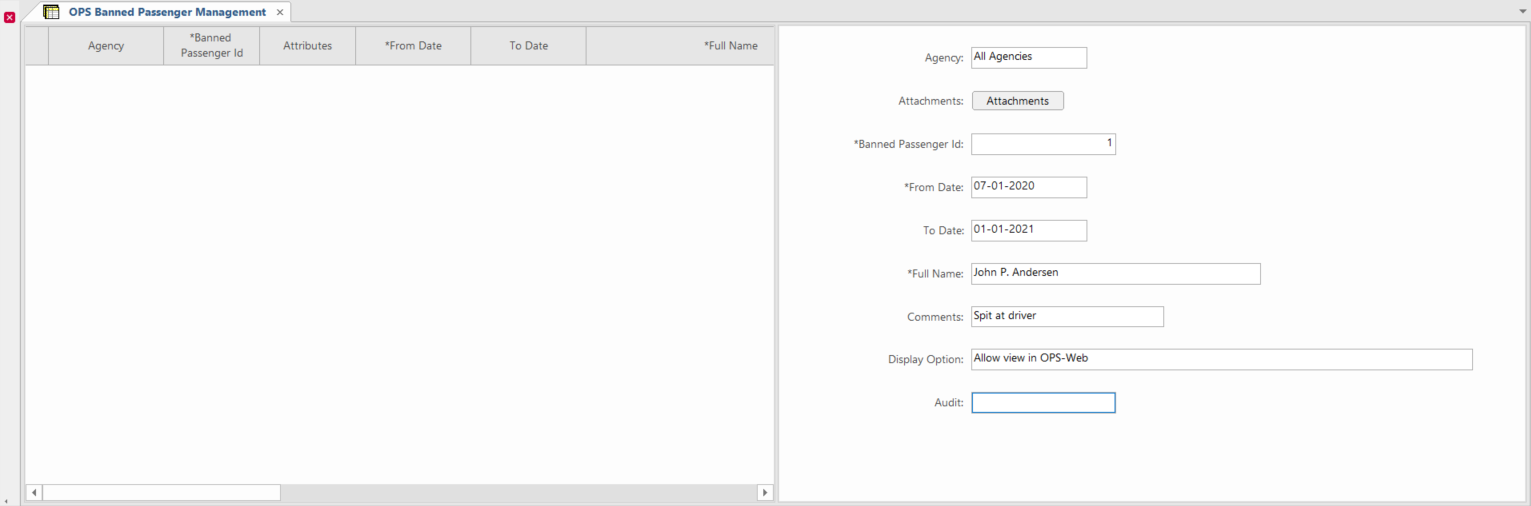
- A new screen, OPS Banned Passengers Management was created for use
with Employee Self-Service.
Trapeze6 users can now log information about banned passengers so that all employees are aware of passenger statuses.
-
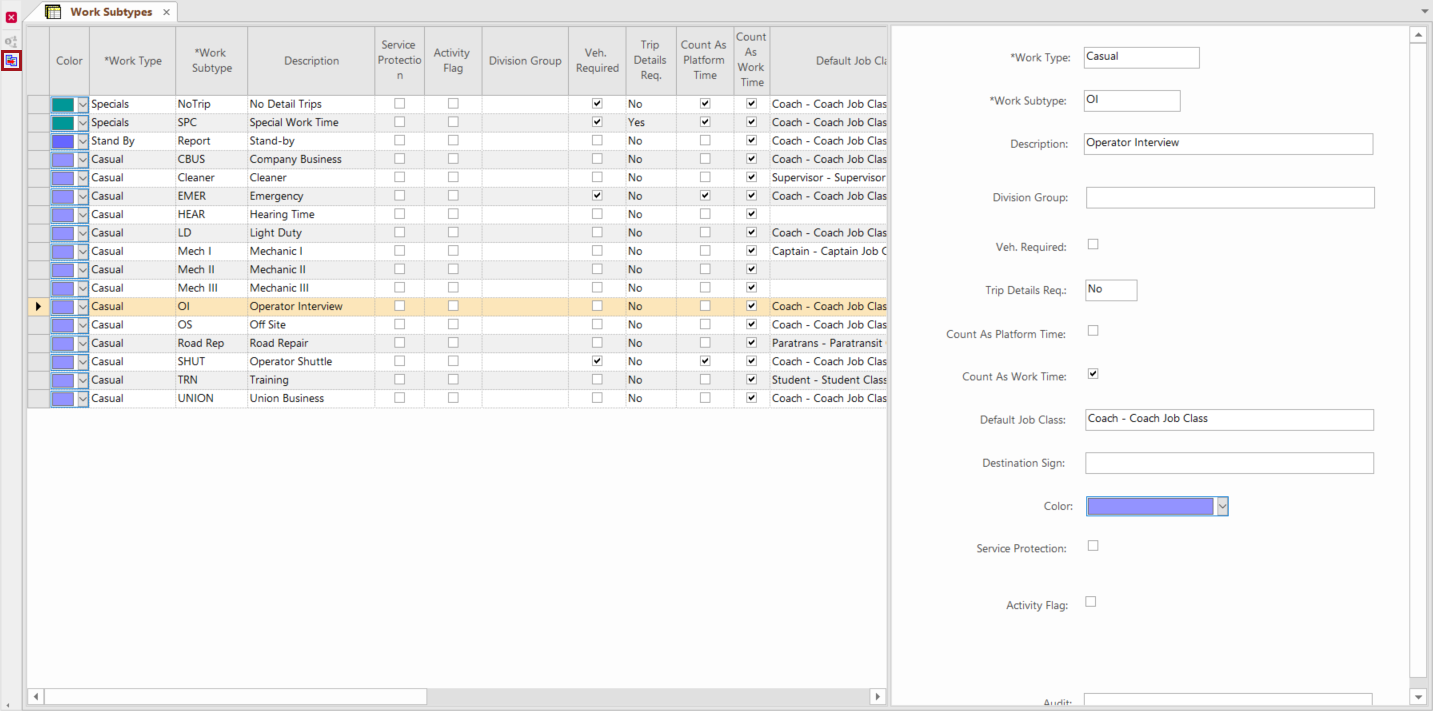
The clone option is now available for records in most ancillary data screens: Absence Types, Work Subtypes, Bid Units, Skill Types, OPS Work Assignment Rules, OPS Timekeeping Alert Rules, Accrual Rules, Bid Absence Matrix, OPS Absence Alert Types, Volunteer Types, Payroll Codes, Pay Codes, OPS Nodes.
To use this feature, open an ancillary data screen, select a record, and click in the right-side pane. In the screen toolbar, click the Clone Record button:
-
Ancillary screens now have a Show Ancillary Group Contents right-click menu option.
The option only appears in cells that contain an ancillary group. For example, in the below image, in the Description column, Absence is an ancillary group but Pool Time is not. Show Ancillary Group Contents is not available for Pool Time.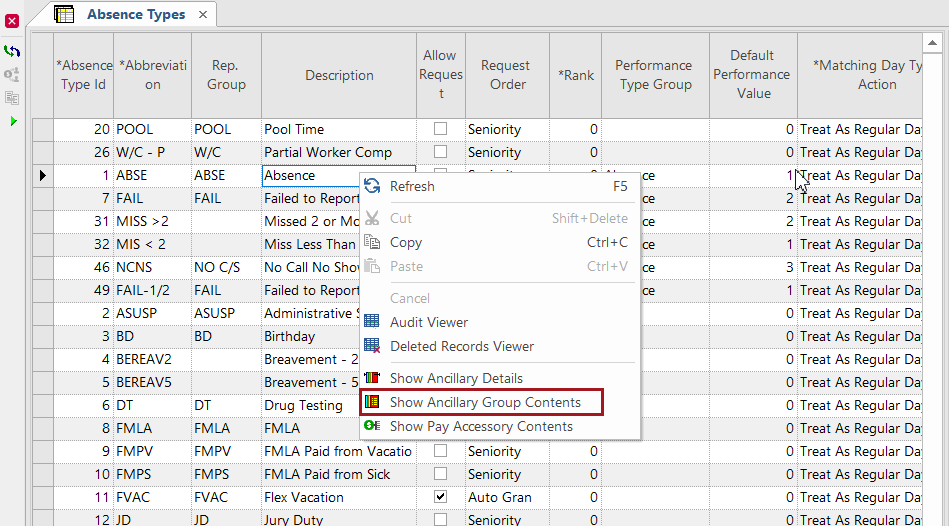
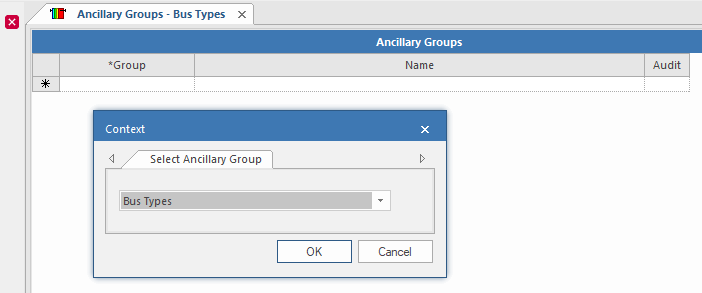
- A new ancillary group, Bus Type, is now available.
- OPS Nodes ancillary data now uses information from the OPSNodes table. (FX Node data is converted to OPSNodes and null values are converted to 0.)
-
In Absence Types ancillary data, an Update Use Accrual Flag button has been added.
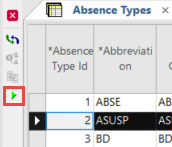
For absence types associated with an accrual type that uses an expiration method of Accrual Calendar, the Use Accrual Year flag must be set. In Absence Types ancillary data, the Use Accrual Year field is read only. To update this field without accessing the Ancillary Groups - Absence Types screen, you can now select an absence type record and then click the Update Use Accrual Flag button. All records are refreshed, and any records that should use the accrual year (that is, they use the Accrual Calendar expiration method) show a check mark beside the Use Accrual Year field.
- Work Assignment Rules ancillary data now has an
Absence Type Group option.
This allows system administrators to define absences that should be considered as work when creating Rolling Period Consecutive Rest Time rule types. This is useful, for example, if training or work meetings are logged as absences in the system but must be considered as work time when calculating employee time off in a defined period.
- OPS
Document Types ancillary data lets system administrators define the document
categories used at their transit site.
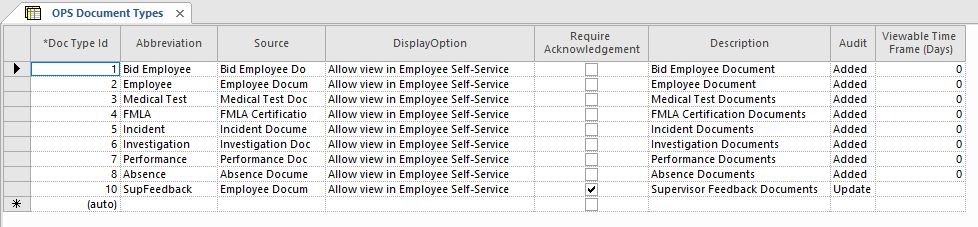
Each document type is associated with a source in the Client Shell and you have options to have the document acknowledged (Require Acknowledgement column) and to allow it to be viewed in Employee Self-Service (DisplayOption column). Document types defines the default settings for each document type. Individual documents can be set with different requirements, which will override the defaults. There are new security permissions associated with this feature. See Employee New Features for more information about documents.
Employee Rotation Rules can now be defined for Extra Board Types and Volunteer Types in ancillary data. They are no longer set in properties.

This allows users to define employee rotation rules for each extraboard or volunteer type and each individual agency (instead of for all agencies as a single group).
The property should be set based on whether or not Employee Rotation Rules will be used.
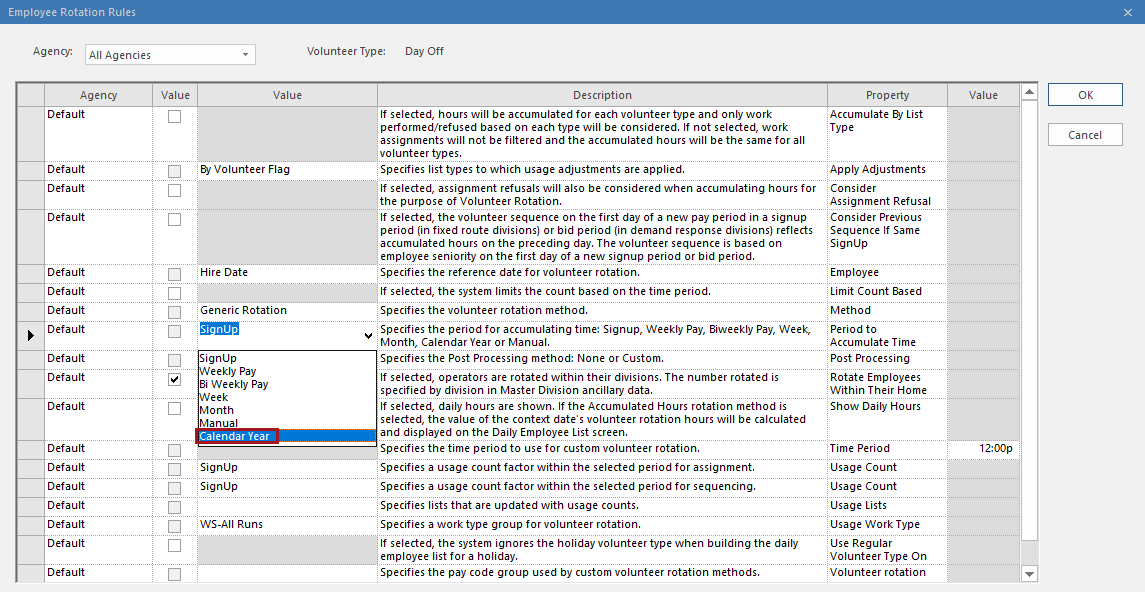
Clients with existing rotation customization can ignore this feature and should speak to their Trapeze representative.- In the Volunteer Types - Employee Rotation Rules ancillary data
screen, the Period to Accumulate Time property now has a
Calendar Year option. January 1st must be activated for the year
to calculate daily list volunteer employee rotation hours.
-
Volunteer Types ancillary data now has an Enforce Full Week option. Selecting this option means that the volunteer record will be valid for all days of the week. On day activation, the day off/working day flag will be used to determine whether the employee will be on the volunteer list. Users will not be able to alter the week template.
This affects the following screens: Employee Profile, Bidding, Volunteer Status, Daily Employee List, Daily Activity, and Employee Self-Service Volunteer Availability/Volunteer Request.
- In
Pay Accessory Groups - Pay Codes a new field was added:
Work Publish Status. Options are Non-Published
Employee and Published Employee.


For more information about this feature, contact your Trapeze representative.
OPS Employee Security Management
Users can now easily create security user accounts for active employees. This
lets employees sign in using a user name and password instead of a badge ID and PIN.
To use employee user name and passwords, the property must be set to Username and Password.
Context options for OPS Employee Security Management are Agency, Divisions, and employee Status Type.
The authentication mode for OPS Employee Security Management is defined in the property. Based on the selected authentication mode, OPS Employee Security Management shows LDAP users, built-in users, or a mixed list of users. The Authentication Mode property is respected in the Employee Profile screen, on the employee card, in the Identity field. If an LDAP security user is attached to an employee, the Client Shell user will not be able to request a password reset for the employee. When employees are associated with security user profiles for a type not selected in the Authentication Mode property, the system unassigns the security user account when the OPS Employee Security Management screen (or the Employee Profile screen) is opened.
- Add Employee Self-Service Security Group Users. Generates the Employee Self-Service security user group and adds any selected employees to the group. Other employees can be added at a later time using this button.
- Assign Existing Security User. Allows you to assign an existing security user identity to the selected employee.
- Un-Assign Security User. Removes the selected
employee from the Employee Self-Service security user group. The associated employee
user identity is retained and will need to be deleted from the
Security screen if it is no longer needed.
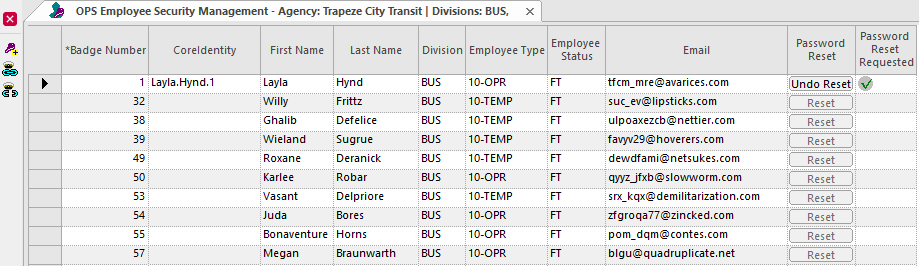
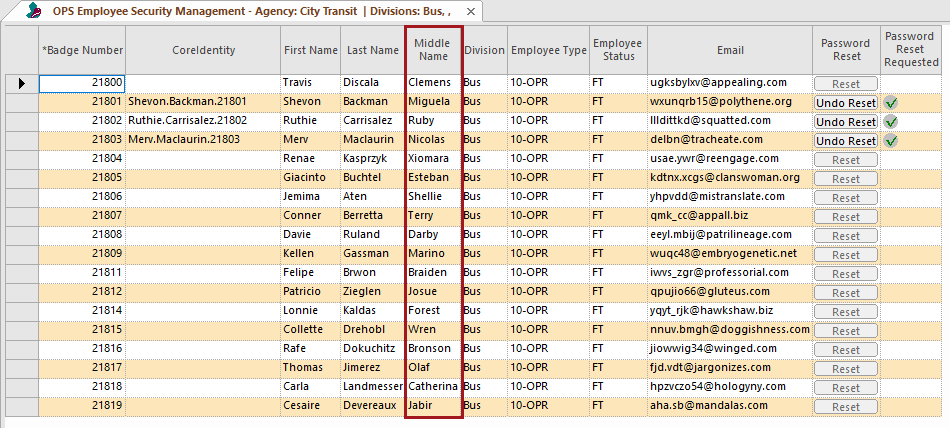
- A Middle Name column was added to the
OPS Employee Security Management screen. This accommodates LDAP
users, as security accounts are matched using first name, last name, middle name, and
email address.
Hold-down Management
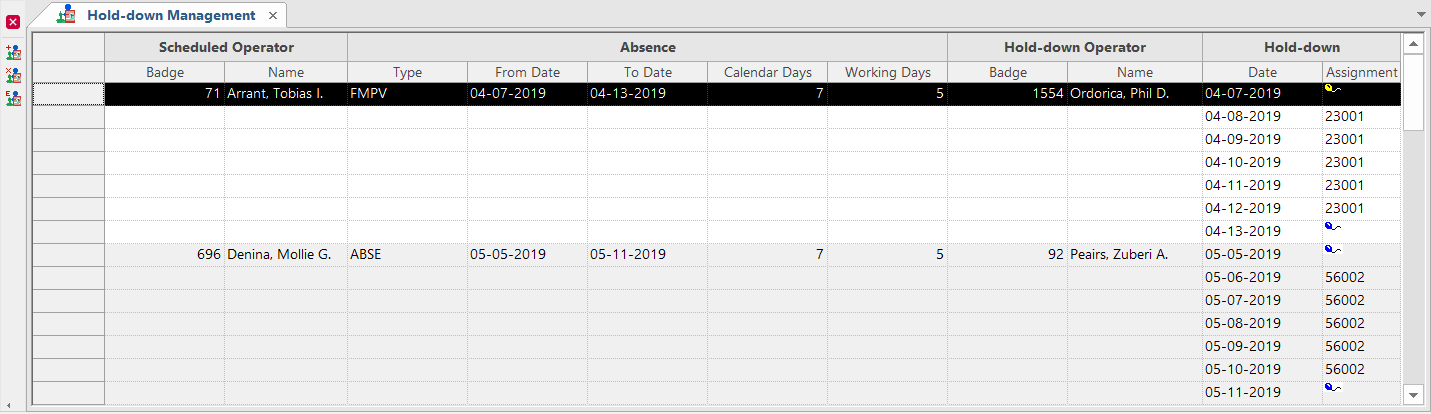
Hold-down Inquiry is now the Hold-down Management screen.
Context options for Hold-down Management are From Date, To Date, Agency, Divisions, and Absence Types.
- Create Hold-down. Launches the Create Hold-down dialog box and allows you to create a hold-down that defines the Date Range, Scheduled Operator, Hold-down Operator, and Bid Unit.
- Delete Hold-down. Deletes the selected hold-down.
- End Hold-down. Launches the End Hold-down dialog box and allows you to define the Returning Date. If Add employee to Extraboard for the rest of period is selected, define the Division, Extra Board Type, and Bid Unit Name to be used.
There are security keys associated with Hold-down Management.