
New and Updated Properties
Properties have been removed, updated, or created in v21.0, v21.1, and v21.2. 
Removed Properties
- Extraboard rotation properties are now set in the Employee Rotation
Rules dialog box in Extra Board Types (separate from
volunteer type employee rotation rules). This allows users to define employee rotation
rules for each extraboard type and individual agency (instead of for all agencies as a
single group).
An upgrade utility is available to populate the new dialog box with the old property values.
The following generic Extraboard rotation properties have been removed: - Volunteer rotation properties are now set in the Employee Rotation
Rules dialog box in Volunteer Types (separate from
extraboard type employee rotation rules). This allows users to define employee rotation
rules for each volunteer type and individual agency (instead of for all agencies as a
single group).
An upgrade utility is available to populate the new dialog box with the old property values.
The following generic Volunteer rotation properties have been removed: -
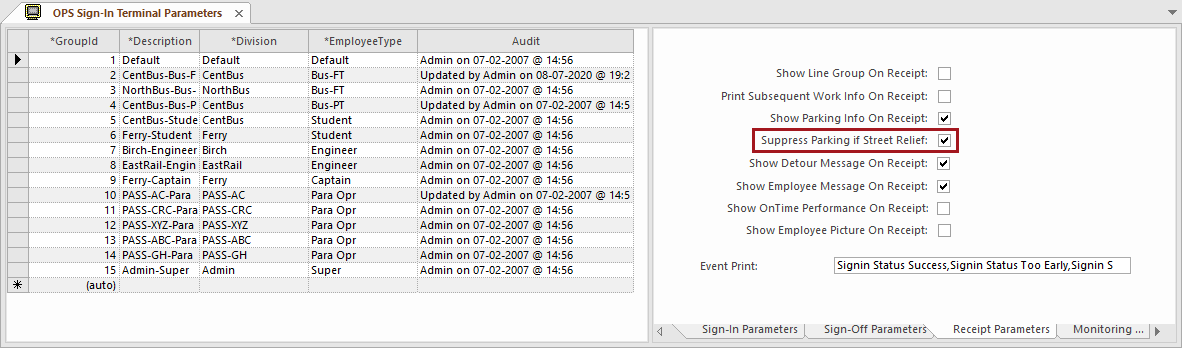
To suppress street relief parking, in the OPS Sign-In Terminal Parameters screen, on the Receipt Parameters tab, select the Suppress Parking if Street Relief option.
Updated Properties
- The property now also applies to Extra Work.
- and properties now also apply to PassRuns bid categories.
- The description for the property was updated: Specifies a Work Subtypes ancillary group for work subtypes that are excluded from day activation and operational service, but that can be used in bidding and work planning. Work included in the selected group can be used to establish extraboard operator order when the Extraboard Rotation Method property (found in Extra Board Types under Employee Rotation Rules) is defined as Bid Standby Time.
- Logic for was updated. If the defined Column For ID of New Employee is undefined or the value is <=0, a new Employee ID is created. Otherwise, the defined column is used as the Employee ID column (when the property is cleared).
- . No longer used in Sign-In Terminal. It is used in the Employee Signature dialog launched from the Performance Details dialog.
- The property was updated to . If selected, FX run platform time is costed by segment type (No, Line, or Zone).
- Timekeeping rounding properties now have a Nearest 5 minute
option.
If the numbers are 0, 1, or 2, they will be rounded to 0. If they are 3, 4, 5, 6, or 7, they will be rounded to 5, and if they are 8 or 9 they will be rounded to 10.
- A new Cost Order Setting folder has been
created for some timekeeping properties.
- is now
- is now
- is now
- is now
- is now
- properties have now been separated into and properties.
An upgrade utility is available to populate the new vacation relief properties based on the previous holddown property settings.
Properties (including new and updated properties) available in are as follows:- Allow Multi Level Relief. This is a new property. If selected, both hold-down and vacation relief are allowed. It overrides both the and properties.
- . This is a new property. Specifies the method for getting the Extraboard Bid Unit if no longer on Hold-Down. Default setting is By Agency, which uses the extraboard bid unit defined in . If Custom is used, consult your Trapeze representative.
- . This property has been renamed (previously, it was Extraboard Bid Unit if no longer on Hold-Down). Specifies the extraboard bid unit to be assigned to employees who do not have a previously assigned extraboard bid unit and who have their Hold-Down work deleted. This is only applicable if the property = Restore Original Days Off and EB Assignment.
- . When an absence is deleted, the Hold-Down relief for the delete absence dates is deleted as defined in the Delete Action property.
- . The behavior of this property has been updated. Now, if selected, multi-level Hold-Downs are allowed and vacation relief is not used.
- . This is a new property. If selected, default days off are ignored when creating a Hold-Down. Default days off are defined in .
- . When an absence is deleted, the vacation relief for the delete absence dates is deleted as defined in the Delete Action property. A warning is shown if the absence is deleted from the middle of the week.
- . This is a new property. If selected, only multilevel Vacation
Relief are allowed. Hold-Downs are not used.
For open-run bids, if this property is not selected, when someone bids for vacation relief and the original employee has vacation relief, a warning appears: "Vacation Relief operator cannot cover another Vacation Relief operator. Manual adjustment to the Vacation Relief assignment will have to be made after bidding is complete."
- . This is a new property. If selected, default days off are ignored when creating vacation relief. Default days off are defined in .
- . This is a new property. Specifies the number of week(s) after which to include a Vacation Relief package in an Operational Bid (based on when the package is released in the previous Operational Bid or in Work Planner). Click Dependencies (+) to specify the number of weeks for each agency. If greater than 0, a vacation relief package is created after the number of weeks specified; otherwise the system maintains its old behavior.
New Properties
| Property | Description |
|---|---|
|
Specifies the Day Off template used when calculating the maximum hours for the designated accrual type (Use Actual Days Off or Use Default Days Off). Use Actual Days Off checks the property when no days off exist in the week. Use Default Days Off checks the property. Additionally, the property should be set to 0. |
|
| If selected, allow users to select only the division they are assigned to within that work division bid period for the vacation bid. | |
| Specifies the date threshold for second pass bidding request times. | |
| Specifies the set of tables used for bidding requests. | |
| Specifies the time threshold (in minutes) for second pass bidding request times. | |
| Specifies the ToTime threshold for next day in second pass bidding request times. | |
| Select this property to allow operators to pick the same run name even when the run type or the run ID is different. | |
| If selected, when bidding cafeteria-style work, if any days of work have been picked, the rest of the work for the week is available ONLY for the Relief Dayoff Bid unit. If cleared, work remaining in the week can be picked by other operators (and is not saved for the Relief Dayoff Bid Unit). | |
|
Placeholder property (no functionality). Currently, the employee will be assigned matched work based on category Regular or Extraboard. |
|
|
Placeholder property. Currently, only assigns Holiday Extraboard and has no functionality for assigning Holiday Off. |
|
|
Placeholder property (no functionality). Currently, the employee will be assigned matched work based on category Regular or Extraboard. |
|
|
Placeholder property. Currently, only assigns Holiday Extraboard and has no functionality for assigning Holiday Off. |
|
|
If selected and the employee has Extraboard work on a Holiday, Holiday Day Off will not be shown on the employee's record in the Work Planner, Daily Activity, Employee Activities, and Extra Employee List screens. This also applies to the Day Off view in the Bidding screen. |
|
|
If selected, the Vacation Relief employees are allowed to select holiday bid options in case they do not have coverage. |
|
| If selected, the Vacation Relief employees inherit the Holiday Work selected by the employees they are covering. In this case, the holiday work selection is not displayed. They are not allowed to participate in a holiday bid if they are doing relief during that time. | |
| If selected, the Vacation Relief employees who are scheduled to be on vacation are excluded from holiday bids. | |
| If selected, Vacation Relief employees that are not covering any employee on the holiday week will have holiday selections displayed on the Extraboard properties under . | |
| Specifies the columns that will be excluded from being displayed in the Work Details and Assignment Details reports. | |
| If selected, the cost allocation is copied from the previous sign-up when importing a new version of the run. | |
| If selected, the warning messages related to time components in Activate Day Log will be included. | |
|
If selected, during activate day, work will be open when there is an agency mismatch between work and employee. |
|
|
If selected, when the Absence Types Open Work Action is set to Open conflicting pieces only, conflicted work is split into three pieces and the middle (conflicted) piece of work is unassigned. Default setting is off. |
|
|
If selected, when a day is activated, the Vacation Relief employee's Division is changed to that of the employee being covered. If Undo Day Activation is performed, the division of the Vacation Relief employee reverts back to his or her original division. |
|
| If selected, the Assignment Display column appears in Employee Quick Filter on the Daily Activity screen. | |
| If selected, the Lookup Start Travel and Lookup End Travel appear in the Edit Work Times dialog box and the Look Up Travel buttons (for start and end times) appear in the Split Work dialog box. | |
| If selected, Finish Time appears in the Edit Work Times dialog box, Split Work dialog box and work pane in the Daily Activity screen; the Work Detail dialog box in the Bidding screen; the Work Detail, Assignment Detail and Print Roster dialog boxes in the Work Planner; and the Detail page in Self-Service Bidding Requests. | |
| If selected, Prep Time appears in the Edit Work Times dialog box, Split Work dialog box and work pane in the Daily Activity screen; the Work Detail dialog box in the Bidding screen; the Work Detail, Assignment Detail and Print Roster dialog boxes in the Work Planner; and the Detail page in Self-Service Bidding Requests. | |
| If selected, Standby Times appear in the Edit Work Times dialog box, Split Work dialog box and work pane in the Daily Activity screen; the Work Detail dialog box in the Bidding screen; the Work Detail, Assignment Detail and Print Roster dialog boxes in the Work Planner; and the Detail page in Self-Service Bidding Requests. | |
| If selected, Extra Work can be created from absences in the Open Work dialog. | |
| Defines the Assign Types ancillary group used for extra work records automatically created by the system when activating the day. The ancillary group specified in this property should only contain one assign type (as only one assign type can be applied). If it contains multiple assign types, the system applies the first one listed. To use this property, the property must be selected. | |
|
If selected, the Roll Back employee button will be enabled for any selected employee. Previously, the Roll Back option had to be used one employee at a time, in order. Select this check box to apply the Roll Back option to any employee while leaving the offer records of other employees intact. |
|
| Specifies the working status group for Standby work that should prevent assignment to the employee if it overlaps with the selected work in the Suggest Employee screen. | |
| If selected, the Suggest For Next Work button will show in the Suggest Employee dialog box. | |
|
Determines the threshold for violations that make the employee ineligible for
work assignment.
|
|
|
If selected, the default report time defined in OPS Time Component Defaults is applied. Default report times will only be applied to a piece of work where there is no Report Time, and the preceding piece was assigned to a different employee. This will be checked with a work is assigned or unassigned. This property is agency-dependent. Click Dependencies (+) to define a value for each available agency. Default is false (unchecked). To use this property, confirm that the is selected. |
|
|
Specifies the Work Type ancillary group when the property is selected. |
|
If selected, when assigning work using the Assign Employee feature, the system checks to see if there are any employees on Standby based on the sign on time of the work being assigned. A message appears in the Assign Employee dialog box that indicates the time and how many employees are on standby. Used with the property. |
|
| If selected, operators assigned standby work aren't returned to standby work
after starting overlapping work. This includes instances where assigned work ends
before standby work or when standby work overlaps with gaps in multi-piece work. If
the standby work starts before the overlapping work, the operator does the standby
work until the overlapping work begins, at which point they're removed from the
standby work. This property is cleared by default. |
|
|
Specifies the certification types for which an employee can only be certified once. In Dependencies, defined Employee Certification Types (EmployeeCertificationTypeAbbr) are not allowed to overlap with the Employee Certification Types defined in the associated Employee Certification Types ancillary group (Value). An EmployeeCertificationTypeAbbr definition must exist for each Employee Certification Type that cannot be created when an equivalent certification already exists. |
|
|
If selected, this property uses the Employee Rotation Rules table to set rotation configuration by type (Extraboard Type and Volunteer Type) for Activate Day. If cleared, then the default Extraboard Rotation Method (Regular) is applied to all types (found in Extraboard under Employee Rotation Rules [this applies to both Extraboard and Volunteer Types]). Default is false. |
|
| This property is used for clients who have a custom rotation method enabled. If selected, the system reads the legacy rotation method value for all extraboard types when reading from the Custom service. Note that this property is not used for generic activities, such as Regenerate Daily Employee List or Activate Day. For further information, contact your Trapeze representative. | |
|
The folder from which employee photos are imported. |
|
| Specifies which one of the userLong fields (Column) in the EmployeeImport table
will be used as the new EmployeeID. Default is blank. To use this property, the system property must be cleared. |
|
|
Specifies the format of the file that the client payroll information: CSV or TXT. If using Custom, contact your Trapeze Representative. |
|
| Specifies the path where import files are saved for client payroll comparison imports. | |
| If selected, the system doesn't initiate the Open Block action for vehicle maintenance when performing automatic vehicle maintenance imports. If cleared, related blocks are opened on import. | |
| If selected, the system will process Import OPSLineStopLabel. | |
| Specifies the threshold used when calling TransitMaster to get the Pull In and
Pull Out Times. Events within the FromTime minus the threshold, and ToTime plus the
threshold will be obtained. Default value is 30 minutes. This property lets TransitMaster find and retrieve information outside of work piece From and To times, which allows OPS to populate pull-out and pull-in information as applicable. |
|
| If selected, Actual Signoff Time is only updated by MDT when End Travel Time is 0. | |
| Specifies the number of days of log information to keep in the OPSSITLog. (To find OPS SIT Log information, open the OPS Process Log and set the Context to OPSAutomaticPurgingLogService.) | |
| If selected, when doing operational hold-down bidding, the system will skip checking employee standby work and employee standby work will automatically open when the day is activated. | |
| If selected, Operational Bid would remove the originally assigned Holiday Work. | |
| If selected, the system allows employees without any bid unit to be added to the vacation relief operational bid. | |
| Specifies the SAFTE-FAST® Authentication. | |
| Specifies the SAFTE-FAST® Server Base URL. | |
| Specifies the SAFTE-FAST® Time Out. | |
| Sign-in card description used on the SIT kiosk. The default description is Driver License. | |
| If selected, All Sign In/Off attempts are logged. | |
| Show Scheduled Sign Off Time on Sign In Receipt | If selected, employees' successful sign-in receipts display their scheduled sign-off time. |
| If selected, the Designated value is applied for Max Time To Deduct when costing Absence Pay Rules that are set to check eligible balance through an Accrual Hierarchy configuration. | |
| If selected, automatically process FLSA on the weekly processing date. | |
Specifies the banking order:
Default is no order. |
|
|
Specifies the time that the Employee Bank Time Election Max Time represents:
|
|
|
This changes the work absence cost order. Absence first. The absence pay isn't reduced by overlapping work hours. This is the default setting. Work first. The absence pay is reduced by the overlapping work hours. Note that hours aren't reduced by partial bid work performed after the absence/overlapping work. |
|
| If selected, PassWork will not always cost first and work order can be configurable. | |
| If selected, extra pay is costed in the same level of work instead of always after regular work. Default is false. | |
| If selected, Extra Pay Types that require approval must be approved when considered by costing. | |
|
Addresses the setting of the Employee Day Type for February 29 during non-leap years. You can choose from two options as to which date the Birthday Holiday is applied on a non-leap year: Day Before and Day After (default). If you select Day Before, the date is February 28, and if you select Day After, the date is March 1. |
|
| If selected, Vacation Relief operators added to the Extraboard list will assume the Extraboard Bid Unit associated with the list for timekeeping calculations. | |
| If selected, Absences are ignored when processing Piece Intervening Rules.
The property is cleared by default. |
|
| If selected, the Absence time is split between the Max eligible balance and the remainder time when costing Absence Pay Rules that are set to check eligible balance through an Accrual Hierarchy configuration. | |
|
If selected, pay week information is shown for employees with a matching bid unit on any day in the pay summary period. If cleared, pay information is shown for employees whose bid unit matches on the Start Date defined in the screen Context. This property is used for the Weekly Timekeeping Summary and Weekly Timekeeping Activity Summary screens. |
|
|
This property is used for clients who have a custom rotation method enabled. If selected, the system reads the legacy rotation method value for all Volunteer types when reading from the Custom service. Note that this property is not used for generic activities, such as Regenerate Daily Employee List or Activate Day. For further information, contact your Trapeze representative. |
|
| If cleared, FX extra runs (runnum <0) aren't considered. The property is selected by default. |
|
| If selected, in order to reduce data storage, system will remove trips and blocks zone segment after import. | |
| If selected, the fixed route run will include Clear Time. | |
| If selected, the fixed route run will include Finish Time. | |
| If selected, the fixed route run will include Piece Makeup Time. | |
| If selected, the fixed route run will include Prep Time. | |
| If selected, the fixed route run will include Report Time. | |
| If selected, the fixed route run will include Shift Layover Time. | |
| If selected, the fixed route run will include Standby Times. | |
| If selected, the fixed route run will include Travel Times. | |
| If selected, the fixed route run will include Wait Times. | |
| Specifies the FX Source to populate the OPSTravels during import: Travel, DeadHead, or DeadHead & Travel. | |
| If selected, the Zone field is defined in Nodes table. | |
| Specifies count in days for the pattern Before or After DayOff for Employee Absence Monitor Screen. | |
| Specifies the default count in days for the pattern Before or After Holiday for Employee Absence Monitor Screen. | |
| Specifies the default count in days for the pattern Pay Date for Employee Absence Monitor screen. | |
| Specifies the default count in days for the pattern same date of the month for Employee Absence Monitor Screen. | |
| Specifies the default count in days for the pattern Same Day of the Week for Employee Absence Monitor Screen. | |
| Specifies how many days Pay Date is after the Pay Ending Date. Default is 3. | |
| Specifies the count in days for Number of Days After DayOff for any of the Absence Patterns. | |
| Specifies the count in days for Number of Days After Holiday for any of the Absence Patterns. | |
| Specifies the count in days for Number of Days Before DayOff for any of the Absence Patterns. | |
| Specifies the count in days for Number of Days Before Holiday for any of the Absence Patterns. | |
| Specifies the maximum limit in months for the date range size selectable within the context. | |
If selected, Admin Actions are required when creating Performance Details records. An error message appears if the user clicks OK in the Performance Details or Add Performance Details dialog box before adding an Admin Action in the Administrative Action(s) area. If cleared, a Performance Details record can be created without completing the Admin Action field. |
|
| If selected, the sign-off signatures appear in the Performance Summary screen in Employee Profile, Administrative Action(s) grid in Performance Details dialog box and Performance Summary in Performance Details dialog box. | |
| If selected, the ability to show records with an Admin Action applied. | |
|
If selected, in the Set Extraboard dialog box, the Division field is available. When a division other than the employee's home division is selected, the employee's division (shown in the Employee Profile under Status, in the Division column) is updated to the selected division for the selected date range. If cleared, the division field is not shown in the Set Extraboard dialog box. This is cleared by default. |
|
|
If selected, the Job Class column is now shown in the Work Planner screen in both the Employee View and Work View. In the Context dialog box, JobClass has been added to each of the sort options in the Sort By dropdown list for both views. For example, the option "Badge Number" is now "JobClass, Badge Number." |
|
| If selected, allow assignment of all bus types that share the same rank as the DailyBlocks.BusTypeID's rank. Otherwise, during the vehicle assignment process, the bus type must match. This is cleared by default. | |
|
Default folder from which vehicle pictures are retrieved. (Vehicle pictures in this folder must be labeled vehiclenumber.xxx. For example, 011.jpg) If the path is not specified, the system looks for vehicle pictures in the directory specified by the Hiwire\RootDir system property. This property is not visible in TP6. The default root path is Hw\Apps\FixedRoute\Operations\VehiclePictures. |