
About OPS Roster Management
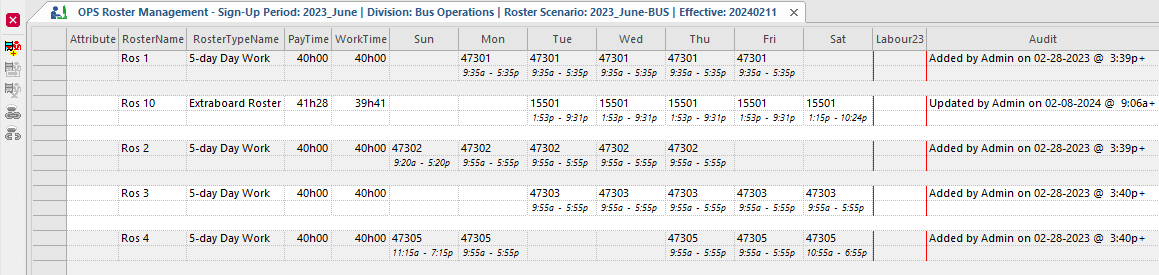
The OPS Roster Management screen lets you add, edit, and delete roster information.
| Button | Label | Description |
|---|---|---|
 |
Add Roster | Opens the Create Roster wizard. |
 |
Modifying Roster | Opens the Modify Roster wizard. |
 |
Delete Roster | Deletes the selected roster. |
 |
Apply Rostered Auto Holiday Assignment | Opens the Select Scenario for Rostered Auto Holiday Assignment dialog and shows all rosters and associated holiday work. This is only available for rosters that are not associated with a bid (based on division, scenario, and sign-up period). Only service groups in the current sign-up period can be selected. Available only when the property is selected. |
 |
Undo Rostered Auto Holiday Assignment | Opens the Select Scenario for Undo Rostered Auto Holiday Assignment dialog. This is only available until a bid is created. Available only when the property is selected. |