
Setting the Context for the Dispatch Log
Setting the screen Context (F3) shows and filters data related to your task.
-
In the Dispatch Log screen, open the Context
(F3).
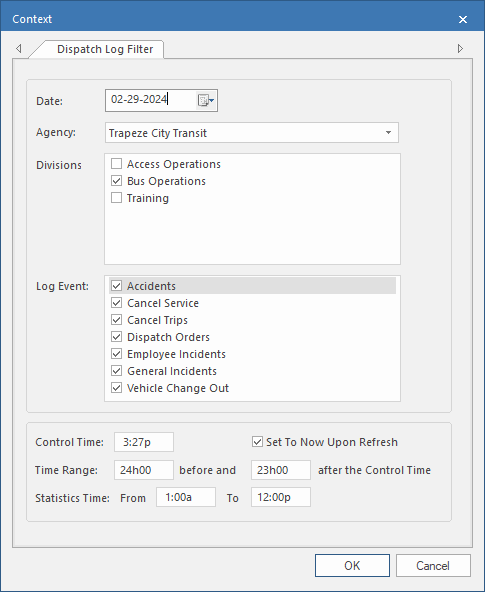
- Enter the Date to view.
- Select the appropriate Agency.
- Select the appropriate Divisions.
- Select the Log Event(s) to examine.
-
Enter a Control Time and Time
Range values to see log events in a specific time range.
Time Range entries are used in conjunction with the Control Time. For example, if the Control Time is noon (12∶00 PM) and the time range is 6h00 before and 6h00 after, you would see all entries between 6∶00 AM and 6∶00 PM.
-
Select Set To Now Upon Refresh if you want the control
value changed to the current time when you select refresh.
This lets you update your screen throughout the day.
-
In the Statistics Time
From and To fields enter the time
range for which to see statistics.
These fields specify what data you see when you select Statistics (
 ) and is independent of the Control Time and
Time Range settings.
) and is independent of the Control Time and
Time Range settings.