
About the Daily Activity Screen
The Daily Activity screen is the main dispatching screen in Trapeze OPS.
After a day has been activated, you can view work and employees for the day and perform day-to-day operations in the Daily Activity screen. For example, checking for employee absences and assigning employees to related runs.
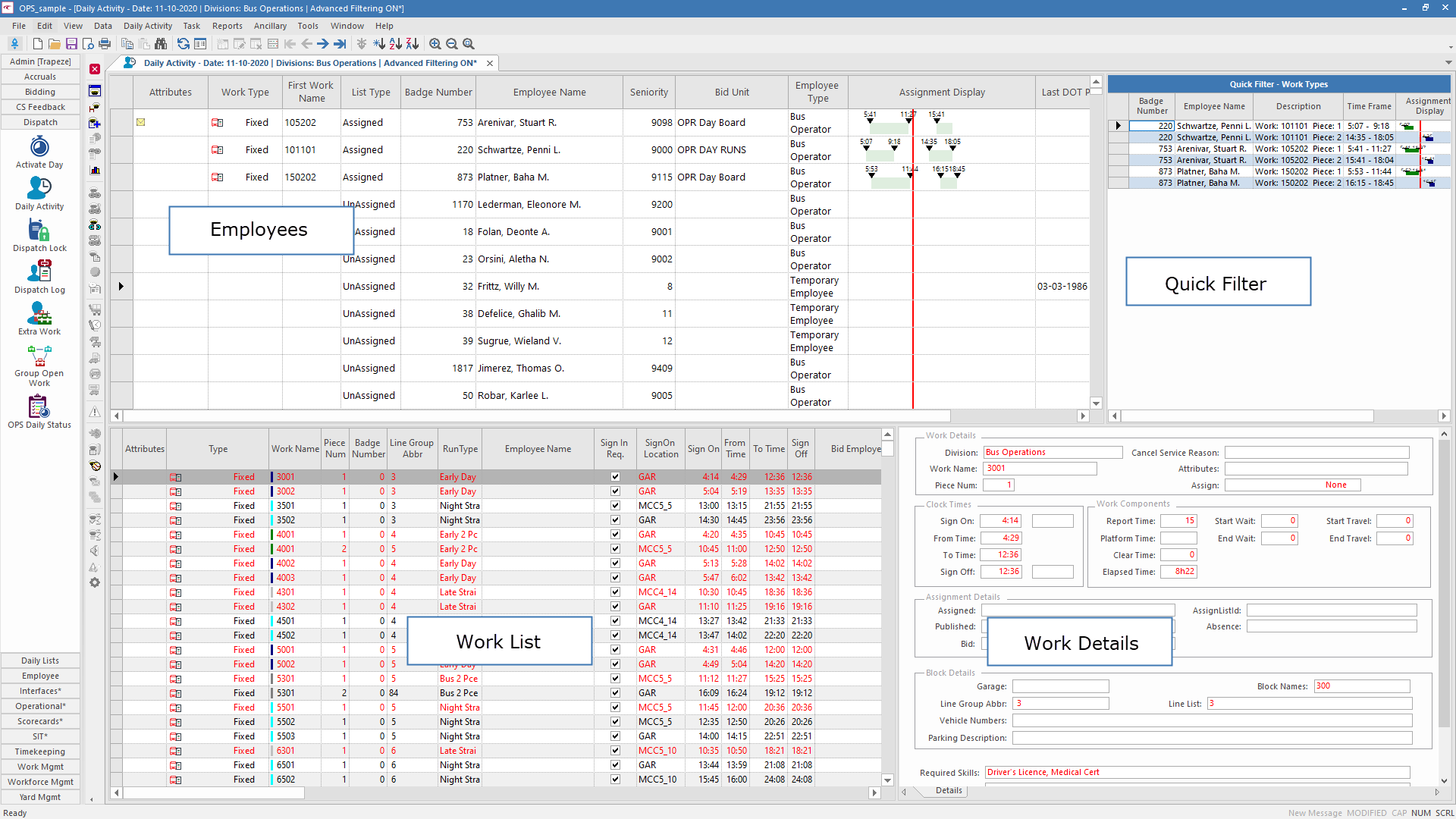
| View | Description |
|---|---|
| Employees | By default, employees are shown in the order in which they should be assigned to work. You can change which employees appear, or hide the employees view. |
| Quick Filter | Shows employees by work type or absence type. Settings are defined on the Context Quick Filter tab. |
| Work List | Shows the day’s pieces of work and which employees are assigned to the work. |
| Work Details | Shows detailed information about the work selected in the work list view |
If standby work hasn't been assigned or bid on, you can delete it by selecting it in the Daily Activity screen and clicking Delete.
Most of the functions used on a regular basis are available as screen toolbar buttons.
| Button | Label | Description |
|---|---|---|
 |
Show Employee Lists | Shows employees in the employees view and quick filter view, if applicable. Otherwise, only the work list view and work details view are shown. |
 |
Show Stand-by Employees Only | Shows only standby employees in the employees view. When selected, the system
ignores employee types defined in the screen Context. Employees appear in order of sign-in time of their first standby assignment. If multiple employees have the same sign-in time, the order is extraboard, volunteer, and then assigned operators. |
 |
Daily Employee Comments | Adds a comment to the Daily Employee Comment dialog. |
 |
Add Volunteer or Extraboard | Adds an extraboard or volunteer type to the selected employee for the day. |
 |
Employee List Hours Adjustment | Changes extraboard or volunteer hours. |
 |
Volunteer Usage Adjustments | Adjusts volunteer usage. |
 |
Statistics | Shows the Daily Activity Statistics dialog. Here you can analyze work activities and employee statistics. |
 |
Assign Employee | Lets you manually assign employees to selected work. |
 |
Suggest Employee | Suggests employees to be assigned to selected work. |
 |
Open Work | Opens work so that you can remove the currently assigned employee. You can also record an absence for the employee. |
 |
Suggest Work | Suggests work based on the work assignment profile for the employee's extraboard or volunteer type. |
 |
View Activity Logs | Shows the assignment history of a piece of work. |
 |
View Work Rule Progression | Shows work assignment violations. |
 |
View Bulletins | Shows bulletins for the selected work. |
 |
Quick Extra Work | Opens the Quick Extra Work dialog so that you can create and activate a piece of extra work. |
 |
Edit Work Times | Lets you update work times. For example, sign on time, report time, prep time, clear time, and sign off time. |
 |
Split or Undo Split Work | Lets you splits a piece of work or put two selected pieces of a split piece of work back together again. |
 |
Print Details | Shows driver paddles, manifests, and dispatch reports. |
 |
Cancel or Resume Service | Lets you cancel or resume selected service. |
 |
Restore Run | Restores a run so it's the same as when the day was activated. |
 |
Accidents/Incidents | Shows information about accidents, employee incidents, and work incidents. You can also create a new incident. |
 |
Extra Pay | Defines extra pay on the selected piece of work. |
 |
Timekeeping Attribute | Lets you assign a timekeeping attribute to the work or employee to use as an alternate costing. |
 |
Accrual Balances | Shows employee accrual balances. For example, sick time or vacation time. |
 |
Employee Activities | Shows employee work assignments over the course of a specific day or pay period. |
 |
Employee Messages | Lets you write messages for specific employees. |
 |
Send Mass Message | Lets you send messages to multiple employees. |
 |
Sign-On Activities | Shows operator sign-on activities. |
 |
Sign-Off Activities | Shows operator sign-off activities. |
 |
Driver Told Activities | Adds the Employee Notified icon to the
Attributes column. This is used to indicate that the operator
was told about the work assignment. OPS shows the color code as defined in properties. |
 |
View Absence Alert | Shows absence alerts. |
 |
Transit Master Playback | Opens TransitMaster AVL Playback to show previous work and vehicle assignments. |
 |
Equipment | Opens quick equipment. |
 |
Work Assignment Options | Shows possible employee violations for available open work. |
 |
Show Employee Profile | Opens the Employee Profile screen for the selected employee. |
Some less frequently used functions are only available from the Daily Activity menu.
| Menu Item | Description |
|---|---|
| Color Legend | Shows the color legend for the screen. |
| Re-check Assignment Violations | Rechecks all employees in the selected divisions for working time violations. |