
Viewing Employee Activities or Work Assignments
View employee activities, or work assignments, in the Employee Activities dialog in the Daily Activity screen.
This task describes the procedure to follow if the property isn't selected. If selected, the work flow is slightly different.
- Open the Daily Activity screen and set the Context (F3).
- Select an operator record.
-
Select Employee Activities:
 If you selected a work record with no assigned employee, and a message asks whether you want to see data for the bid employee, select Yes. The Employee Activities dialog shows the employee’s work assignments
 - Optional:
To see the employee's work assignments for the entire pay period select
Show Pay Period.
- Select Show Pay Period.
- Select Apply.
- Optional:
To change the date, do the following:
- Change the entry in the Date field.
- Select Apply.
- Optional:
To see the employee's status, type, and bid unit for a day, point to the day in
the Date column.
A tooltip shows the information.
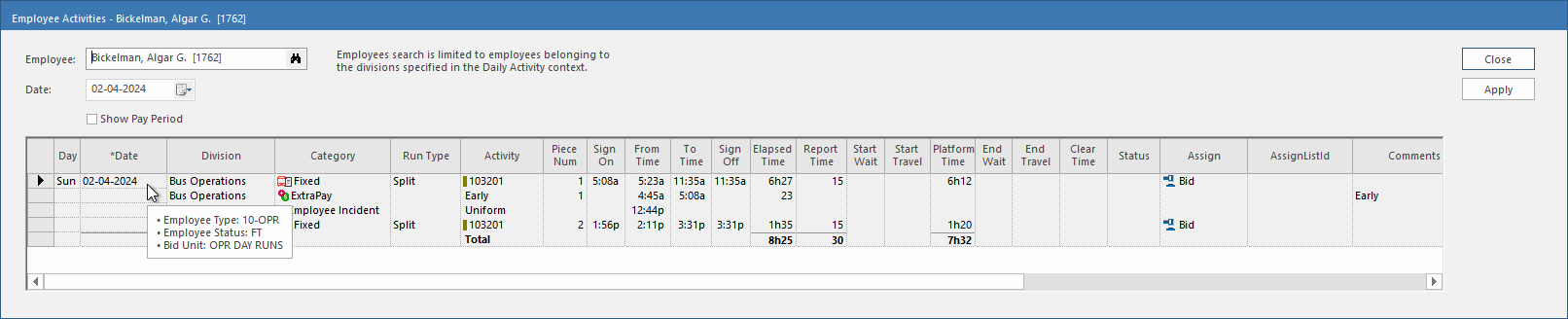 Work is sorted first by From Time (if it is extra pay for activity-based work, the From Time of the related work is used). If the From Time is the same, then it is sorted by Category in the following order:
- Work
- ExtraPay (shown after the corresponding Work and WorkPieceNum)
- Absence
- Incident
- Accident
- Optional: To see assignments for another employee, enter the employee's name or ID in the Employee field and select Apply.