Symbols on the Daily Activity Screen
Symbols are visual indicators that give dispatchers more information about employees and work.
| Symbol | Description |
|---|---|
 |
Regular day off. |
 |
Vacation day. |
 |
Employee absence that isn't vacation or regular day off. |
 |
Absence alert. |
 |
Employee message. |
 |
Employee incident. |
 |
Employee skill. |
| Symbol | Description |
|---|---|
 |
The work assignment has one or more violations. |
 |
The work assignment has extra pay. |
|
The assigned employee has an incident on the day. |
|
The assigned employee is assigned on their day off. |
 |
The driver has been notified of the work assignment. |
 |
Trips in the work are canceled. |
 |
The work is canceled. |
|
The assigned employee has a message. |
 |
The work has been modified and a log of those modifications is available. |
|
The assigned employee has an absence alert. |
 |
A bulletin is associated with the work. |
 |
The PASS run is frozen (no driver or vehicle is assigned). |
 |
The PASS run has an extended work time. |
| Symbol | Description |
|---|---|
 |
Bid work or Rota assignment. |
 |
Operational Bid Assignment. |
 |
Hold-down assignment. |
 |
Plan extraboard assignment. |
 |
Plan volunteer assignment. |
 |
Daily extraboard assignment. |
 |
Daily volunteer assignment. |
| Symbol | Description |
|---|---|
 |
Run work type. |
 |
Special work type. |
 |
Standby work type. |
 |
Casual work type. |
 |
PASS run work type. |
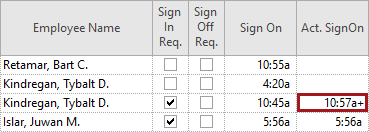
Other Symbols
Depending on system configuration, you may see + associated with time. This symbol
indicates that the recorded time includes seconds greater than 0. Time format is defined in
the property.