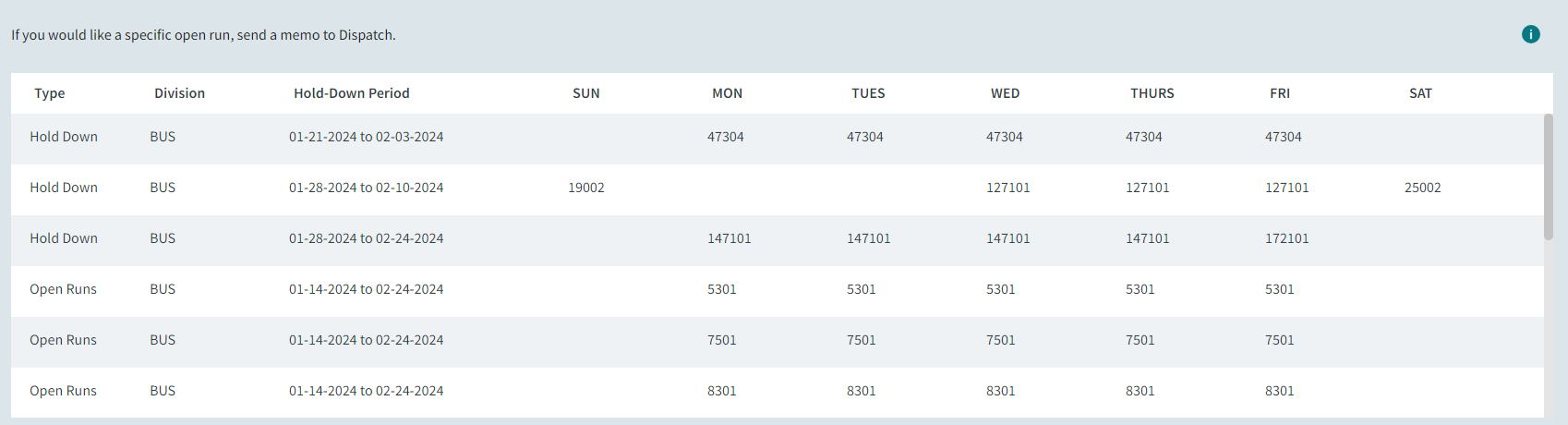
Defining Visible Hold-Downs and Open Runs in the Client Shell
Client Shell users define the hold-downs and open runs that are shown in ESS.
-
In the Client Shell, open the Properties screen and
confirm the following properties have been defined:
- .
- Next Week. Shows available hold-down work for the current week. Hold-down information includes the expected end date of the hold-down.
- End Of Sign Up Period. Shows available hold-down work until the end of the current sign-up period.
- . Defines the Working Status ancillary group used to determine which work types and work subtypes are included in the hold-downs list.
- .
-
Open the Absence Types
ancillary data screen. For absence types
that should be viewed on the Hold Downs & Open Runs
page, Max Hold Down Weeks must be defined as greater than
0.
Hold-downs and open runs are shown in ESS on a weekly basis (not on a daily basis).
-
Open the Work Planner screen and create week-long (or
multi-week) absences for employees:
- Set the Context (F3).
- In the employee view, select a full week (or multiple full weeks) for which the employee will be absent.
- Right-click and select Create Absences.
- Select an Absence Type to which Max Hold Down Weeks apply and complete the Create Absence dialog fields.
- Select Create.