
Assigning Attributes to Polygons
If your polygon is an ADA or speed zone polygon, you can establish when the polygon is active (days of the week as well as the time of day) and what speed is to be used for travel within the polygon.
About this task
Procedure
- Click .
- Click a polygon type in the list, and then click the polygon to which to assign attributes.
-
Click the Attribute tab.
The Polygon ID of the selected polygon is automatically filled.
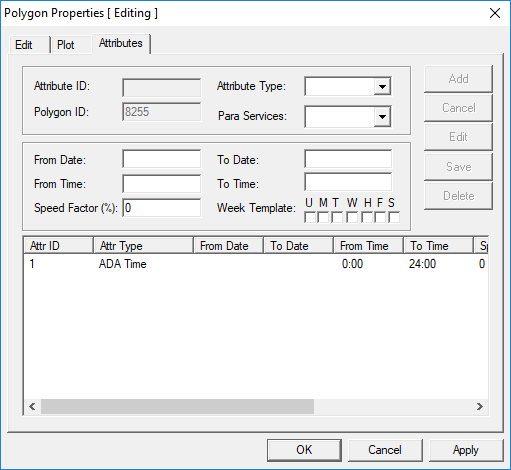
- Click the Attribute Type. For example, ADA Time or Speed Factor.
-
Do one of the following:
If the polygon Do this Is active only at specific times and/or days Type the times in the From Time and To Time fields and select the weekdays required. Is always active Leave the fields blank. -
If the polygon is used with specific paraservice types, select them from the
Para Services list.
Typically, paraservice types are assigned to polygon definitions when services-based scheduling is used (that is, the system is set up to offer multiple scheduling solutions for clients based on the different paraservices assigned to the client). The selected paraservices must adhere to the rules defined on the Attributes tab.
-
To assign a speed zone to the polygon, in the Speed Factor
field, type the percent value.
The percentage you type is calculated with the average speed as follows:
Speed × 100 ÷ (Average Speed) = Percent Value
For example, if the average speed is set at 55 mph but you want the speed reduced to 17 mph in a specific polygon. Using the formula previously mentioned, type 31 as the speed factor. (Note that polygon speed factors are not the only speed factors that may affect overall travel time.)
To see your average speed, click , on the Profile tab, click .
-
Click Add.
The system generates an Attribute ID.
- Click Apply.
- Click OK.