
Creating Subscription Bookings
A subscription booking is created once and the trip is repeated at specific intervals.
Before you begin
About this task
Procedure
- In the Client field, search for and select the client.
- Select the Subscription option.
- In the Booking subtype field next to the option, choose the appropriate subtype for subscriptions. For example, REG.
- In the Client field, type the name of the client.
- Enter all other necessary information as you would for a casual booking. You cannot fill in the Date field.
-
To enter the subscription as a request that will not be activated, select the
Pending check box on the Supplementary
Data tab.

A pending subscription is not activated until its status is changed to active.
Clear the check box if the subscription is to be activated.
The Pending option is available only if the system property defined in , on the Profile tab, under is set to Yes.Note that the pending option is selected by default when Use Subsciption Pending Status is set to Yes. -
Click the Calendar button:

The Date Intervals dialog box appears.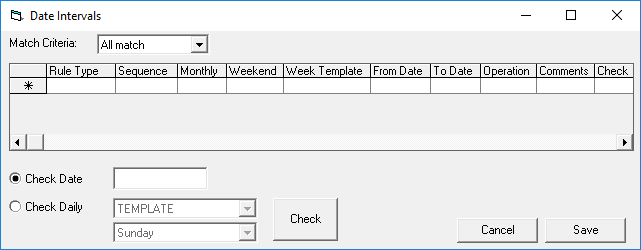
-
Define the required rules to determine when the subscription is to be activated.
If you create a subscription booking without adding date interval rules, the rules selected in the Default Date Interval property are used for the booking. To view this setting, click , on the PASS Booking Client tab, under Default Date Interval. Options in this property are defined in Date Intervals ancillary data.
- Click the Save button.
- Optional: Activate the subscription.