
Using the Dispatch Center Grid Columns Manager
You can show, hide, or rearrange columns for the MDT Center Notifications, Violations, and Unscheduled Trips grids in Dispatch Center.
Before you begin
About this task
Procedure
- Select the grid.
- Move the pointer to the grid and click. The column headings for the grid is highlighted.
-
Do one of the following:
- Click .
- Click the Grid Column Manager button:

The Grid Columns Manager dialog box appears.The position of headings in the list indicate the layout of the grid. The heading at the top of the list is the first heading (far left) shown in the grid while the heading at the bottom of the list is the last heading (far right) shown in the grid.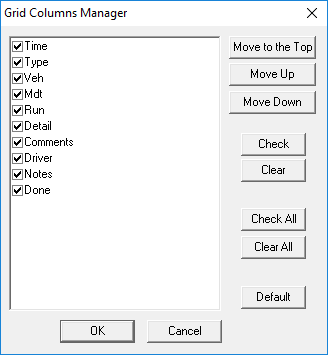
Headings with selected check boxes are currently shown. Headings with blank check boxes are hidden from view.
-
To control the visibility of columns:
- Clear the check boxes for columns that you do not want to appear on the screen.
- Select the check boxes for columns that you want to appear on the screen.
- Click Check All to have all columns appear on the screen.
- Select Clear All to clear all of the check boxes. Only do this if you make a mistake and want to start over, or it if would help you determine which columns you want to specify.
-
To control the position of a specific column, select it and do one or more of the
following:
- Click Move to the Top to move the column to the top of the list.
- Click Move Up to move the column up one position. When you move a column up, it is moved to the left on the screen.
- Click Move Down to move the column down one position. When you move a column down, it is moved to the right on the screen.
- Click Default to revert back to default settings.
- Click OK.
-
When prompted to save the changes, click Yes.
The dialog box closes and the grid is updated according to the changes made.