
Adding Roster Types
You can add roster types using the Union Contract dialog box.
-
Do one of the following steps:
- Click .
- Click the Union Contract button:

-
Click Add Type.
A new row appears in the roster type list.
- In the new row, enter a number for the roster type in the Num field.
-
In the Abbr field, enter an abbreviation for the new roster
type.
The abbreviation can be any combination of letters and numbers.
- In the Name field, enter the corresponding full name of the roster type.
- In the Weight field, enter a value for this run in the range of 1 to 32000.
-
In the InUse field, enter either a 1 or 0.
- One (1): Roster type is activated
- Zero (0): Roster type is disabled.
-
Click Save.
The Save Roster Union Contract File dialog box appears.
- In the File name field, enter the name of the file.
- Click Save.
The file is saved with an ruc file extension. - Optional:
To load a Roster Union Contract file that you previously saved, click
Load.
The Load Roster Union Contract File dialog box appears.
-
Click Close.
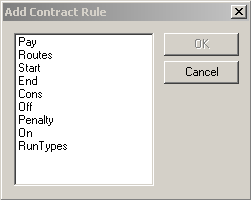 The contract rules included in this dialog box are determined by the union agreement.