
Freezing Blocks or Unblocked Trips
By freezing a block or unblocked trips, you prevent them from being deleted, unhooked, renumbered, or modified in any way.
-
On the Blocking tab, click the Edit button:
 .
The Edit dialog box appears. The Freeze tab appears by default.
.
The Edit dialog box appears. The Freeze tab appears by default.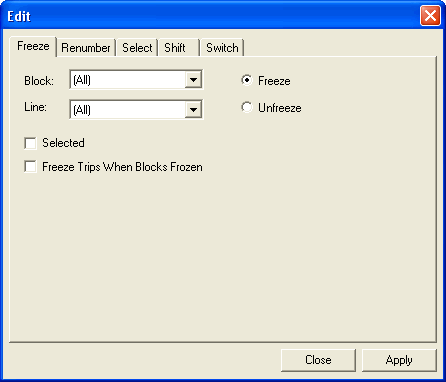
- To freeze a block of a particular line, click the block number you want in the Block drop-down list.
- In the Line list, choose the applicable line.
-
To freeze selected trips in the Blocked or
Unblocked grid, select the Selected check
box.
The Block and Line drop-down lists appear shaded.
- On the Blocking tab, select the trips you want to freeze or to select all, click the gray box on top of the marker column (on the left of the Frz column).
- To freeze the trips within the selected blocks,select the Freeze Trips When Blocks Frozen check box.
- Click Freeze.
-
Click Apply.
The letter F appears in the Frz column beside the selected blocks or unblocked trips.Note: If you selected the Freeze Trips When Blocks Frozen check box, check marks appear beside the trips in the Trip Building screen. This means that the trips are also frozen at the Trip Building level; you are unable to modify the trips.
- Click Close.