
Selecting Blocks
The Select function allows you to select a group of blocks so that you can perform a function on the entire selection at once such as freezing blocks.
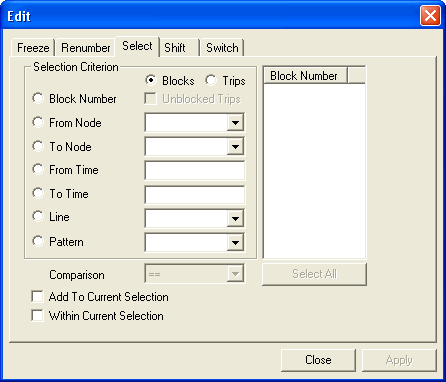
The Blocks and Trips options are selected depending on whether you want to select blocks or trips within blocks. The Blocks option is selected by default. The Unblocked Trips check box is activated when you click the Trips option.
-
On the Blocking tab, click Edit:
 .
.
The Edit dialog box appears.
-
Click the Select tab.
-
In the Selection Criterion frame, click the
criterion you want to use.
You can only use one criterion at a time. For example, if you want to select some blocks by block number, click the Block Number option. (The Blocks option is selected by default.)
-
Do one of the following steps:
- Press CTRL and in the Block Number list box, select the numbers that you want.
- To select all the blocks, click Select All.
- Optional:
To use another criterion such as From Node, To
Node, Line, or Pattern, click
the corresponding option and choose the appropriate item in the adjacent drop-down
list.
Option Description ==
Equal to !=
Not equal >
Greater than >=
Greater than/equal to <
Less than <=
Less than/equal to -
Click Apply.
The blocks that match your criterion are highlighted in the Blocked trips grid.
- Optional: To select more records, repeat steps 3 and step 4 (if necessary) on the Select tab and select the Add To Current Selection check box.
-
Click Apply.
The block you selected earlier remains highlighted and the records that match your new criterion also appear highlighted.
- Click Close.
- Proceed with the action that you want to perform on the highlighted data such as freezing the selected blocks.