Conducting a Bid

Employee bid requests can be entered in the Bidding screen.

If vacation relief bid units are included in the bid and the OPS > Bidding > VacationRelief > MultiplePass property is selected, employees who bid for vacation relief in the first pass bid for their actual work in the second pass.

Multi-pass bidding is also used for bid units that have a bid category of ReliefRosters or ReliefDayOff.

  1. Open the Bidding screen and set the Context (F3).
  2. Select Bidding > Employee Bid.
  3. On the Employee Bid - General page:
    1. From the Division list, select the division the operator is making the bid from.
      You can pass over this employee for now by selecting Skip. For example, you would typically skip employees who are bidding on vacation relief work so that vacations can first be assigned to other employees. To return to a skipped employee, select the employee in the Bidding screen and then select Bidding > Bidaround. Hovering over the Status field for the employee in the Bidding screen shows the Reason entered for skipping.
    2. Select Next.
  4. On the Employee Bid - Select Quota page:
    1. Select the work type and day off combination that the employee requested.
    2. Select Next.
      This opens a variety of wizards based on the selected work type.
  5. On the Employee Bid - Select Roster page:
    1. Select the shaded rectangle to the left of the roster that the employee wants to select.
      To view detailed information about the selected roster, right-click the selected row and select Work Detail. The Roster Detail window shows detailed work information for the first week.
    2. Select Next.
  6. On the Employee Bid - Select Cafeteria Style Work page:
    1. Select one run or piece of standby work for the employee on each working day.
      To view more information about work that appears on the wizard page, you can do the following:
      • Hover over the work. A tooltip showing the work hours appears.
      • Right-click the selected work and select Work Detail. A window shows detailed information for the first week.
    2. Select Next.
  7. On the Employee Bid - Absences page:
    1. Select an Absence Quota Type.
    2. Select the Absence Type that the employee wants to choose for the bid.
    3. If the bid has daily absences, in the calendar select the days the employee requested.
    4. If the bid has weekly absences, in the calendar select seven consecutive days or select a week number to choose the entire week.
    5. Repeat these steps for any other applicable absence type.
    6. Select Next.
  8. On the Employee Bid - Banking Creation page:
    1. To bank holiday time:
      1. In the Employee Bank Type Id list, select Holiday Time.
      2. Select the Holiday Id.
      3. Select Next.
    2. To bank overtime:
      1. In the Employee Bank Type Id list, select Overtime.
      2. Enter the start and end dates for the banked overtime in From Date and To Date.
      3. Select Next.
  9. On the Employee Bid - Work Preference page:
    1. In Preference Order, enter an number indicating the employee's preference.
      The lower the number, the greater the preference.
    2. Select the Work Type for the preference order.
    3. Select the Subtype for the preference order.
    4. Repeat these steps for all the preference order values.
    5. Select Next.
  10. On the Employee Bid - Waiver Creation page:
    1. Enter the Rule Name of the work assignment rule that would get violated.
    2. Enter the start and end dates of the waiver in From Date and To Date.
      The waiver is only in effect during this time range.
    3. In Warning Threshold, enter the value at which the employee receives a warning.
    4. In Error Threshold, enter the value at which the employee receives an error.
    5. Optional: Add any additional Comments about the waiver.
      There is a 254 character limit.
    6. Click on the row below to save the record.
    7. Select Next.
  11. On the Employee - Select Vacation Relief page:
    1. For each week, select the name of the employee on vacation with bid work that the operator wants to perform.
    2. Select Next.
  12. On the Volunteer Creations page:
    1. Select a Volunteer Type.
      Days the volunteer type applies for the employee are automatically selected in the Week Template field.
    2. In Week Template, select each day of the week when the employee will act as a volunteer with the specified type.
    3. In Available Regions, select each region where the employee will act as a volunteer with the specified type on the specified days.
    4. Optional: Enter a Comment about the volunteer record.
    5. Click in another row to save the record.
    6. Repeat the steps for any other volunteer work.
    7. Select Next.
  13. On the Employee Bid - Answer to the Bid Questions page:
    1. In the Answer column of the associated Question row, enter the employee's answer.
      Some questions have a list of answers.
    2. Click another row to save the answer.
    3. Select Next.
  14. On the Employee Bid - Bid Completed page:
    1. Optional: Enter any Comments about the bid.
    2. To print the employee's pick slip:
      1. Select Report. The Bidding Report dialog shows the pick slip.

        For vacation pick slips, the Days Off column shows N/A if there are no days off found for the bidding period.

      2. Select Print Preview. The pick slip appears in a Print Preview dialog.
      3. Turn headers and footers ON/OFF.
      4. Select Print Document to complete the printing of the pick slip.
    3. Select Process Next Employee to process the next employee's bid.
  15. Select Finish.
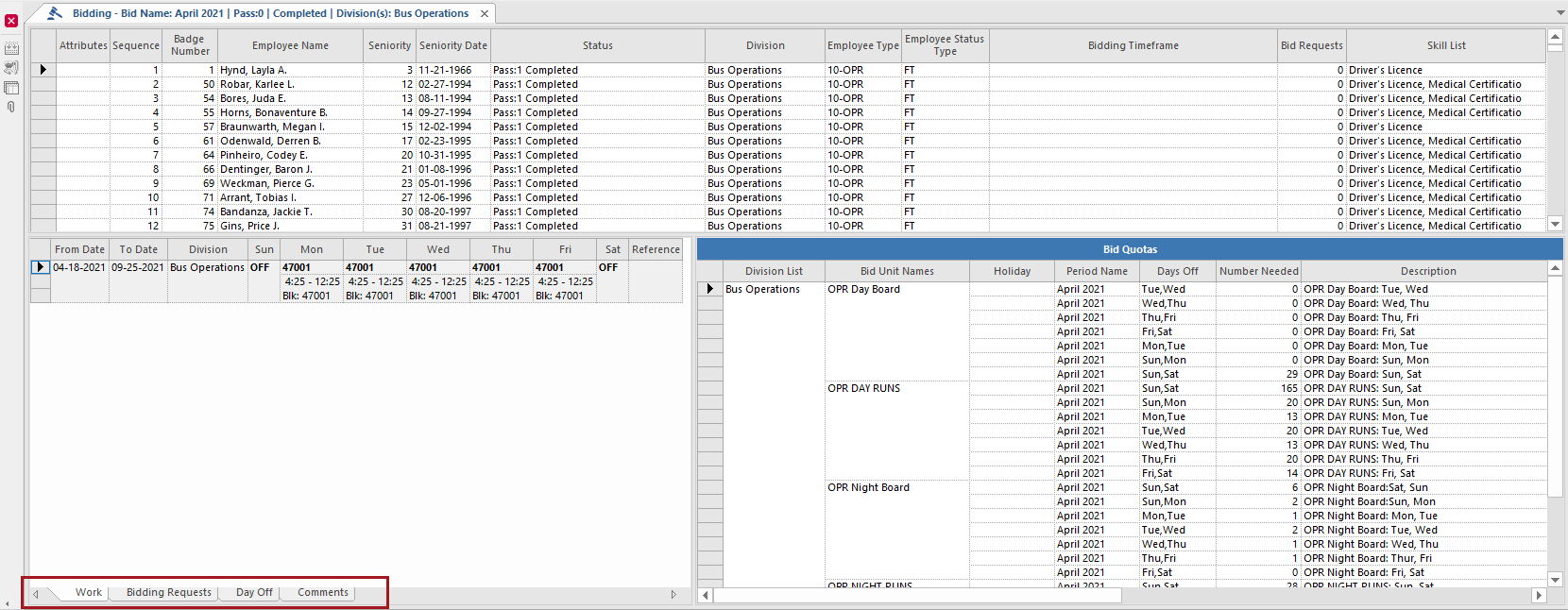
Review information employee bid information by selecting the employee and then the tabs in the lower left pane.
The Bidding screen with the lower left tabs circled in red.
If it's a multi-pass bid, comments from both passes are shown on the Comments tab.
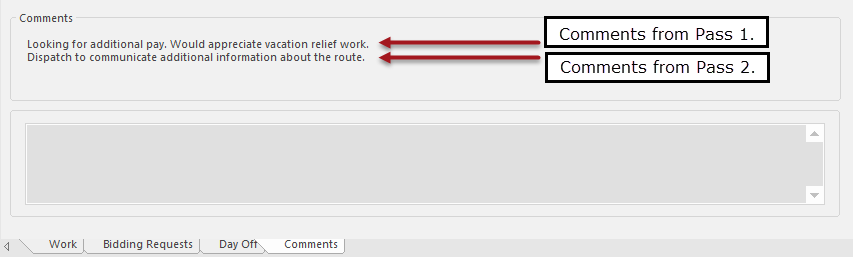
Comments showing from both passes.