Creating Document Bulletins
Document bulletins are created in the OPS Bulletins screen.
- In the Client Shell, open the OPS Bulletins screen and set the Context (F3).
-
Select Add Bulletin:

- Select Document.
-
Select the Divisions for which the bulletin is
intended.
Only employees in the selected divisions are able to see the bulletin.
- Select the Employee Types for employees should get a copy of the bulletin.
-
Select a From Date and To Date
for the bulletin.
The bulletin is only visible during this date range.
-
Select the days of the week for which the bulletin is valid.
This field, together with the date range, determines when employees can see the bulletin.
-
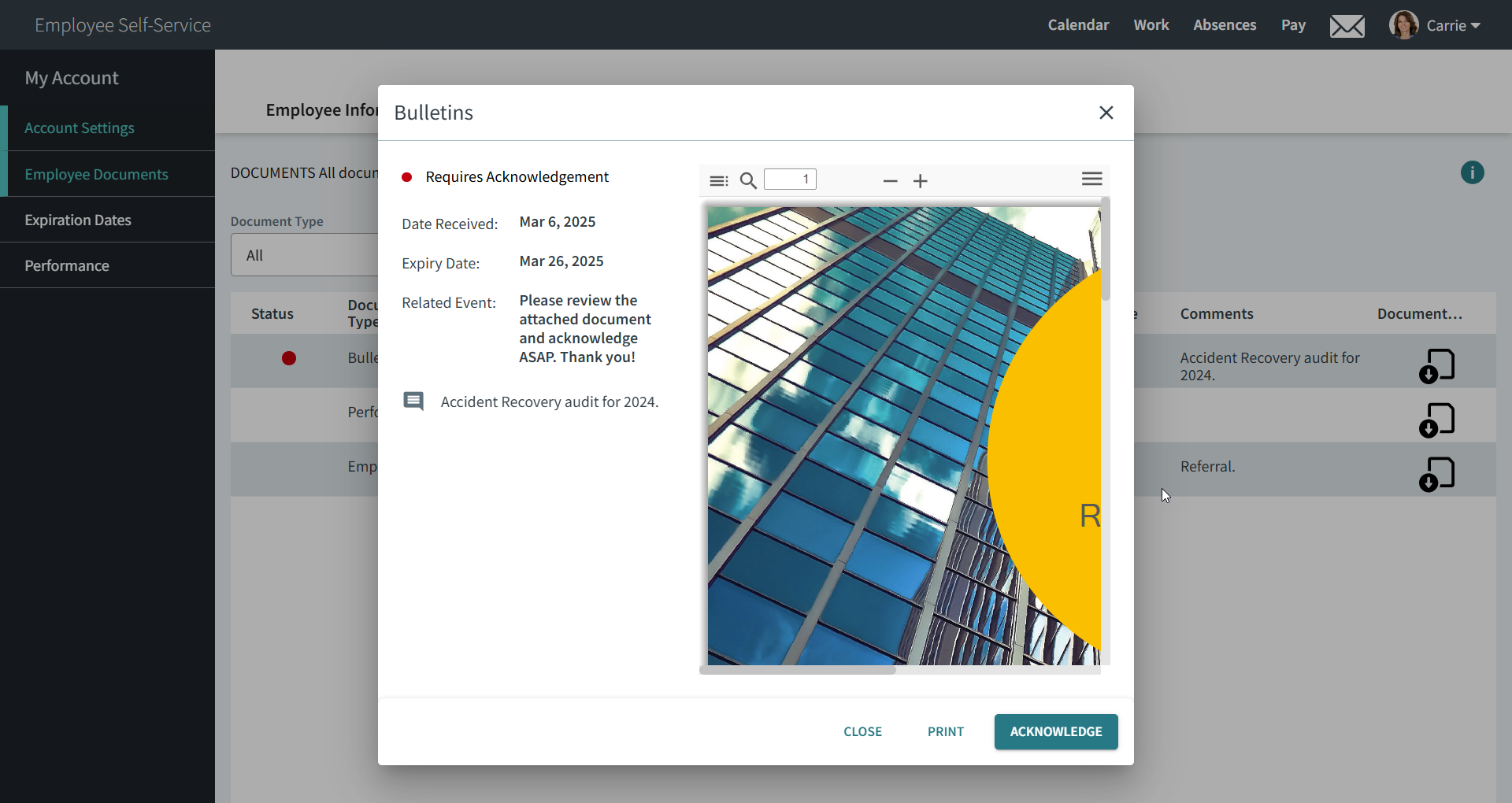
If the employees who get a copy of the bulletin need to acknowledge the
bulletin, select Acknowledge Action.
When document bulletins are acknowledged, employees are acknowledging the bulletin, not the document. Best practice is to attach one document per document bulletin. If multiple documents are added to a bulletin, they should be added at the same time. If more documents need to be added at a later time, new bulletins should be created, in case the employee has already read and acknowledged the existing bulletin. To see who has already acknowledged the bulletin, use the Bulletin Acknowledgement feature.
- Enter a Bulletin Message.
- Select OK.
-
In the Manage and View Attachments dialog, attach a
document.