Place text in quotation marks for exact match search results.
Exporting Runs
The Export feature exports runs data into a csv or a PDF
file.
The Export feature for travels appears and works in the same manner as the Export
feature for ancillary data, parameters, travels, cost data, and run scenarios.
Click the Export button:
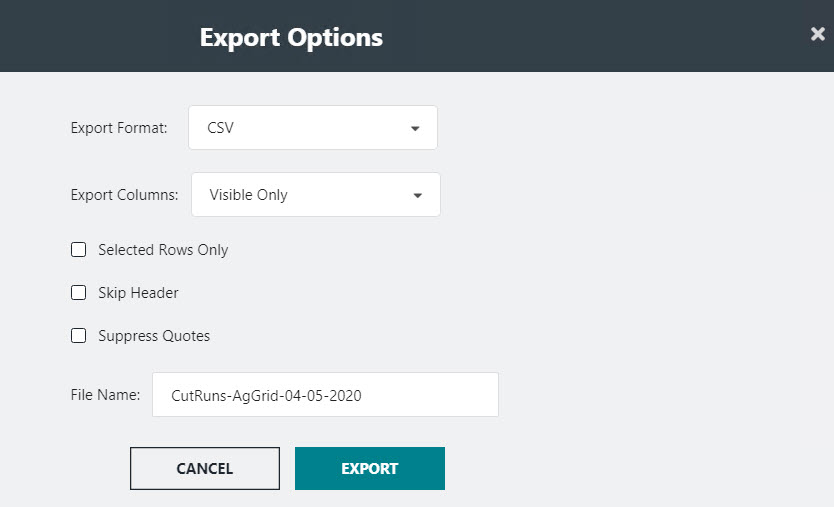
The Export Options dialog appears.
By default, CSV is selected in the Export Format
field.
If you choose to retain CSV as the Export
Format, perform the following substeps:
In the Export Columns list, choose one of the
following options:
Visible Only - If selected, only the
columns of the selected options: Sign-Up,
Context,
Scenario, are shown on the screen are
exported. This is the default.
All - If selected, all columns are
exported including those that are not shown on the screen.
Select the options that you want to apply:
Selected Rows Only - If selected, only
selected rows are to be exported.
Skip Header - If selected, the header
will not be exported.
Suppress Quotes - If selected, quotation
marks are not exported.
In the File Name field, you can rename the file
that was automatically generated.
Click Export.
If your system has Excel, the data is shown in a spreadsheet.
Otherwise, it is shown in a text editor such as Microsoft
Notepad.
If you choose PDF (Portable Document Format) in the
Export Format drop-down list, the options in the
Export Options dialog are changed. Perform the
following substeps:
Select any of the following options that you want to apply:
Maintain Columns Positions
Maintain Sort Order
Click Export.
The data is shown on a new tab. You can proceed to preview or
print it.
Note: When you click Print, make sure
to select Save as PDF in the
Destination field.

 The Export Options dialog appears.