Place text in quotation marks for exact match search results.
Selecting Scenarios
Set the context of the data that you want to work with before performing any task, for
example, uncut blocks or previous runcuts in the Select Scenario dialog.
Make sure that the data required to fill in the fields in has been previously defined in
FX Ancillary Data and that block data has been created for the Sign-Up Period, Divisions,
Services, and Exception Combos that need a runcut.
The name of the scenario that is
currently loaded is shown in the Scenario field, which is in the left
section of the top ribbon.
With the Runs screen open, click the Scenario field.
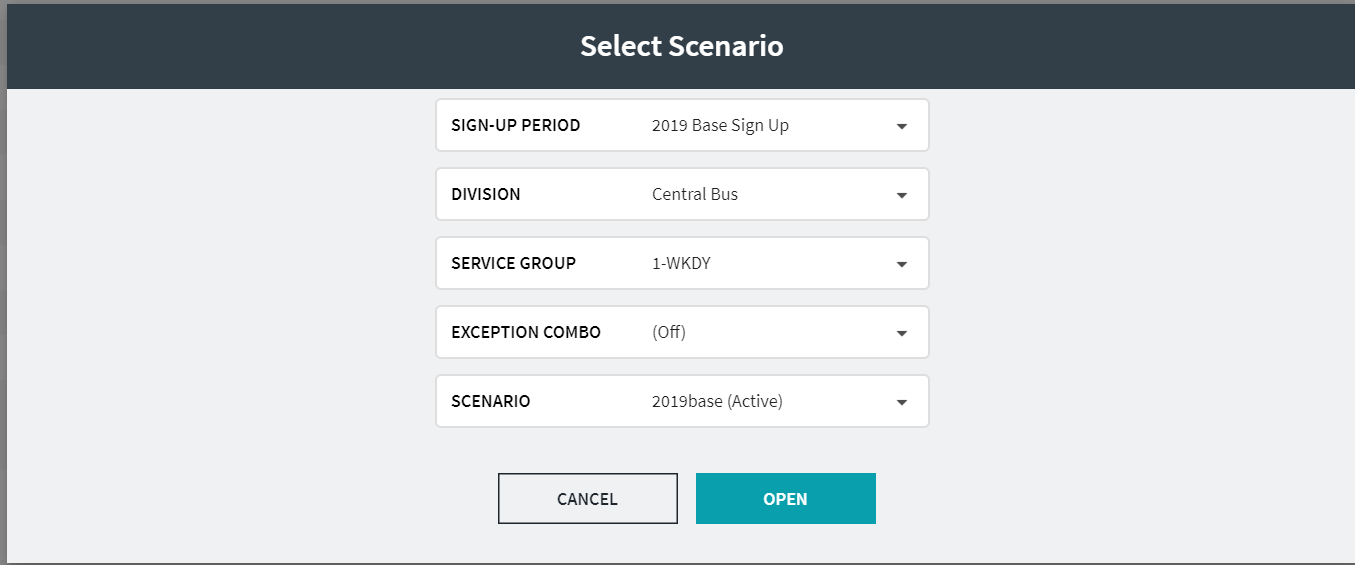
The Select Scenario dialog appears. The data of the
active scenario is shown in the different fields.
In the Sign-Up Period list, choose the sign-up period to define
a set of divisions, services, exception combos (if applicable), and scenarios to
runcut.
In the Division list, choose the division to define a set of
services, exception combos (if applicable), and scenarios to runcut.
In the Service Group list, choose the appropriate service group,
(for example, M-F, Sat, Sun).
If exceptions are used with the service group you selected, a list appears in the
Exception Combo field.
Optional: In the Exception Combo list, select the
appropriate exception. If exceptions are not used, the option,
(Off) appears in the Exception Combo field.
In the Scenario field, perform one of the following steps:
To build upon the parameters and runcuts contained in a saved scenario, choose a
saved scenario from the Scenario list and click
Open.
To create a new scenario that is not based on any previously saved work, click
(New) in the list, type the name of the new scenario, and click
Create.
The name of the selected or newly created scenario is shown in the
Scenario field.