Place text in quotation marks for exact match search results.
Loading Runs
To load a runcut file that closely matches the block piece data of the division and
service group you are currently working on, use the Load Runs
feature.
If the data does not completely match what you are currently working, you are able to
define the load before accepting the data.
Click Runcutting > Load Runs.
The Load Runcut File dialog box appears.
Select the runcut file you want to load from the
files.
Click Open.
The Load Runcut File dialog box appears.
Browse to the runcut file you want to use and click Open.
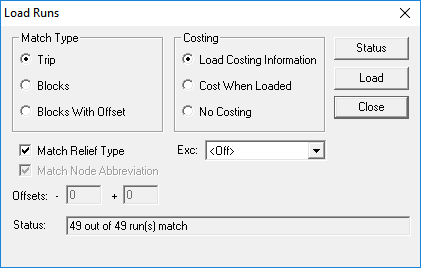
The Load Runs dialog box appears.
To see if there is a match among the previously saved cut files, click
Status.
A message appears in the Status field informing you
whether there are matching runs.
Depending on what data you require, select a combination of options in the
Match Type and Costing frames:
To load files with the same context as the current context, select the
Trip option. An example is when you want to try different
costing combinations using the same data to find the best runcutting solution.
To load files from a different context, for example, different sign-up period,
select the Blocks or Blocks With Offset
option.
If you choose the Blocks With Offset, the Match Node
Abbreviation check box and the Offsets fields are
activated. Leave the Match Node Abbreviation check box selected.
In the Offsets fields, type a minus and/or plus value, for
example, +10 and - 10 and then, type an appropriate value.
If the Status field indicates a match, click
Load.
The data is loaded into the Cut Pieces grid. If you chose
to load data with some runs not matching, the pieces that do not match appear in the
Uncut Pieces grid.