
Viewing the Costing Summary
After runcutting, view the breakdown of all the run types that you have cut and the statistics on the revenue and non-revenue time in the Costing Summary dialog box.
The Pay/Platform ratio in the summary is
worth noting. This ratio is the overall measurement of runcutting efficiency and is the
basis for judging an efficiency improvement when re-cutting runs.
Note: A Costing
Summary that includes part-time or tripper runs may give a false sense of
improvement in costs. Make sure that your comparisons are based on full-time runs and
not on part-time/tripper runs. Part-time/Tripper runs are typically less expensive;
therefore, a run cut that includes more of these types of runs reflect cheaper costs and
an improved pay to platform ratio.
-
Click or click Costing Summary:
 The Costing Summary dialog box appears.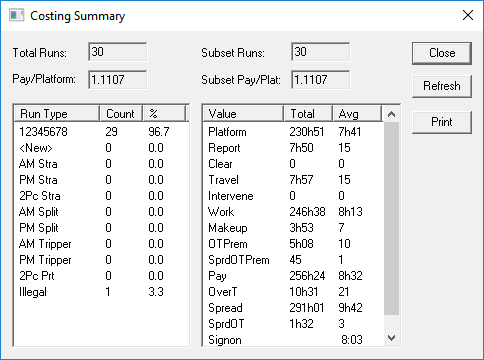
The Pay/Plat field shows the Pay/Plat for all the runs while the Subset Pay/Plat shows the Pay/Plat for the selected run type.
-
To print the summary, click Print.
The summary appears in a text editor format.
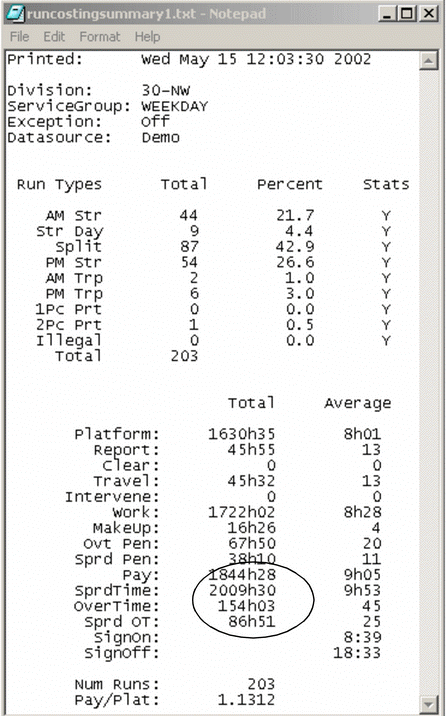
Save the file and print the file to the printer of your choice.