Place text in quotation marks for exact match search results.
Cutting by Run Type
There are different ways to cut the Run types.
If you are having difficulty achieving satisfactory run cuts by cutting all run types at
one time, then try to cut one run type at a time. Be sure to cut your most desirable runs
first. The Cut By Run Type feature enables you, for example, to cut
all your AM Straights first and your PM Straights next, and so on.
Note: The Cut By Run Type feature looks for the Left rule when you
attempt to cut runs. The Left rule refers to the leftover time that you do not want to
have when you cut a block. For example, you have a rule that does not allow leftover
time of less than two hours. A block of 17h30 is cut into two pieces of eight hours
each. The leftover time is 1h30 which is less than two hours therefore the runs are not
allowed.
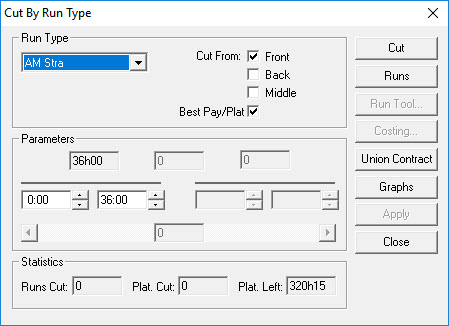
Click Runcutting > Cut By Run Type.
The Cut By Run Type dialog box appears.
Depending on which part of the block piece you want to start runcutting, select the
appropriate Cut From check box. For example, select the
Back check box to cut runs from the segment of the block which
starts from the late afternoon to the end of the block. Leave the
BestPay/Plat check box selected by
default.
To view the run statistics in a graphical form, click Graphs.
A histogram appears in the lower section of the Cut Pieces
and Uncut Pieces grids.
From the list in the Run Type frame, select the run type you want
to cut. If you only have run types that are one piece runs, the One Piece
Run option is automatically selected.
In the Parameters frame, change the time interval if necessary to
the time interval you require. The other fields in the Parameters
frames appear shaded if you only have one piece runs.
To view/change any of the contract rules, click Union Contract.
The Union Contract dialog box appears.
Click Runs.
A frame appears in the lower section of the dialog box.
Click Cut.
The runs appear in the lower section of the dialog box.
If you do not have a
Left contract rule, a message appears advising you that the selected run type does not
have a Left rule and asks if you want to continue. Click Yes.
(The Left contract rule applies to the remaining piece of the block from which a run is
cut.)
The following fields in the Statistics frame are
likewise filled in:
Runs Cut: Number of runs cut for that particular run
type.
Plat. Cut: Platform time of the segment cut.
Plat. Left: Platform time of the remaining block piece.
(This is initially filled in with the remaining platform time of the selected
pieces.)
To view the costing summary of the cut runs, click Costing.
The Costing dialog box appears.
From the list of cut runs, select the runs you want to include in the Cut
Pieces grid.
Optional: To cut another segment, select another check box in the Cut From
frame. For example, click the Front option to cut straights in the
morning segment. Repeat the procedure from steps 3 to 10.