
Entering Employee Labor Cost Allocations
Enter labor cost allocations for employees in the Employee Profile screen.
- Open the Employee Profile screen.
- Select Employee List.
- In the grid in the right pane, select an employee.
-
Select Cost Allocation:
 If any information already exists, it shows in the Cost Allocation dialog.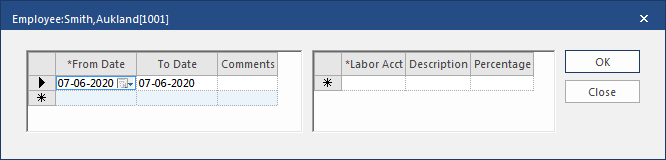
- Set the date range when the labor cost allocation applies in the From Date and To Date fields.
- Optional: Enter Comments.
- Select in another row to save your changes.
-
Select the date range and select a general ledger account in the
Labor Acct field.
The Description field is automatically filled based on your selection.
-
Enter the Percentage of employee costs to allocate to
the GL account.
Select on another row to save your changes. The percentages allocated for the date range must equal 100. Enter more Labor Acct and Percentage values for the date range, if needed.
- Select Close.