
Combining Rosters
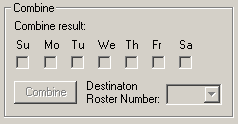
In the Combine frame of the Edit tab, you are able to combine runs that are on days of the week that do not overlap.
Note: No changes can be made on rosters for which Off Days
have been assigned or are frozen.
The following steps show an example of how runs from one roster can be combined with another roster:
- Select the rosters that you want to combine. For example, you have a roster that contains Monday/Tuesday runs and want to combine them with another roster that has only Thursday/Friday runs.
-
Click Combine on the Edit tab.
If any of the days of the week overlap in the selected rosters, this option is not be activated.
-
If a roster has a roster number and you want to keep that number,
select it from the Destination Roster Number drop-down list.
If at least one of the rosters you are attempting to combine has Off Days assigned, a message appears asking you to remove the Off Days to combine the rosters.
If you also attempt to combine frozen rosters, a message also appears showing the number of frozen rosters and asking you to change their status.
In both cases, click Yes.