
Unloading Runs
Runs that do not require rostering can be unloaded.
For example, the runs can be assigned to your extraboard or to your part-time workers depending on what is allowed by your transit site rules and union agreement.
-
In the Roster grid, select the runs to unload.
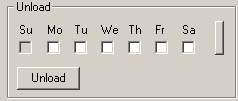
In the Unload frame, the check boxes of the appropriate days of the week and the Unload button are activated.
-
Perform one of the following steps:
- Select the days of the week of the run you want.
- To select all days, click the button on the right.
-
Click Unload.
A message appears asking you to confirm the unloading of the runs in the selected rosters.
-
To confirm the action, click Yes.
Note: No changes can be applied if there are Off Days assigned to any of the selected rosters.If some of the selected rosters that you want to unload from have Off Days, a message appears asking you to confirm that you want to unload the runs from a certain number of rosters.