Some tasks must be performed before you can create a holiday roster such as activating
the Holiday Rostering function using a query.
To activate the FX Holiday Rostering function, run the query,
FxHolidayRostering.sql in DB Edit.
Note: If activated and you load your data into the Holiday column in
the Rostering grid, you must unload all runs for all service types before running the
query to turn the function Off, otherwise, you will have orphan
data in your roster. Contact your system administrator about these tasks as
required.
Depending on the service you are using as the holiday, set either one of the following
Rostering properties to Yes:
Show Saturday Holiday
Show Sunday Holiday
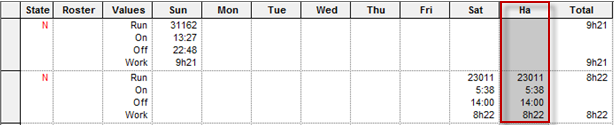
If you selected Saturday as the holiday, the
Rostering screen displays a Ha column: When you load the Saturday service, the
Ha column is filled in with the Saturday run information.
If
you selected Sunday as the holiday, the
Rostering screen displays a Hu column:
When you load the Sunday service, the
Hu column is filled in with the Sunday run information.
If you
use a combination of Saturday and Sunday
service for your Holidays, you can have both options turned on.
The screen displays both Hu and Ha columns
on the Roster screen.
This combination works in the same manner as when you only use one option. If
Sunday is used for the holiday, then
Sunday runs are used and if Saturday is
the holiday, then Saturday runs are used.
Note: You cannot leave a
Holiday run in the Ha or Hu column
open.
With each of these possible scenarios, you can proceed to build your roster sets.
After you have completed the rosters, you can import them
into Trapeze OPS.

 If you selected Sunday as the holiday, the Rostering screen displays a Hu column:When you load the Sunday service, the Hu column is filled in with the Sunday run information.
 If you use a combination of Saturday and Sunday service for your Holidays, you can have both options turned on. The screen displays both Hu and Ha columns on the Roster screen.This combination works in the same manner as when you only use one option. If Sunday is used for the holiday, then Sunday runs are used and if Saturday is the holiday, then Saturday runs are used.
 Note: You cannot leave a Holiday run in the Ha or Hu column open.