Applying Holiday Service
To apply a Holiday service on rosters, you can use a separate Holiday service or use your Saturday/Sunday service for the holiday during the week.
-
Load your runs into the Rostering screen.
You can also load runs from the Runcutting screen.
-
Complete your roster and save it as a roster file and/or to Scenarios.
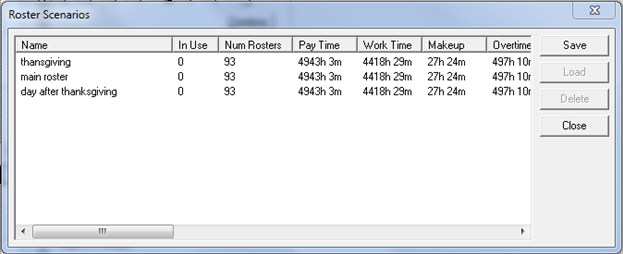
When saving to scenarios, you must have only one of each roster set, for example, one main roster and one holiday roster for each holiday that is not in the same week.
-
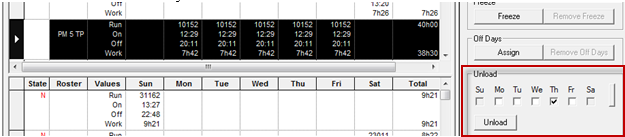
Remove Off Days in the Unload selection.
Select the day the holiday is going to run on and unload that work for the day.
The following example shows Thursday as the selected day:
-
Click .
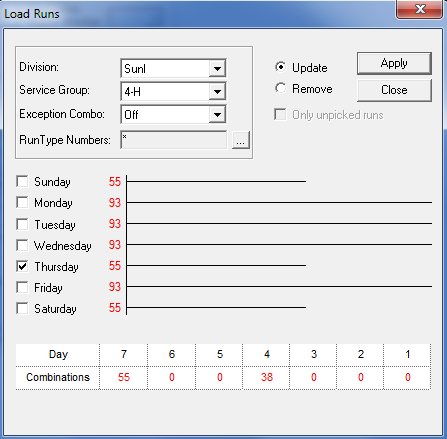
The Load Runs dialog box appears.
-
Select the Holiday Service Group, select the day in which you want the schedule to
load, and then click Apply.
The following graphic shows Thursday as selected day:
 The holiday work is shown in the Thursday column on the Roster screen: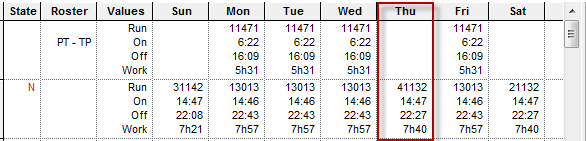
- Combine the Thursday work into the current roster set using the Combine Work function or by manually typing the run number in its corresponding roster.
-
Save the roster set or save it as a roster scenario.