
Defining Run Groups
At some sites, dispatchers are designated specific runs that they work with every day.
Before you begin
About this task
Procedure
-
On the Incidents tab, select the Run
Group option and click the ellipsis button (…) next to this
field.
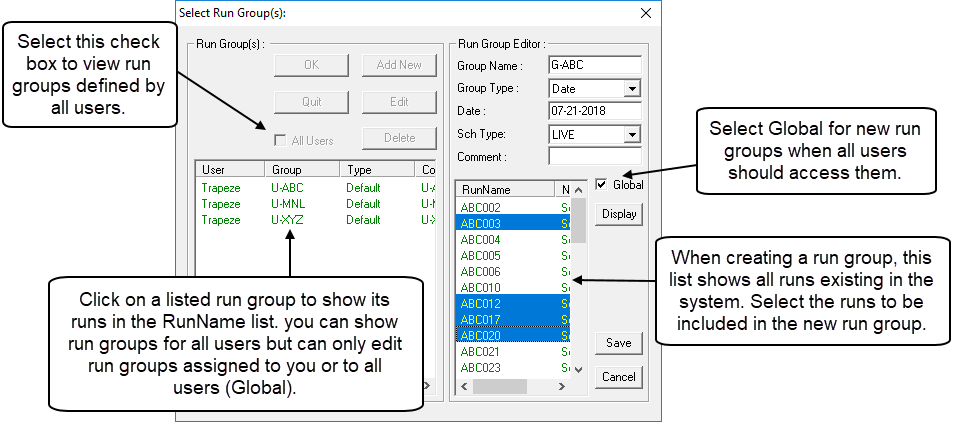
The Select Run Group(s) dialog box appears.
- Click Add New.
- In the Group Name field, type the name of the group.
-
Click a Group Type in the list:
- Default
- Click this group type if you work with a group of runs exclusively.
Whenever you open Dispatch, the Incidents tab automatically shows incidents for this Run Group.
- Date
- Click this group type if you are creating a run group to be used for
a specific date. For example, a holiday.
When you open Dispatch, the system always searches for a run group with the current date and automatically display that run group.
If no run group for the current date is found, the system reverts to the run group that has been set as the default.
- N/A
- Click this group type if the run group is NOT for a specific date
and if it is NOT the choice by default.
Whenever you open Dispatch, you can choose it to be shown from the Run Group(s) dialog box.
-
If you chose Date in the previous step, then in the
Date field, specify the date for which you are
creating a run group.
Typing a question mark (?) places the current date in this field.
Typing +2 sets the date two days forward from the current date and -1 sets the date at yesterday’s date.
-
In the Sch Type list, click the schedule type.
ALWAYS choose Live unless a run group is being defined for training purposes.
- Optional: Type a comment about the run group.
- Optional: If the run group is intended for all users, select the Global check box, which allows all dispatchers to view, edit, and work with the set of runs defined for this run group.
-
Click Display.
All existing runs defined within the system are shown.
- Press CTRL and click each run that is to be included in the run group.
- Click Save.