
Send Messages to MDTs From Dispatch Manager

For sites with MDTs, you can send messages to a driver if the vehicle has an on-board MDT.

Before you begin

Dispatch Manager must be open.

About this task

Sending messages through the Messages tab allows you to treat messages like action items, to which you can set Done or Undone statuses as necessary. For example, if you send a message to the driver about taking an extra trip, you can set the message as Undone, pending a response from the driver. When the driver responds, you can set it as Done.

Procedure

  1. Click the Messages tab.
  2. At the bottom of the tab, type the message in the field and click Send.
    The message appears in the Messages list. The Done column for the message row is empty, indicating the message is undone.
  3. When a response is received from the driver, right-click on the message and click Toggle Done.
    Yes appears in the Done column.
  4. Optional: The message status can be reset to undone by right-clicking on the message and clicking Toggle Undone.

What to do next
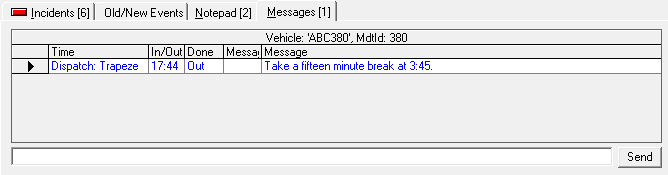
While you are looking at another tab, you can use the Messages tab label to quickly determine the number of messages that you sent to the driver for the selected run. For example, Messages [1] means that there is one message.
The Messages tab with one outgoing message visible.