
Adding New Comments
You can create comments that can be applied to all runs or travels or only to those in a specific service group.
Open the Runs or Travels screen.
-
Select a run or travel.
A set of commands appears at the bottom section of the screen.
-
Click Comment:
 The Comment pane appears on the right section of the screen.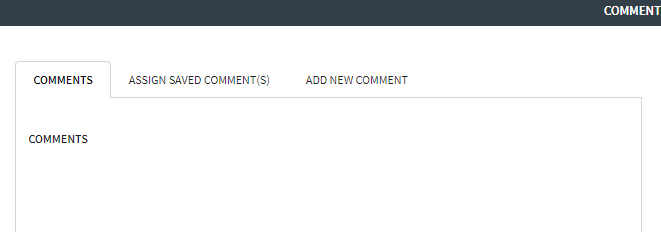
-
Click the Add New Comment tab.
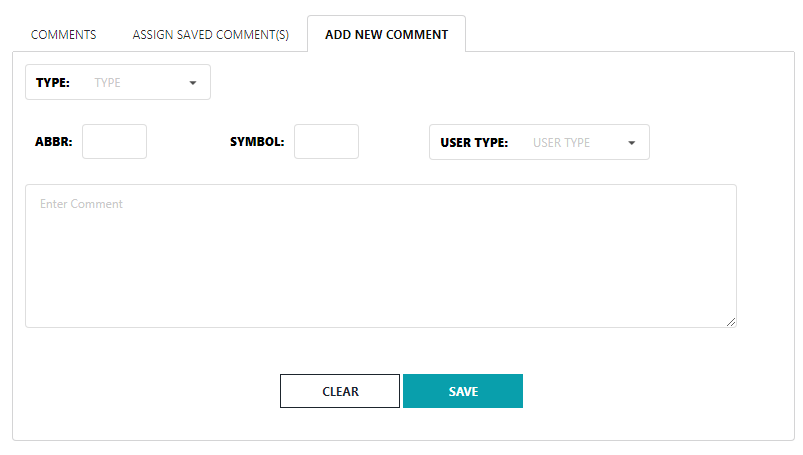 The Type, Abbr, Symbol, and User Type fields are mandatory.
 -
In the Type drop-down list, select one of the following
options:
- System/Global - If selected, the comment is applied to all lines.
- Service Group - If selected, the comment is applied to the service group in the current context. The Service Group field is shown beside the Type field. Click the appropriate service group.
- Required: In the Abbr field, type an abbreviation for the comment.
- Required:
To attach the trip schedule to a report, type a symbol in the
Symbol field. The symbol is shorter than an abbreviation
(maximum of four characters).
The full comment associated with the symbol is shown at the end of the Standard Driver Paddle report.
- In the User Type drop-down list, select the appropriate comment type.
- Required: In the text box, type the comment.
-
Click Save.
A message confirms that the comment has been successfully saved. The comment appears on the Assign Saved Comments tab when you select Service Group in the Type drop-down list.