When viewing trips on the Trip
Building screen, you may have more information on the screen than you need.
Modify the trips displayed on the screen using the Show tab.
With the Trips tab displayed, click the Edit button:
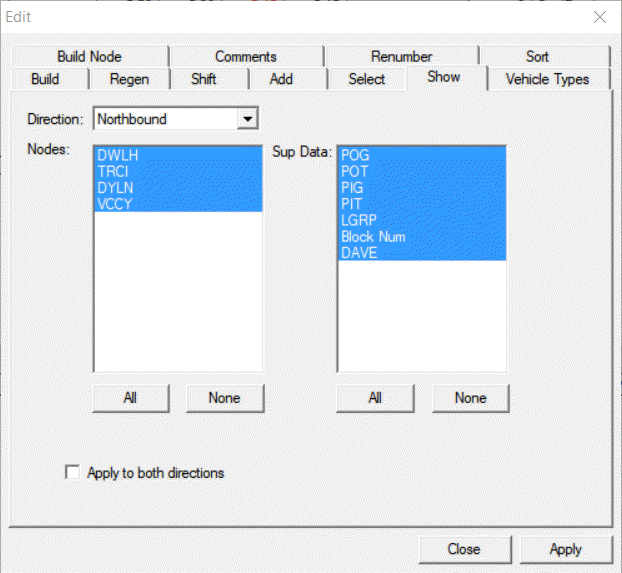
The Trips Edit dialog box appears.
Select the Show tab.
In the Direction drop-down list, click the appropriate
direction.
In the Nodes frame, perform one of the following steps:
Select the nodes that you would like to view on your screen.
To view all nodes, click All.
In the Sup Data frame, perform one of the following steps:
Select the types of supplementary data (if any) that you would like to view on
your screen.
To view all the supplementary data, click All.
Optional: To reset or clear your selection in the Nodes or Sup Data frames,
click None.
The selected items are no longer highlighted.
To apply your selection to both grids, select the Apply to both
directions check box.
Click Apply.
The nodes and supplementary data you selected appear on the Trips
grids.
Click Close.
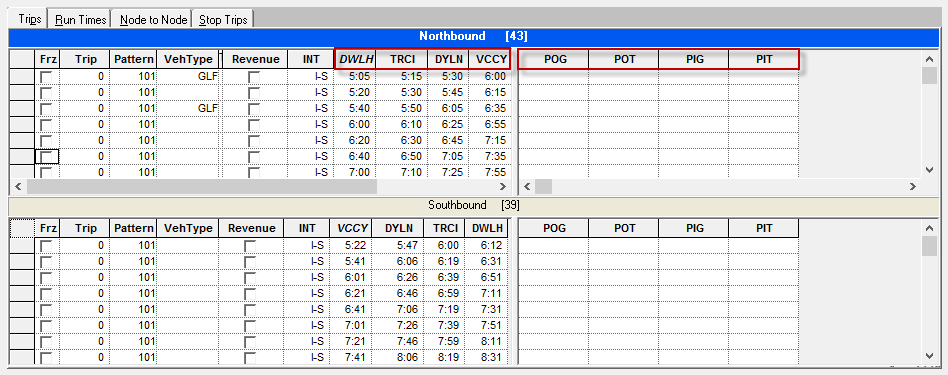
The following graphic illustrates how the Show feature is applied.
The highlighted column headings show the selected nodes and supplementary data items in the
Trips grid.