
Sorting Trips
If you have more than a few trips to work on, use the Sort tab to change the order in which the trips are displayed.
 and the Move Down button:
-
With the Trips tab open, click the Edit button:

The Trips Edit dialog box appears.
-
Select the Sort tab.
The following graphic shows sample data:
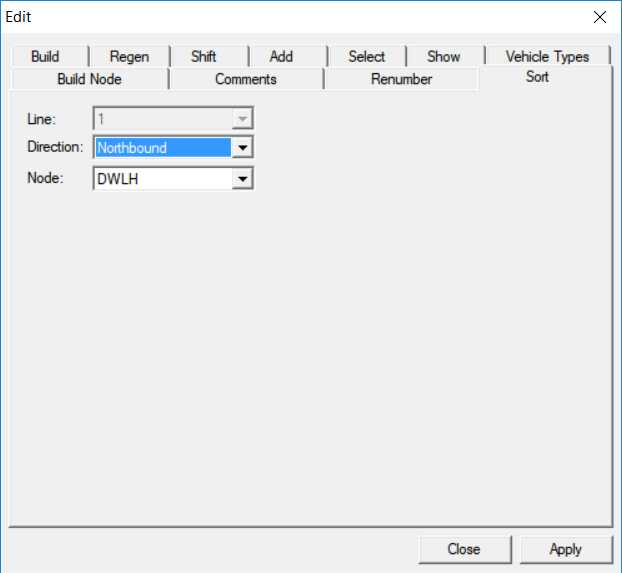
- In the Direction drop-down list, select the appropriate direction.
- In the Node drop-down list, select the node from which you would like to sort the order of the trips.
-
Click Apply.
The nodes are sorted in the Trips grid in descending order even though there may be missing trip times. They are sorted based on the selected node.
-
Click Close.
If the selected sort node is not on the pattern and there are no common time points between the pattern and other patterns in the same direction, the build node is applied as the sort node.