
Building Trips on Run Time Interval or Trip Count
The patterns and run times you have created provide you with the data to build your trips.
- On the Trips tab, make sure your context is set to include the patterns for which you want to create trips.
-
Click the Edit button:

The Edit dialog box appears.
-
Select the Build tab.
By default, the line field shows the selected line in context.
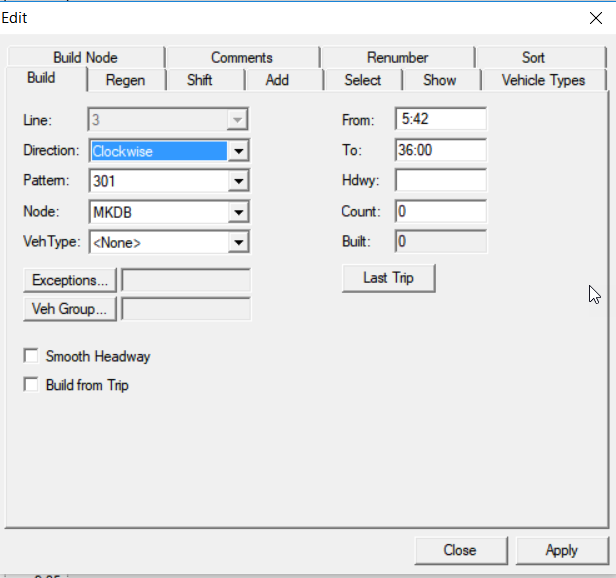
- In the appropriate drop-down lists, select the Direction, Pattern, and Node options that you want to use.
- To use run time interval, type a start time in the From field.
- To use run time interval, type the end time of the interval in the To field.
- In the Hdwy (Headway) field, type what you have determined as the frequency of trips in minutes.
- Optional: To build trips using a runtime interval, leave the Count field blank.
- To use trip count, type values in the From and Hdwy fields (see steps 5 and 7). In the Count field, type the number of trips that you require for the run time interval.
-
Click Apply.
The new trips appear on the Trips tab and the number of trips built appears in the Built field. If you entered a value which exceeds the number of trips that can be accommodated within the selected interval, a message appears warning you that not all trips were built.
-
Repeat the appropriate steps depending on how you want to build your trips for the
other patterns.
All the trips built are less than or equal to (<=) the To time. This means that all trips that are built occur before the to time you entered.
- Click Close.
- Optional:
To prevent changes being made on the trips built, apply the
Freeze option.
The Frz column displays check marks for the selected trips that have been frozen.