
Renumbering Trips
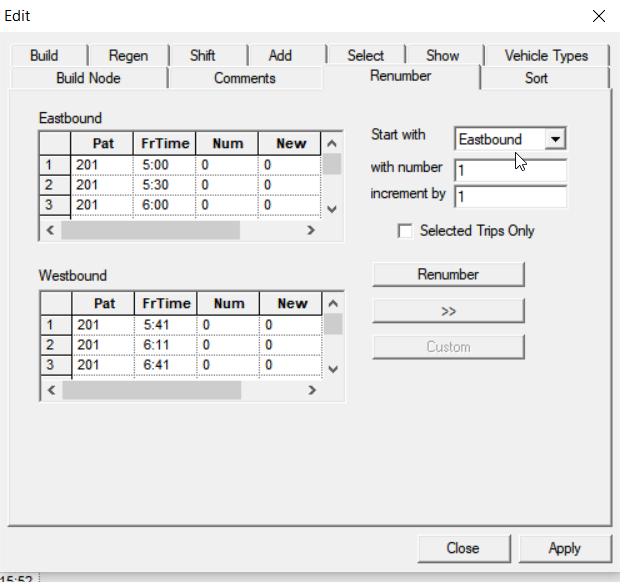
When trips are built, each has a number of 0 by default, as shown in the Num and New columns on the Renumber tab of the Trips Edit dialog box. Renumber the trips according to your transit site requirements.
- On the Trips tab, select the trips you want to renumber. If you do not select trips, the renumbering applies to all the trips on the grid.
-
Click the Edit button:

The Trips Edit dialog box appears.
-
Select the Renumber tab.
- Optional:
If you have customized numbering , click
Custom and click Apply.
Contact your Trapeze representative if you need more information.
- In the Start with list, select the appropriate direction.
- In the with number field, type the number with which you want to start the series.
- In the increment by field, type a value by which you want the numbers to increase, for example, 2.
- To renumber the selected trips, select the Selected Trips Only check box.
- Click Renumber.
- Click Apply. The new numbers appear on the Trips tab in the Trip column.
- Optional: Click the double greater sign (>>) button. If you already clicked Apply, the new numbers (in New column) replace the old numbers (in Num column). If you have not yet clicked Apply, the old numbers replace the new numbers.
- Click Close.