
Selecting Trips
The Select feature allows you to select trips on which to apply a procedure such as regenerating or deleting specific trips.
-
With the Trips tab displayed, click the Edit button:

The Trips Edit dialog box appears.
-
Choose the Select tab.
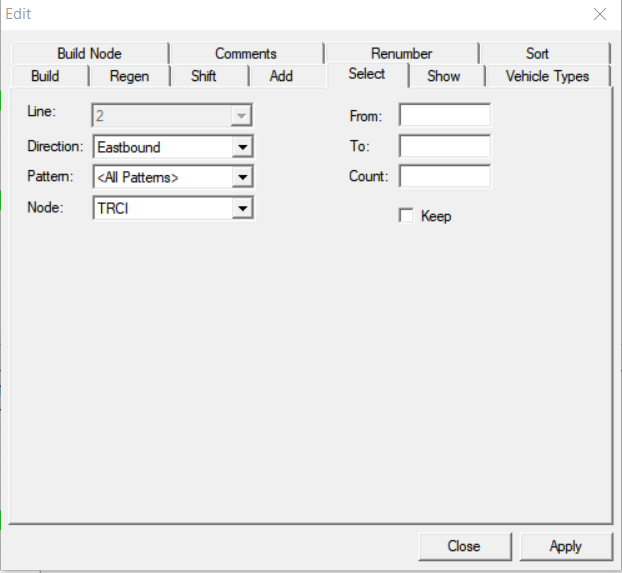
- In the drop-down lists, select the Direction Pattern, and Node of the trips that you want to select.
- In the From and To fields, type a time range.
- Optional:
In the Count field, type the number of trips
you want the system to display for the selected time range.
For example, type "4" if you only want the first four trips selected within the time range.
-
Click Apply.
The trips that match the criteria you entered are highlighted on the Trips tab.
- Optional: To select other trips with the same direction, pattern and node you selected in step 3 but within a different time range, select the Keep check box.
-
Repeat steps 4 to 6.
The trips with the new time range are highlighted together with the previously selected trips.
- Click Close.