
Updating Workspace Layouts
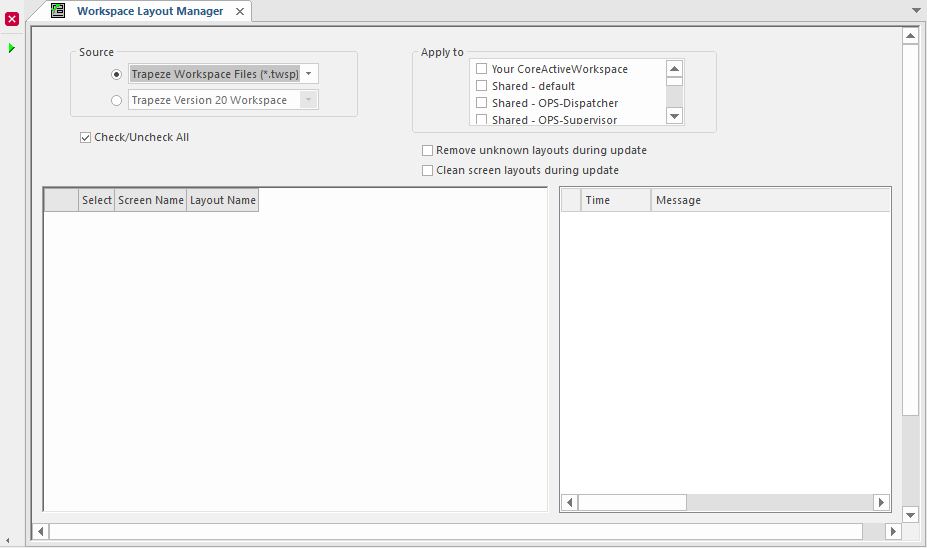
Update your workspace layout using a source workspace. This can be an exported workspace or one stored in your database.
-
Select .
-
In the Source section, choose an exported or local
workspace from which to update:
Option Description Trapeze Workspace Files (*.twsp) From the dropdown list, select Open. Navigate to the export workspace file and select Open. Trapeze Version 20 Workspace From the dropdown list, select a local workspace. Screen and layout names are shown in the left grid. The value (unknown) in the Screen Name column means there is no known usage of the layout in the upgraded version.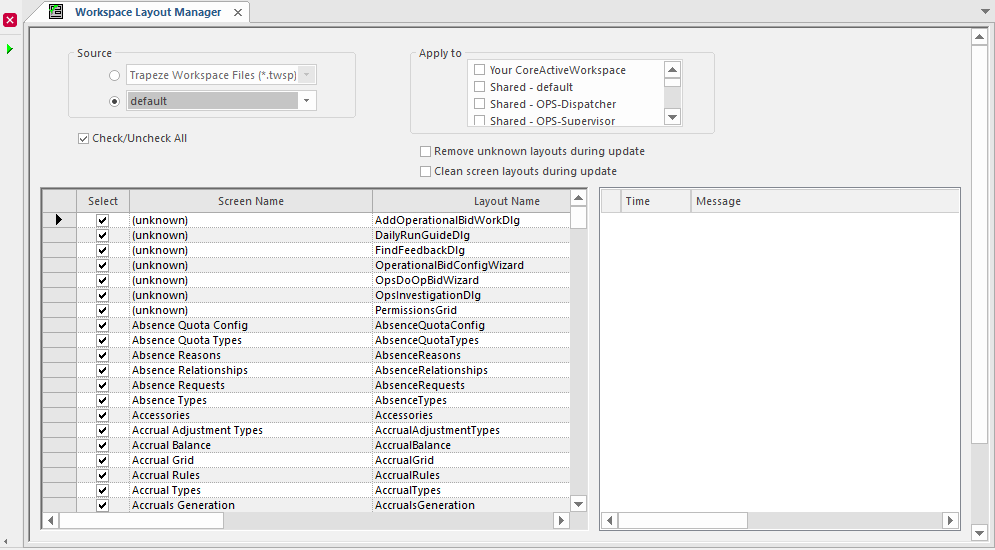
- In the Apply to section, select the workspaces to update.
- In the Select column, select the layouts to update in the workspace and clear the layouts you do not want updated.
- Select Remove unknown layouts during update to exclude unknown layouts from the update process.
- Select Clean screen layouts during update to apply a layout without bold, zoom effects, or custom colors.
-
Select Perform Workspace Layout Upgrade:
 When complete, the list of updated layout files is shown in the right grid.
 - Save your changes when you close the screen.