
Splitting Fixed Route Blocks
Split a block into two or more separate but associated blocks as needed.
- Open the Vehicle Assignment screen and set the Context (F3).
- Select the block to split.
-
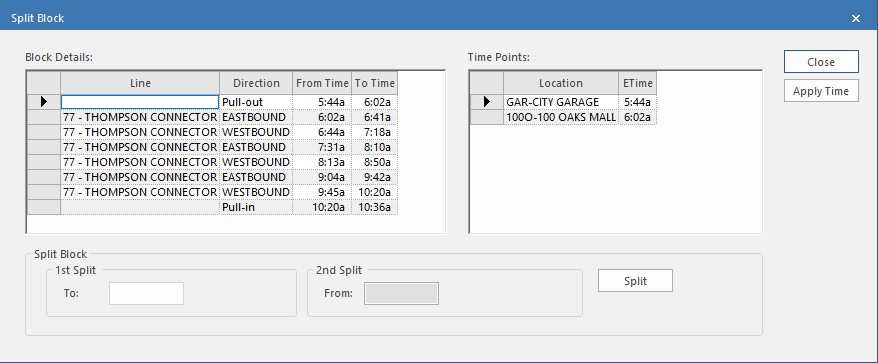
Select Split or Undo Split Block:

-
To look up the split time based on a route location:
- To enter the split time manually, enter the time in the 1st Split To field.
-
Select Split.
If a vehicle was assigned to the block, the Create Maintenance dialog appears.
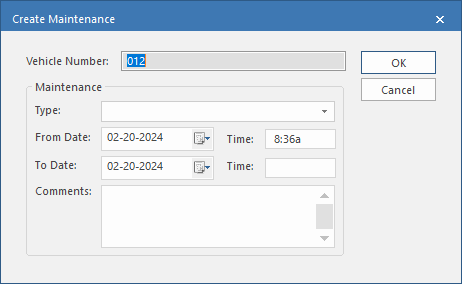
If prompted, you can create a maintenance
record:
- Select the maintenance Type.
- Set the start time for the maintenance in the From Date and Time fields.
- Set the end date of the maintenance in the To Date and Time fields.
- Optional: Enter Comments.
- Select OK.
If Trapeze OPS is integrated with Trapeze EAM you can create a service request:
- When prompted to create a service request, select Yes.
- In the Create Service Request dialog, specify the service request information.
-
Select OK.
The block is split and a new block record appears in the blocks pane. You can assign a vehicle to the new block.
You can split the block without creating a maintenance
record:
- Select Cancel.