
Customizing List View
Customize the look of the list view and which columns the list view shows using Customize Grid.
- Select the pane with the list view to customize.
-
Select Customize Grid
 or right-click in the column header and click
Customize.
or right-click in the column header and click
Customize.
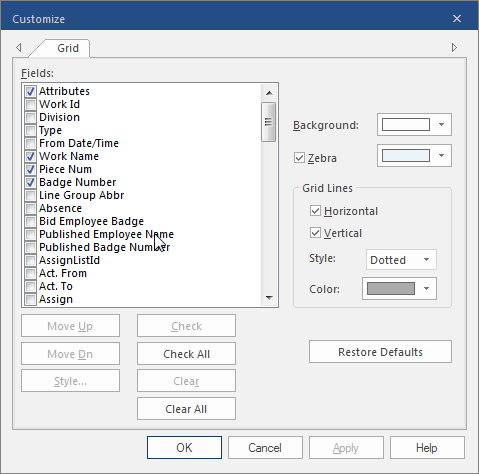
-
In the Fields list, select the fields (columns) to show
in the screen.
You can also use this procedure to unhide specific columns.
-
Select from the following:
Option Description Move Up Moves the selected field (column header) up the list. The list order (top to bottom) determines the order (left to right) columns appear on your screen.
Move Dn Moves the selected field down the list. The list order (top to bottom) determines the order (left to right) columns appear on your screen.
Style Opens the Field Style dialog. This allows you to change the appearance of the selected field label. 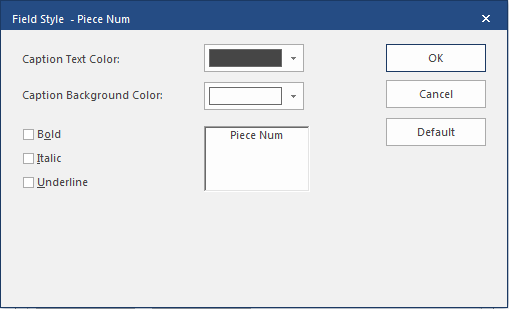
Check/Check All Select which fields will appear as columns in the list. To check one at a time, highlight the item and select Check, or select the checkbox next to the item.
To check all items, select Check All.
Clear/Clear All Clear the items you do not want to appear in the list either one at a time (Clear) or all at once (Clear All). Background Controls the background color of the column headers. The background will be the same for all headers, you cannot choose different background colors for individual columns.
Zebra If selected, the background of the records in the list appear in alternating lines of color. Grid Lines Set the Style and Color of the Horizontal and Vertical lines. You can also add or remove the Horizontal and Vertical lines by selecting or clearing them. Restore Defaults Restores the original layout settings. -
To hide a column, click the column header and right-click
Hide.
You cannot hide mandatory columns.
- To unhide all columns, right-click anywhere in the header and click Unhide.