
Setting Up Real Time Views in Dispatch Manager
The system has base real time view types from which you can build views that show events with specific providers, subtypes, or column data.
Before you begin
About this task
The data that the views show are constrained by thresholds defined in Trapeze6 context properties, such as limits for excessive on-board time, late trips, and late pull-outs. For example, you can create two views for excessive OBT: one with a 30-minute threshold and the other with a 60-minute threshold. Using these two views allows you to differentiate between less serious and more serious OBT infractions while keeping track of both types.
Procedure
-
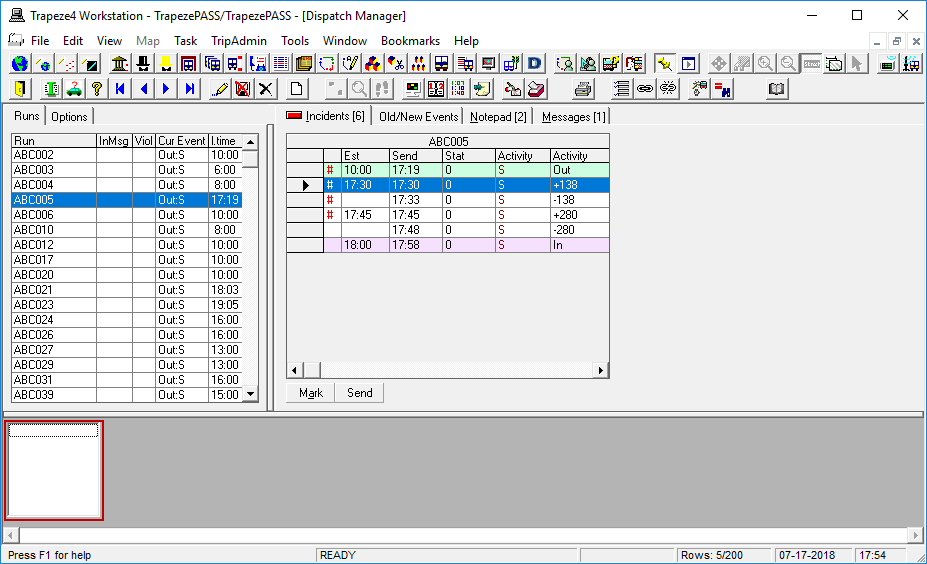
Right-click on the field in the bottom pane:
-
Click Edit list of Sets.
The RTV Sets dialog box appears.
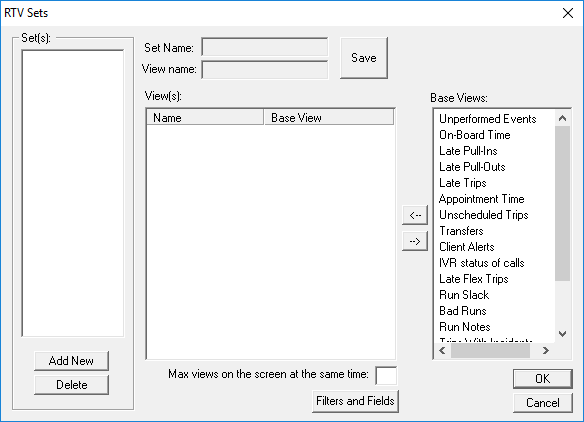
- Click Add New.
- In the Set Name field, type a name for the set of real time views.
- From the Base Views list, select a base view and then click the left arrow to move it to the View(s) list.
-
To specify filters and columns for the view, click Filters and
Fields.
The Fields and Filters for RTV View dialog box appears.
-
Under Filters, specify filters for the view. To revert to
default filter settings, click Set filters to default values.
Not all views have configurable filters.
-
In the Fields list, click the columns you want to show in the
view:
If a view has too many columns, you may have to scroll horizontally to see more data, especially if the set is configured to display multiple views on screen at once.
To Do this Show a column in the view Select the column check box. Remove a column from the view Clear the column check box. Select all columns Click Check All. Remove all columns Click Clear All. - Optional:
Move fields to put them in a different order in the view:
Clicking Up or Down moves the selected field one position. To move the field more than one position, keep clicking Up or Down until the field is where you want.
To Do this Move a field to the left Click Up. Move a field to the right Click Down. -
Add any additional views to the set.
To remove views from the set, select a view and then click the right arrow to move it to the Base Views list.
- Optional:
In the Max view on the screen at the same time field, type a
number to specify the maximum number of views that can be shown on the screen at once when
the set is selected.
If the number of views in the set exceeds the number specified here, you can click the arrow at the bottom right corner or use the scroll bar to display the other sets.
- Click Save.
- In the View name field, type a name for the view.
-
Click OK.
A confirmation message appears.
- Click OK.