
Splitting Trips at Common Nodes on Multiple Lines
You can view the trip times of multiple lines at a common node in separate columns.
-
On the Trips tab, click the Configure button:
 The Configure dialog box appears. In the example in the following graphic, the highlighted row shows the node, TRCI and stop, TrpCtyB2. They appear to be the same and the system recognizes them as being at the same location.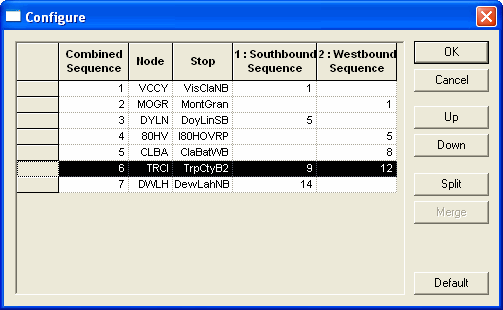
-
Click Split .
Another row appears below the selected row
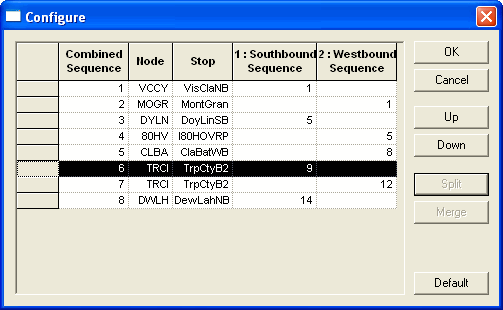
In the example shown, the highlighted row shows the node, TRCI on row 6 while the stop, TrpCtyB2 is on row 7.
- Optional: To change the sequence of the nodes, select the node you want to move and click Up or Down as appropriate.
- Click OK.
- Optional:
To return to the original configuration when splitting or
merging, click Default.
A message appears asking you to confirm that you want to overwrite the selections you have made.
- Click Yes