Adding Signatures to Performance Records
Employee or supervisor signatures can be added to incidents and absences that affect employee performance.
- Open the Employee Profile screen and set the Context (F3).
- Select an employee.
-
Select Incidents.
You can also add signatures for Absences, or through the Incidents screen.
- Select an incident.
-
In the screen toolbar, select the Add Performance
Details button:
 If performance details have already been added, select the Performance Details button:
 The Add Performance Details dialog appears.
 - In the Administrative Action(s) area, create a new record or select the record to be updated.
-
In the Signature column, select the
Signature button.
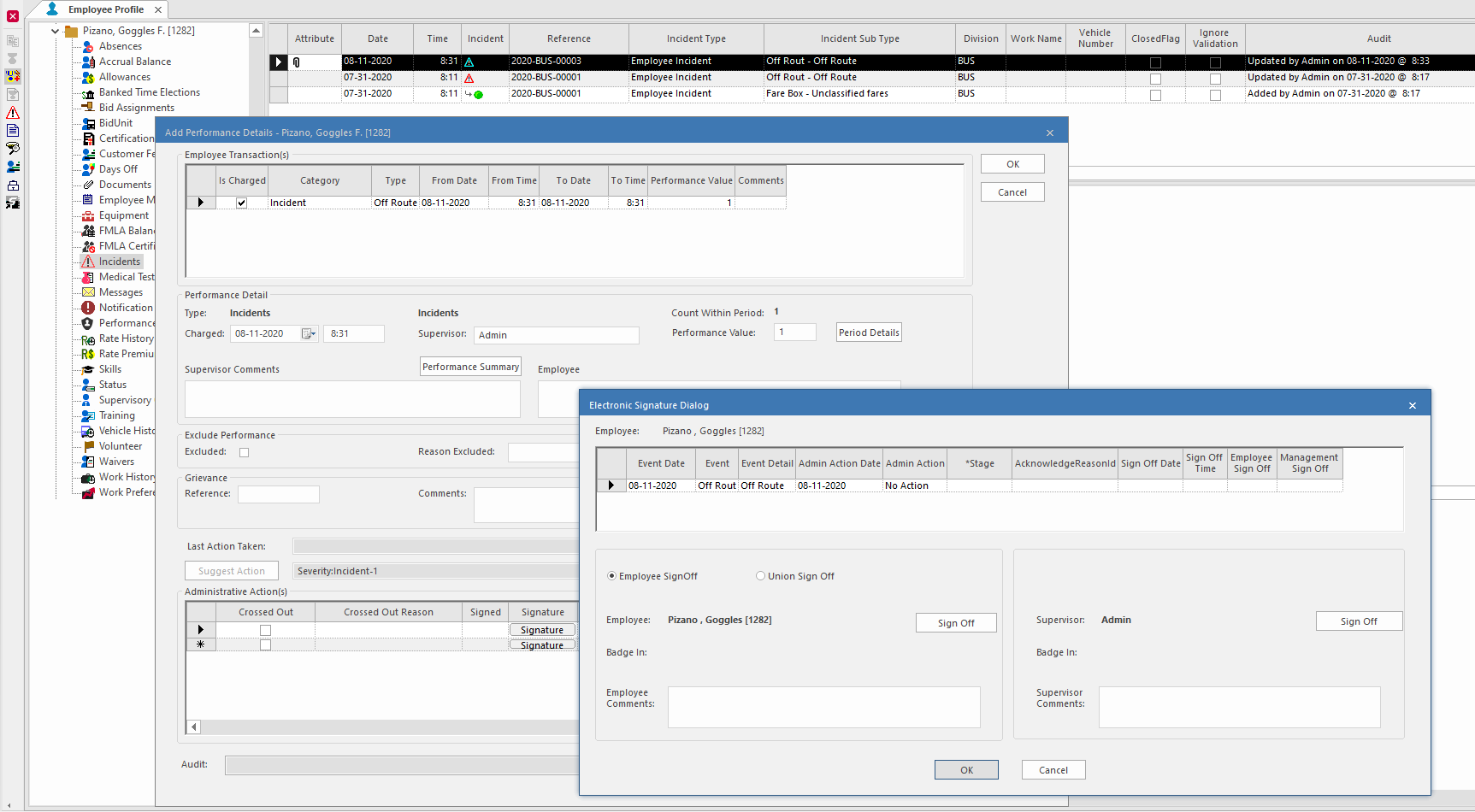
The Electronic Signature Dialog appears.
-
Select either Employee Sign Off or Union Sign
Off.
Only one option can be selected.
- Select the Sign Off button.
-
Enter the BadgeNum (badge number) and
PinNumber (PIN) for the person signing off on the
performance action.
If an error was made, use the X to cancel out of the sign off dialog.If Sign-In Terminal is installed, then the method defined in the is used for the signature. If the property is defined as KEY, then badge and PIN are used. Otherwise, it uses Sign-In Terminal validation based on the defined properties. Depending on system setup, a card reader or other device will need to be attached to the computer used for the employee signature.
-
On the keyboard, press Enter.
The dialog closes. The Employee Sign Off column has a check mark.

- Enter any Employee Comments or Union Comments.
-
If a supervisor signature is required, use the Supervisor Sign
Off button and enter the supervisor
BadgeNum and PinNumber. Press
Enter.
Typically, a supervisor signs off on the record in a different session than the employee or their union representative.If Sign-In Terminal is installed, use the system-required method for sign off.The Management Sign Off column has a check mark.
-
Select a Stage:
- (N/A)
- Informal
- Formal
- Arbitration
- Labor
-
Select an acknowledgement reason
(AcknowledgeReasonId).
Acknowledgement reasons are defined by a system administrator in OPS Performance Acknowledgement ancillary data.
- Select OK.
- In the Performance Details dialog, select OK.
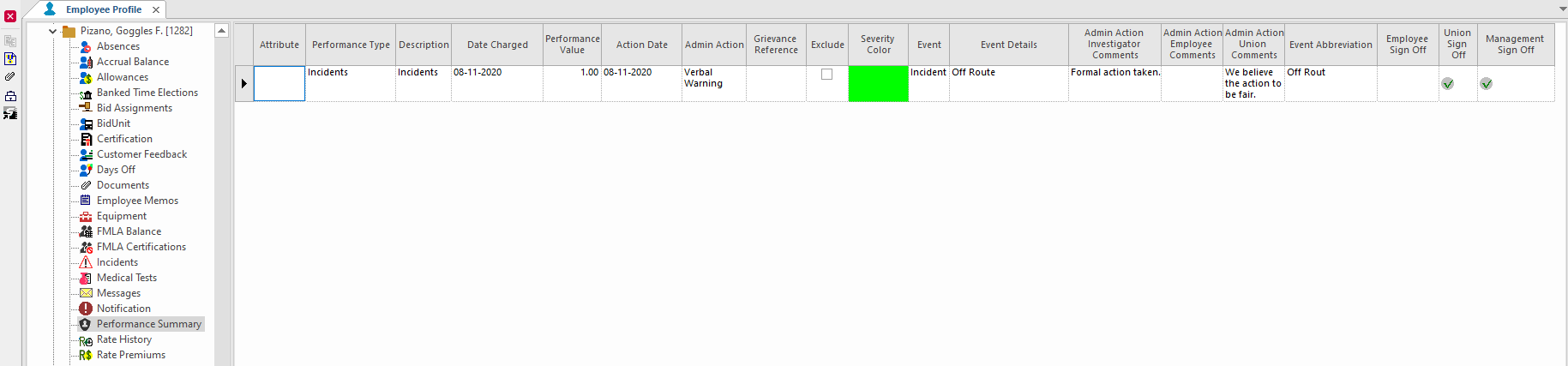
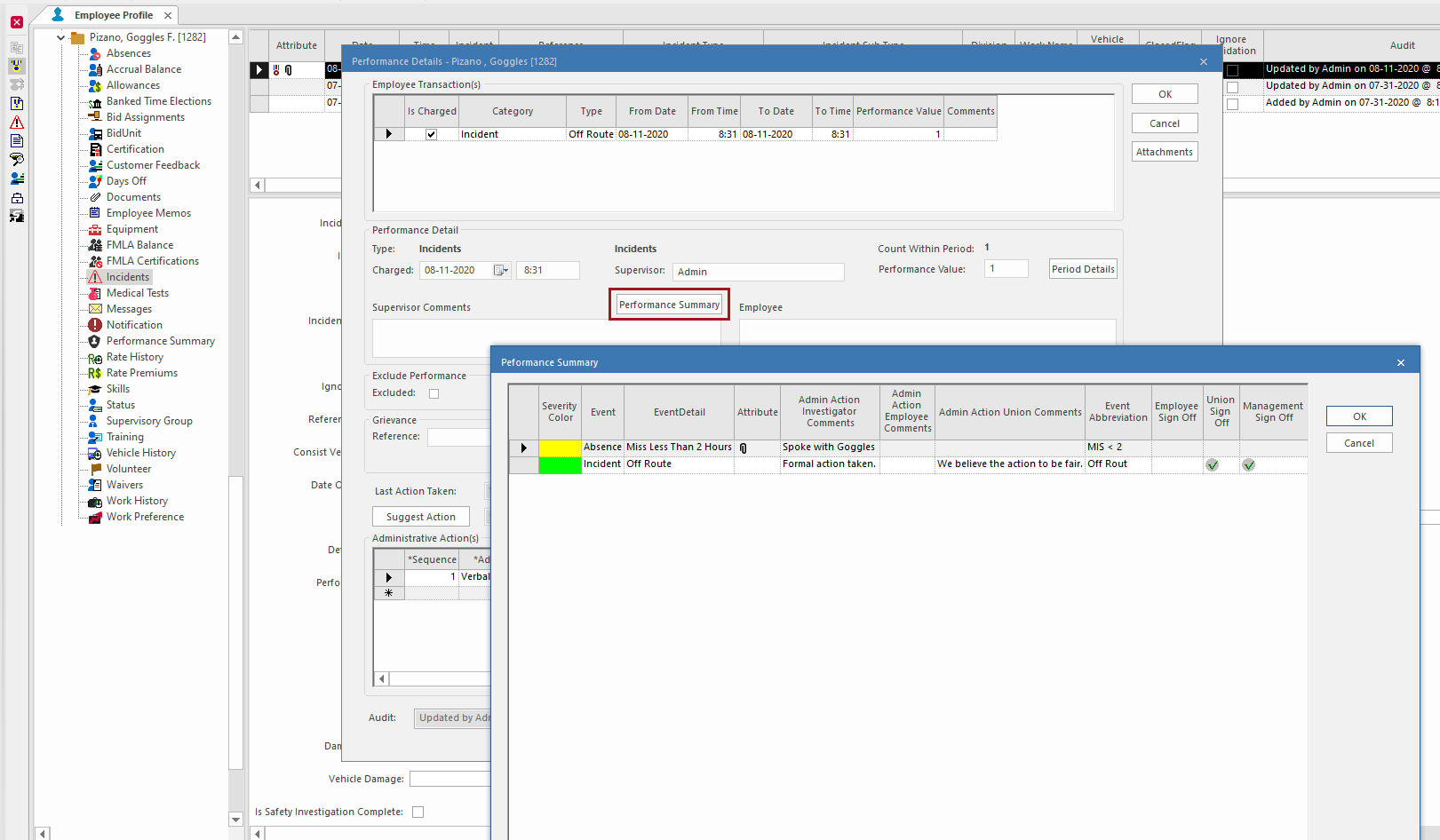
Details can also be viewed in the Performance Details
dialog by selecting Performance Summary.