Adding Case Comments
System users can add comments to cases when they need to provide more information for other users.
Before you begin
Procedure
-
Select the case card of the case to which the comment will be added.
Case information, which may include Client Information, Case History, and Infractions, for the selected case is visible.
-
In one of the panes, click the Menu
button:

-
Click Case Comments.
Case comments appear in the selected pane.
-
Click Add To Case:

The Add a Comment dialog box appears. - Type a comment.
-
Click OK.
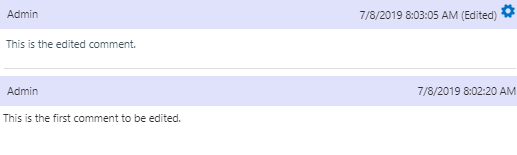
The comment is visible in the Case Comments widget. The name of the user who created the comment and the date and time that the comment was made are shown in the comment heading bar.
- Optional:
To edit the comment, click on the comment and change the content as
needed.
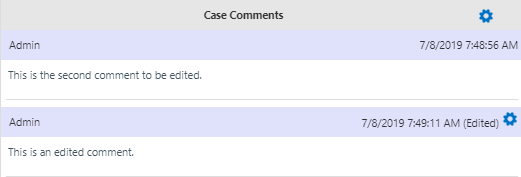
- Optional:
To view edited comment history, click the Comment
History button:

Comment history is visible in the Case Comments widget.